Adding a Payment Method
⚠️ The SaaS-hosted SFTP Gateway (Shared Hosting / Single User Plan) has been retired and is no longer offered.
The instructions below are preserved for reference only and no longer apply. Looking for a hosted option? Start a free 14-day SFTP Gateway Hosted Trial — no credit card required, with full access to the web admin interface. If you'd like to discuss your options, contact us at support@thorntech.com.
TLDR - Quick Summary
What: Add payment method for Single User Plan subscription
Payment: Account > Payment methods > Add Payment Method > Enter card details
Billing: Account > Addresses > Billing address > Edit > Save Address
Note: Check "Update payment method for all subscriptions" when adding
Overview
This article will walk you through adding a Payment Method & configuring a Billing Address in your ThornTech account for the Single User Plan.
Adding a Payment Method
Before creating any new SFTP users, you are required to configure a Payment Method.
You can accomplish this by going to Payment methods on the left-side menu and selecting Add Payment Method.
Make sure to check the box for Update the payment method used for all of my active subscriptions so the new payment method will take affect on your current subscription.
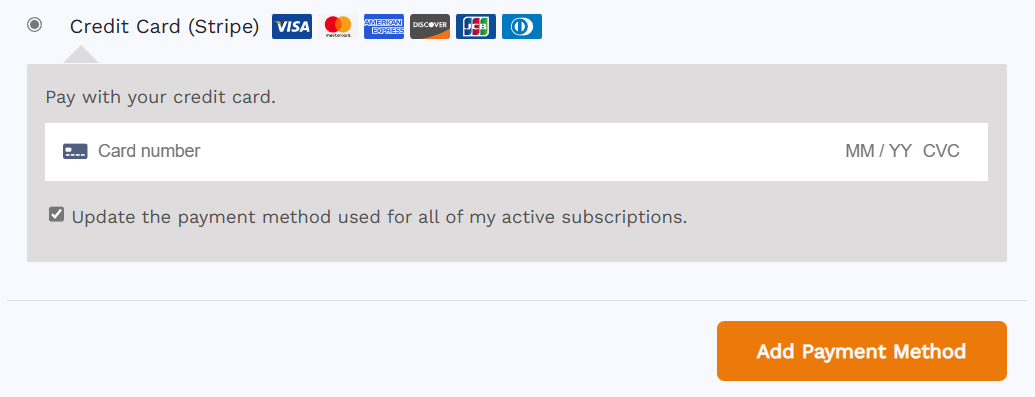
Then, enter in your Card information such as the Card Number, Expiration date and CVC.
After you've entered your information, click Add Payment Method.
Configuring your Billing Address
Once your Payment method has been added, you will want to configure your Billing Address.
On the left-side menu, go to Addresses and under Billing address click Edit.
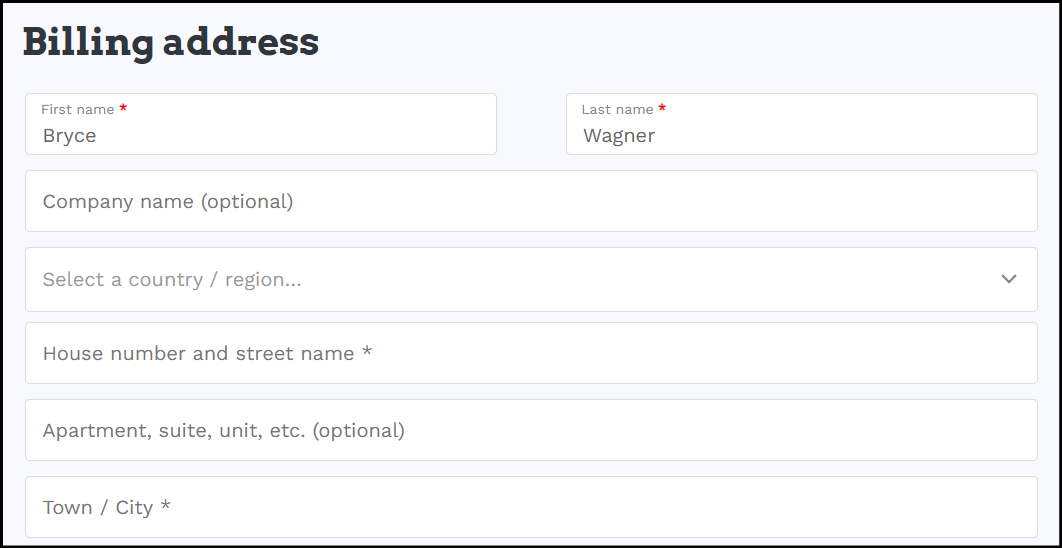
After filling out your Billing information, click Save Address.
Now that your Payment method & Billing address have been configured, you should now be able to add additional users to your current subscription.