Retrieving the Connection String
Purpose: Get the Azure Storage Account Connection String for StorageLink Cloud Connections.
Steps:
- Go to Azure Portal → Storage accounts
- Select your storage account
- Navigate to Security + networking → Access keys
- Click "Show" then copy the Connection String
- Paste into StorageLink Cloud Credentials field
Alternative: Use Managed Identity instead of Connection String for passwordless authentication
Product: StorageLink by Thorn Technologies — cloud storage gateway for secure file sharing
Overview
Check out this article for configuring a Service Account for permissions to your Google Cloud Bucket. Otherwise, if you're on Azure, continue on to find out how to obtain your connection string.
A Connection String is a unique access credential that StorageLink uses to read and write files to an Azure Storage Container.
Finding the connection string
To find the connection string in your storage account, you can follow the below steps:
Go to the Storage accounts console in the Azure portal.
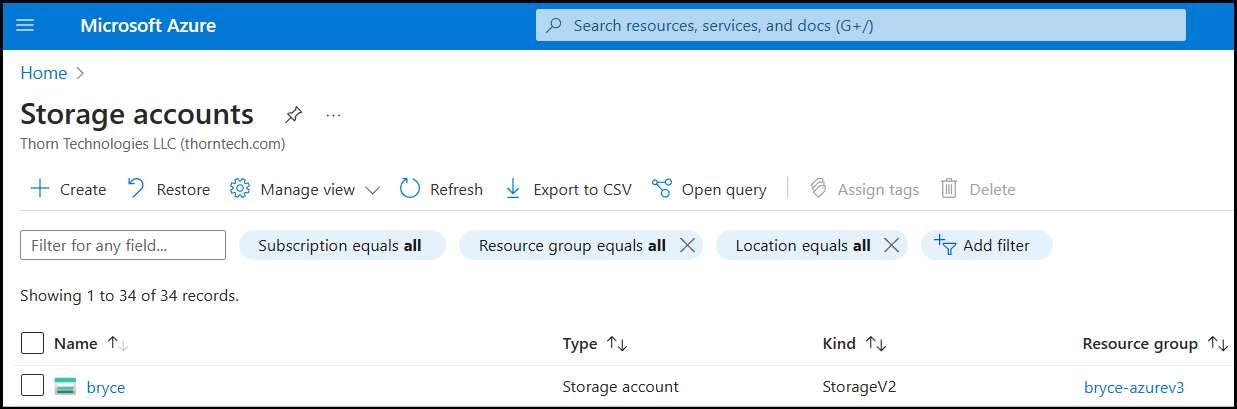
Click into the storage account you would like to use and on the left side-bar menu, under the Security + networking section, click on
Access keys.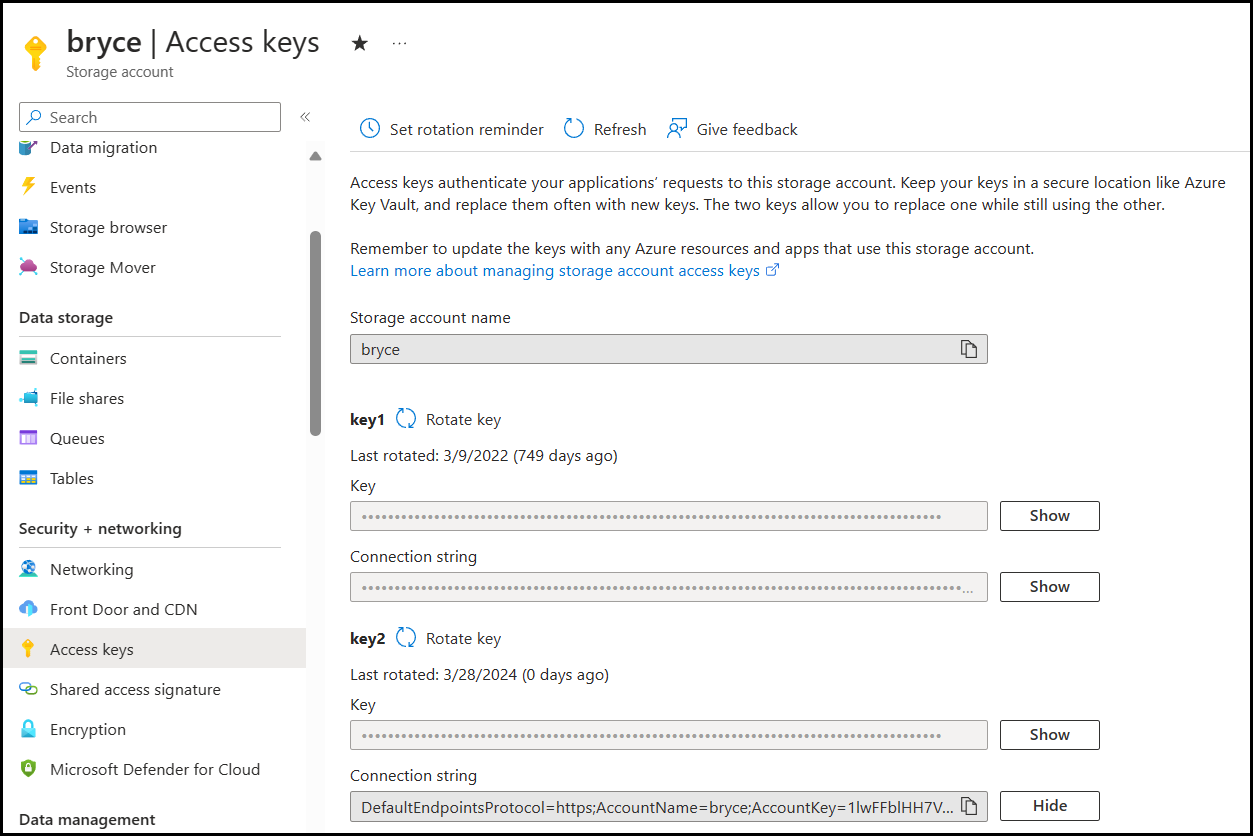
Click the
Showbutton and then click theCopy to clipboardbutton to copy the connection string.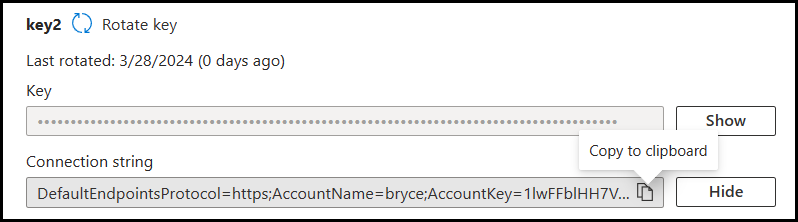
You can then paste that connection string value into the StorageLink Cloud Credentials Connection String field.
