
Setting up Instance Identity for StorageLink
Purpose: Let StorageLink access Google Cloud Storage through the VM's attached service account (instance identity) instead of a JSON key file
Steps:
- Stop the VM — identity settings cannot change while it is running
- Click Edit, and under Identity and API access → Access scopes, select Set access for each API
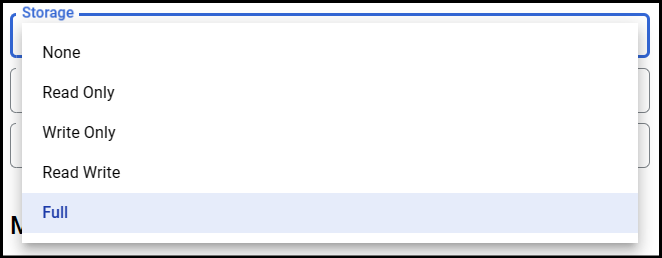
- Set the Storage API to
Full, click Save and start the VM
Next Step: In your Cloud Connection, select Use Attached Service Account for the Cloud Credentials
Verify: Test Connection should return 3 green checkmarks — if not, check the instance service account's Cloud Storage permissions
Product: StorageLink by Thorn Technologies — cloud storage gateway for secure file sharing
Overview
This article goes over how to set up StorageLink with a Attached Service Account, otherwise known as an Instance Identity.
Cloud Credentials can then use this Identity, instead of using a JSON Key File.
Configure API & Identity Management
In order for your VM to have full access to Cloud Storage by default, you will need to grant your instance's service account Full permission to Google Cloud Storage. This can be accomplished by configuring the API and identity management settings on your VM.
First, you will need to Stop your VM, as you cannot change the identity management settings while the instance is running.
Once your instance has been stopped, under the Details tab, click Edit.
Scroll down until you see the Identity and API access section.
Under Access scopes, select the Set access for each API radio button.
The API you want to configure is the Storage API. Set this value to Full. This will grant your instance all the necessary permissions to Google Cloud Storage.
Click Save to confirm your changes, and then Start the instance up again.
Configure your Cloud Connection
Now that your VM has the necessary permissions to Google Cloud Storage, select Use Attached Service Account for your Cloud Credentials.
To verify you have the correct permissions, you can use the Test Connection button.
If you don't return 3 green checkmarks when using Test Connection, check that the Service Account of the instance has the necessary permissions to Google Cloud Storage.