
Groups in StorageLink
Purpose: Grant folder access to a set of users at once, and let an identity provider place users into groups at sign-in (StorageLink 1.4.0 and later)
How it works:
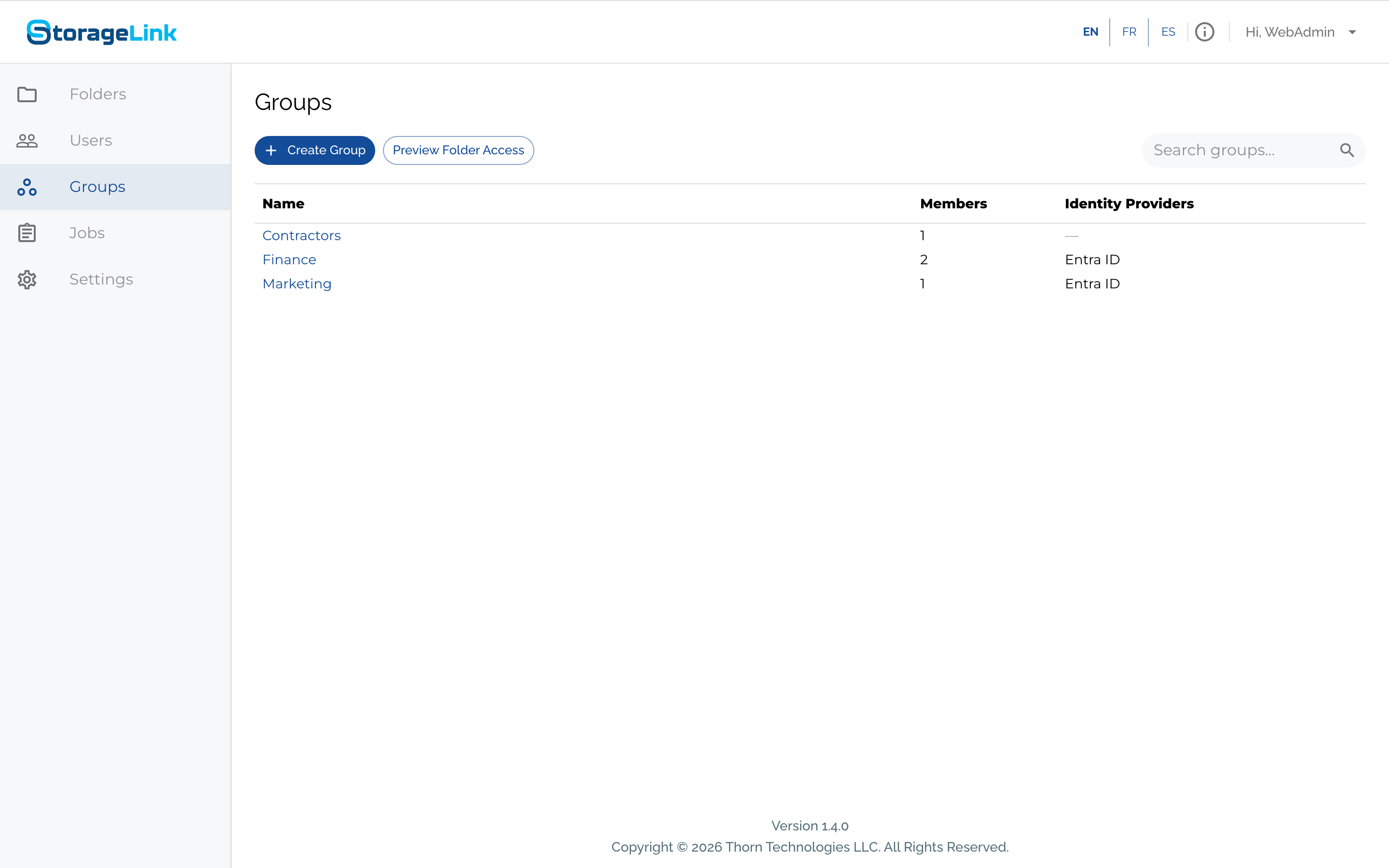
- A group holds folder grants and members. Grant a folder to the group once and every member gets it.
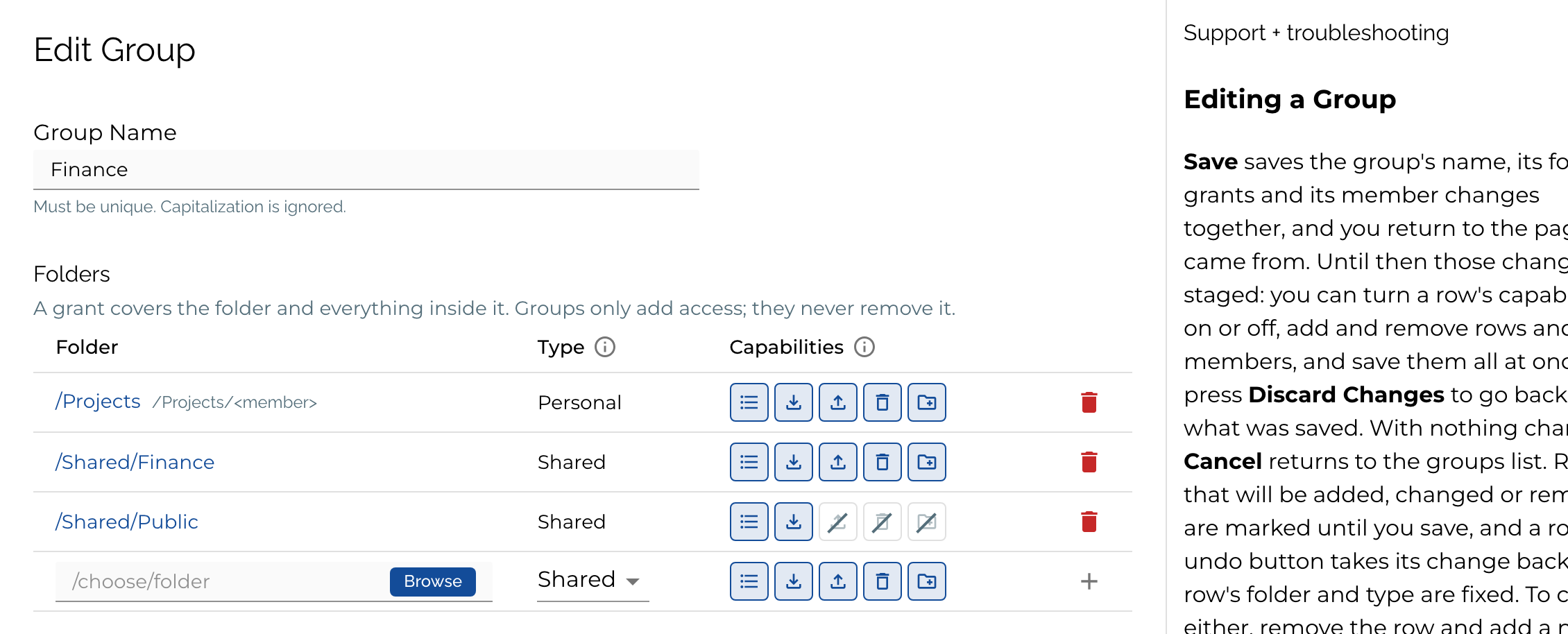
- A grant names a folder, a Type (Shared: every member gets the same folder; Personal: each member gets their own subfolder under it) and the capabilities it allows: List, Download/Preview, Upload, Delete/Overwrite/Rename and Create Folder.
- Access only adds up. A user's grants from every group, plus the folders granted to them on their own, combine; a narrower grant never takes away what another gives.
- Members are added by an administrator on the Groups or Users page, or by an identity provider through Group Mappings.
Steps: Groups → + Create Group → name the group, add folder rows and members → Save. Check the result with Preview Folder Access.
Important: A user who reaches no folder at all cannot sign in. Give every user a folder of their own, a group, or both.
Product: StorageLink by Thorn Technologies — cloud storage gateway for secure file sharing
Why groups
Before 1.4.0, every user was locked to one home folder, and sharing a folder between users meant repeating the same folder mapping under each user's home. Groups replace that work: you describe the folders a team needs once, and every member of the team gets them. When someone joins or leaves the team, you change their membership, not their folders.
Groups also carry over your organization's structure from your identity provider. Map a group in Microsoft Entra ID, Amazon Cognito or another OpenID Connect provider to a StorageLink group, and each sign-in places the user in the right groups automatically. That part is covered in Groups from your identity provider.
Folder grants
A grant is one row in a group's Folders table. It covers the folder and everything inside it.
Shared and Personal
| Type | What each member gets | Typical use |
|---|---|---|
| Shared | The folder itself. Every member sees the same folder and the same files. | A team folder, a drop box, a read-only library |
| Personal | Their own subfolder under the folder you pick, named after their username. /Projects as a Personal grant gives jane.doe the folder /Projects/jane.doe. | Per-user workspaces that you want to create and manage in one place |
A member's Personal folder is created when an administrator saves the group or the user, or at the member's next sign-in for a group an identity provider assigns. A sign-in also creates any Personal folder that is missing.
A folder can carry two grants in one group, one Shared and one Personal, but not two of the same type. Combining them on one base folder is a useful pattern: a Shared grant with List and Download/Preview lets every member read every folder under the base, and a Personal grant with every capability lets each member change only their own. The Personal grant decides what a member can do in their own folder; it does not add to the Shared grant.
Capabilities
Each row grants the capabilities turned on in it, shown as icons in this order:
| Capability | Allows |
|---|---|
| List | See the folder's contents |
| Download/Preview | Download files, and preview them in the browser |
| Upload | Upload files and folders. Upload adds new files; it cannot replace a file that already exists |
| Delete/Overwrite/Rename | Delete, overwrite or rename files and folders |
| Create Folder | Create folders, together with Upload. Renaming or moving a folder needs Upload and Create Folder where the folder lands, and renaming a folder also needs full access to everything beneath it |
Common combinations:
- Read only: List, Download/Preview
- Drop box (write without overwriting): List, Upload, Create Folder. Add Delete/Overwrite/Rename if users should also overwrite, rename or delete.
- Full access: all five
The first row you add to a group starts with every capability; each row after it starts with the capabilities of the row before. Click an icon to turn a capability on or off.
How grants combine
- Grants only add access. A user's access is the sum of every grant that reaches them: from each group they belong to and from the folders granted to them on their own. Nothing else limits what they can reach.
- The deepest row wins inside one group. To make an exception inside a grant, add a deeper row to the same group. A Shared grant on
/Shared/Financewith every capability plus a row on/Shared/Finance/Archivewith List and Download/Preview makes the archive read-only for that group's members. - A narrower grant does not restrict a member of another group. If another group grants more on the same folder, a member of both gets the larger set of capabilities, because capabilities combine across groups.
- Administrators are not limited by grants. An Admin User reaches every folder, whether or not they belong to a group.
Create a group
- Click Groups in the left sidebar, then + Create Group.
- Type a Group Name. Names must be unique; capitalization is ignored, so
financeandFinanceare the same group. - In the last row of Folders, choose a folder (type its path or click Browse), set its Type to Shared or Personal, turn the capability icons on or off, and press Enter or the Add (+) button. Repeat for each folder.
- In the last row of Members, find a user and add them. Repeat for each member.
- Click Save. The name, the folder grants and the members are saved together, and you return to the groups list.
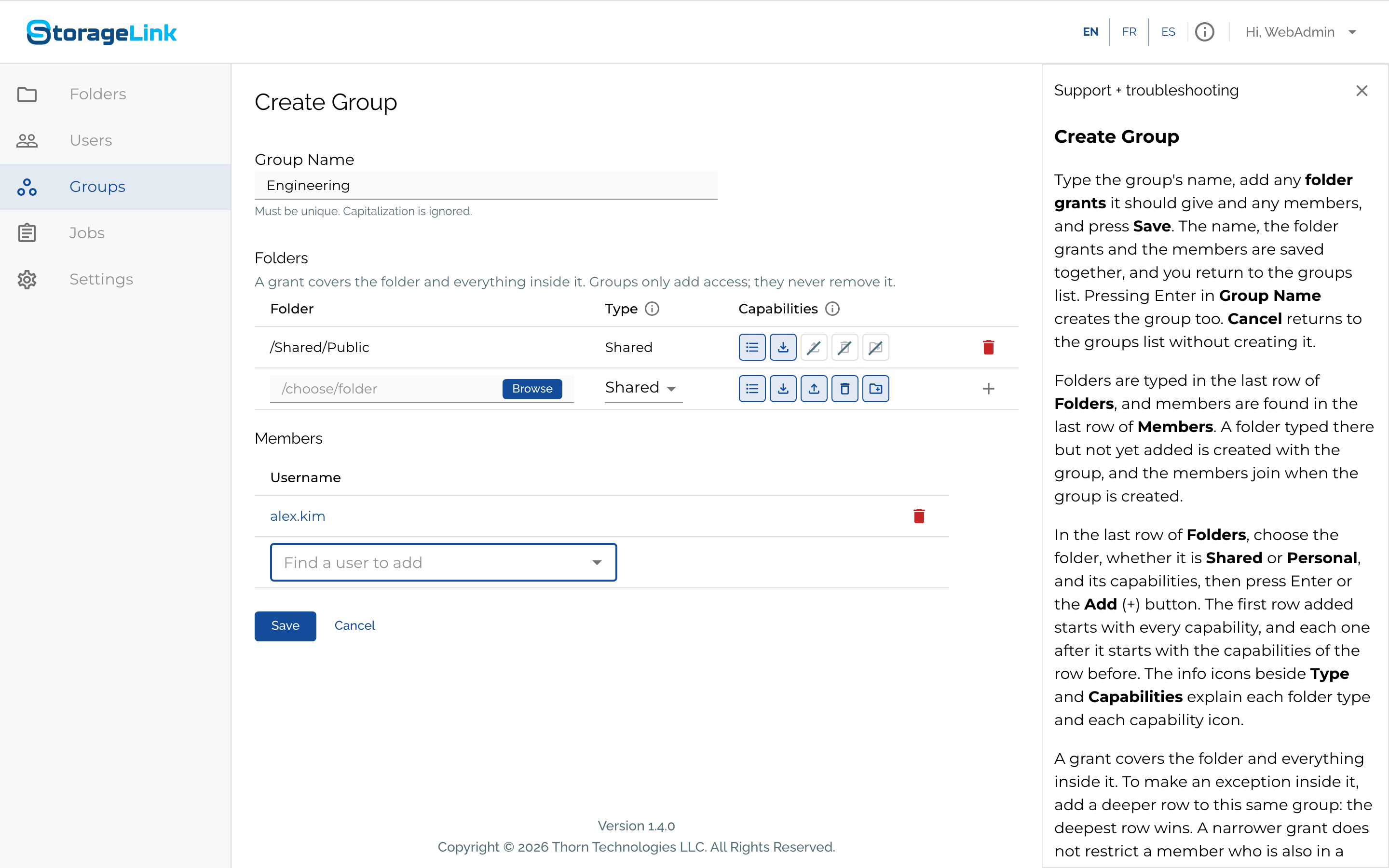
Set the Type before you enter the folder path. Entering the path commits the row with whatever type is selected at that moment. To change a row's folder or type later, remove the row and add a new one.
A folder typed in the last row but not yet added is created with the group, and the members listed join when the group is created. Cancel returns to the groups list without creating anything.
Edit a group
Click a group's name on the Groups page to open Edit Group. Changes to the name, the folder rows and the members are staged until you click Save, which saves them all at once; Discard Changes goes back to what was saved. Rows that will be added, changed or removed are marked until you save, and a row's undo button takes its change back.
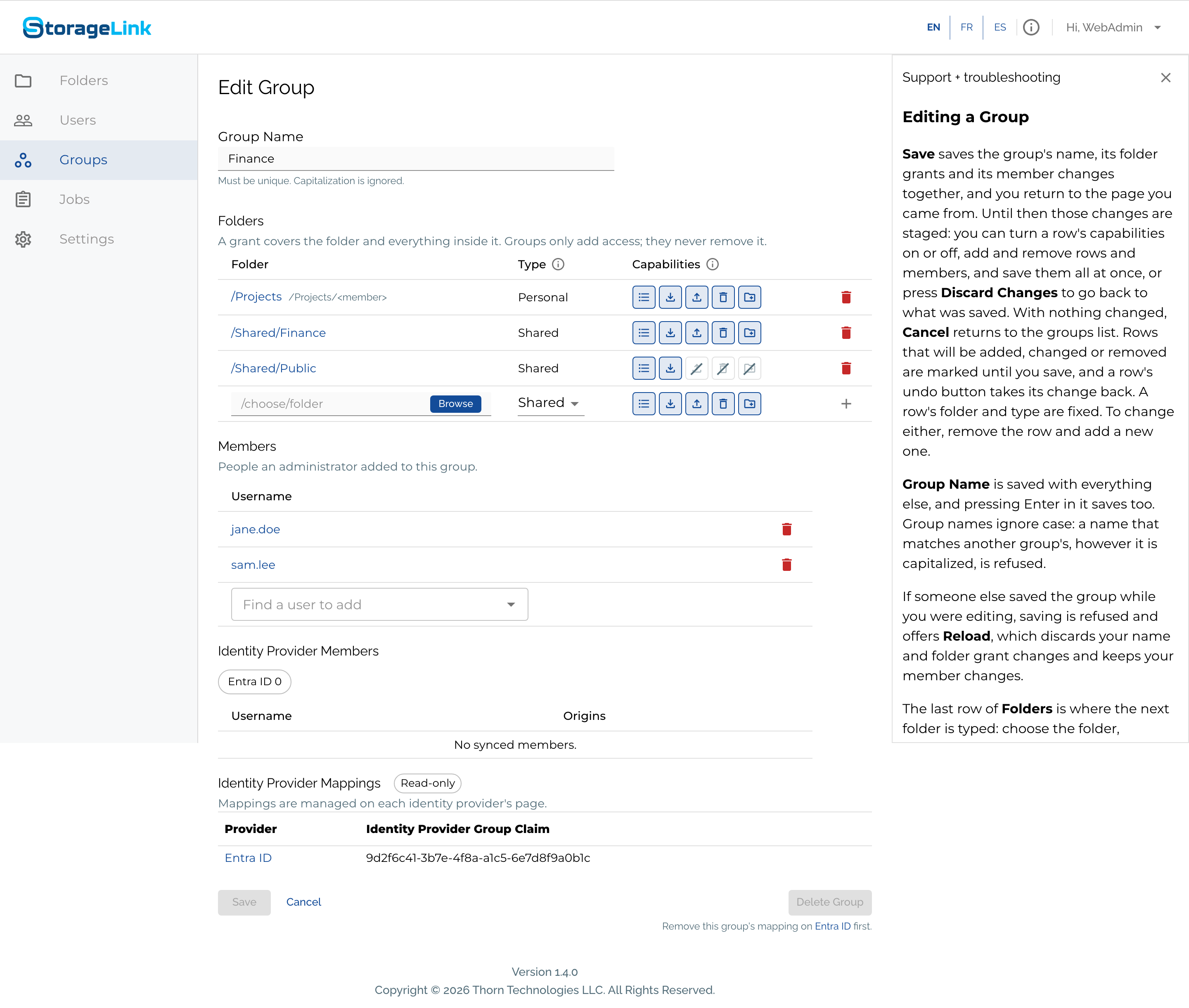
Below the members you added by hand, two more tables appear once an identity provider is involved:
- Identity Provider Members lists the people a provider placed in the group, with the provider that placed them under Origins. These memberships belong to the provider: they are rewritten at the user's next sign-in through that provider, and a password sign-in, or a sign-in through a different provider, removes them until the user next signs in through the provider that placed them.
- Identity Provider Mappings is read-only here. Mappings are managed on each provider's page under Settings. A group that a provider maps into cannot be deleted until that mapping is removed on the provider.
The members list shows whether a member is an administrator. Adding an administrator to a group changes nothing for them, since administrators already reach every folder.
Delete a group
Delete Group on the Edit Group page removes the group and its grants. Members keep their other groups and the folders granted to them on their own, and no files are deleted. If the group has a Personal grant, each member's personal subfolder stays in cloud storage; it simply stops being granted.
Folders granted to one user
Not every folder needs a group. Create User and Edit User have their own Folders table, with the same Shared and Personal types and capabilities, for folders granted to that account on its own, outside any group. The Groups table below it lists the groups an administrator added the user to.
A new user starts with one Personal row on the default home base, normally /users, so the user gets /users/<username> with every capability when saved. Toggle a capability to change it, add other folders in the table's last row, or remove the row to create a user whose access comes only from groups.
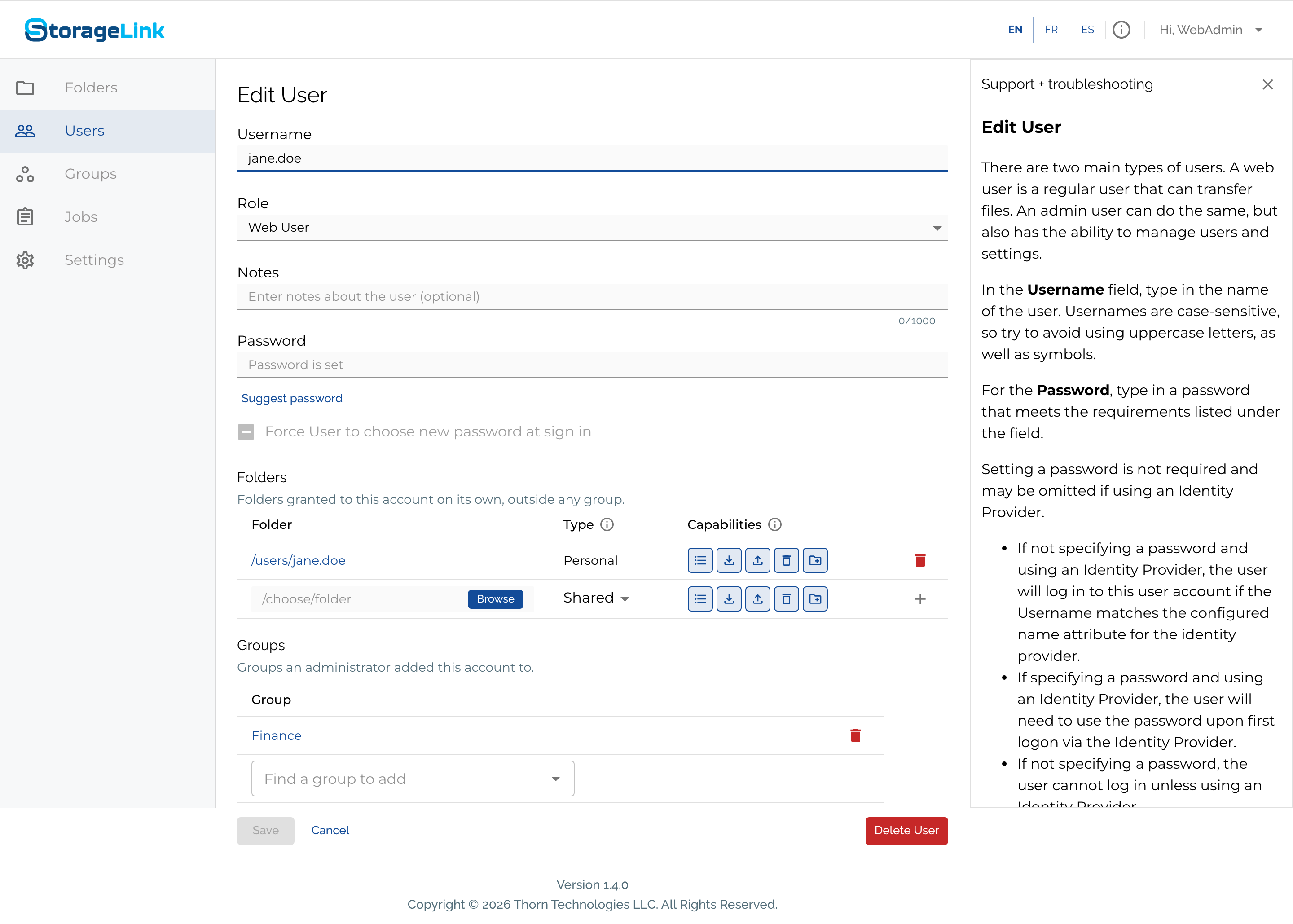
See Creating Your First Web User for the whole form.
In 1.3.x, a user's home folder and permissions were set on the user form, and per-folder exceptions on the folder's page. In 1.4.0 both are grants: the user's own folder is the Personal row under Folders on their user page, and exceptions are deeper rows in a group or in that table. The folder page no longer carries permissions; it sets the folder's name, cloud connection and file type restrictions. After an upgrade, every user's home folder permissions carry over as their Folders rows.
What a member sees
A user never sees the whole folder tree, only the folders granted to them and the folders on the way to those. StorageLink builds that view at sign-in:
- Granted folders appear with the capabilities of their grant.
- Pass-through folders are the folders on the way to a granted folder, such as
/Sharedwhen the grant is on/Shared/Finance. They are list-only and hold nothing but the path to the granted folder. Preview Folder Access tags them pass-through. - A Personal folder appears under the name of its base folder. A Personal grant on
/Projectsshows the member a folder calledProjects, which is really their own/Projects/<username>. Members never see each other's personal subfolders. - A single grant becomes the root. When all of a user's grants sit under one folder, the common part is left out: a user whose only grants are
/Shared/Marketingand/Shared/PublicseesMarketingandPublicat the top, and a user with one Personal grant on/Projectslands straight in their own folder.
jane.doe, a member of Finance with her own folder in /users, sees this after signing in:
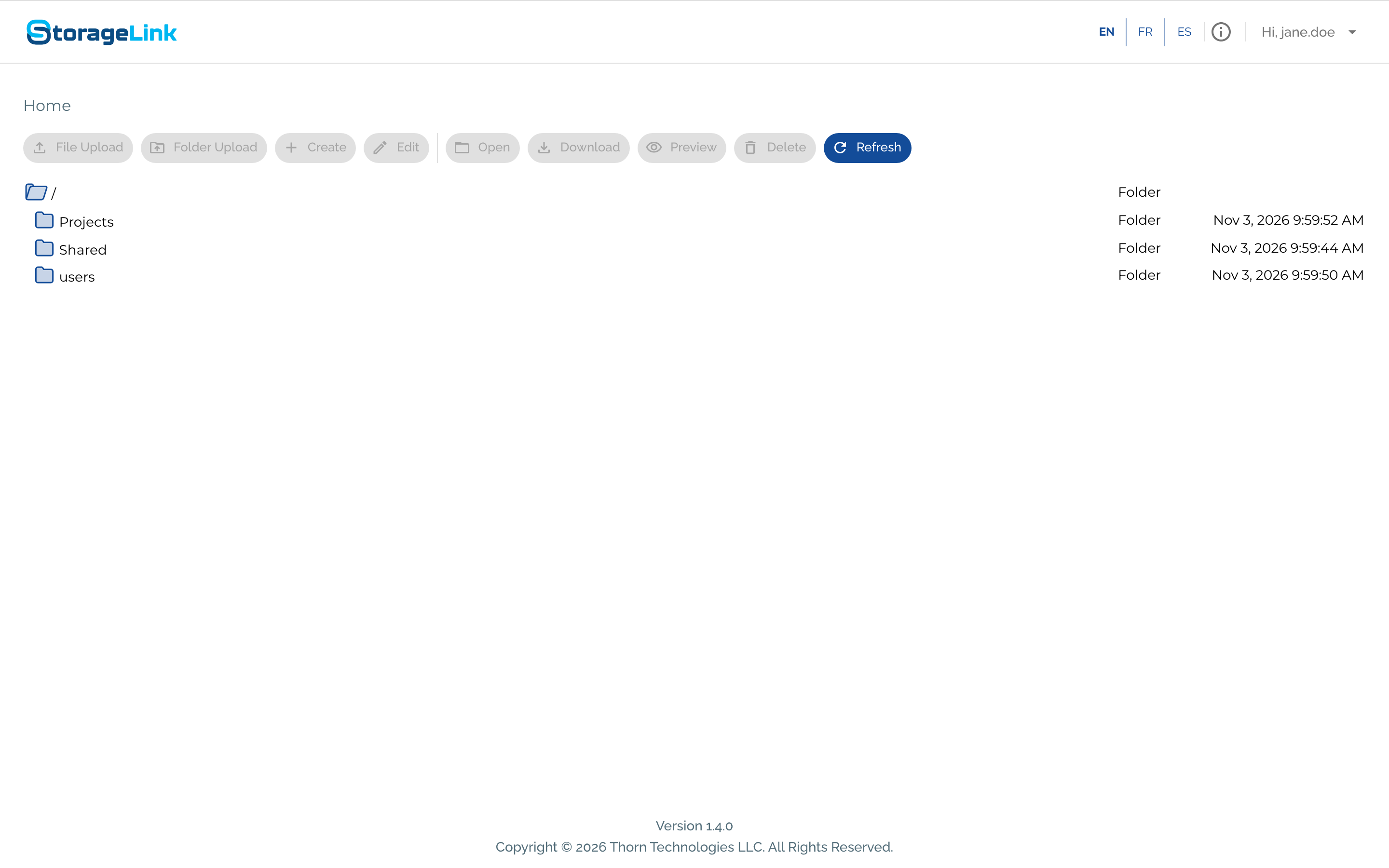
Because the view is built from the user's grants, the paths a user sees can change when their groups change. A folder a user reached as /Interfaces while they had one grant becomes /Stage/Interfaces when a second grant elsewhere is added. Scripts that call the API as a web user should list / and follow the names they find rather than hard-code paths.
A user cannot delete one of their own root folders, such as their personal folder, or a folder above one; emptying it is still allowed.
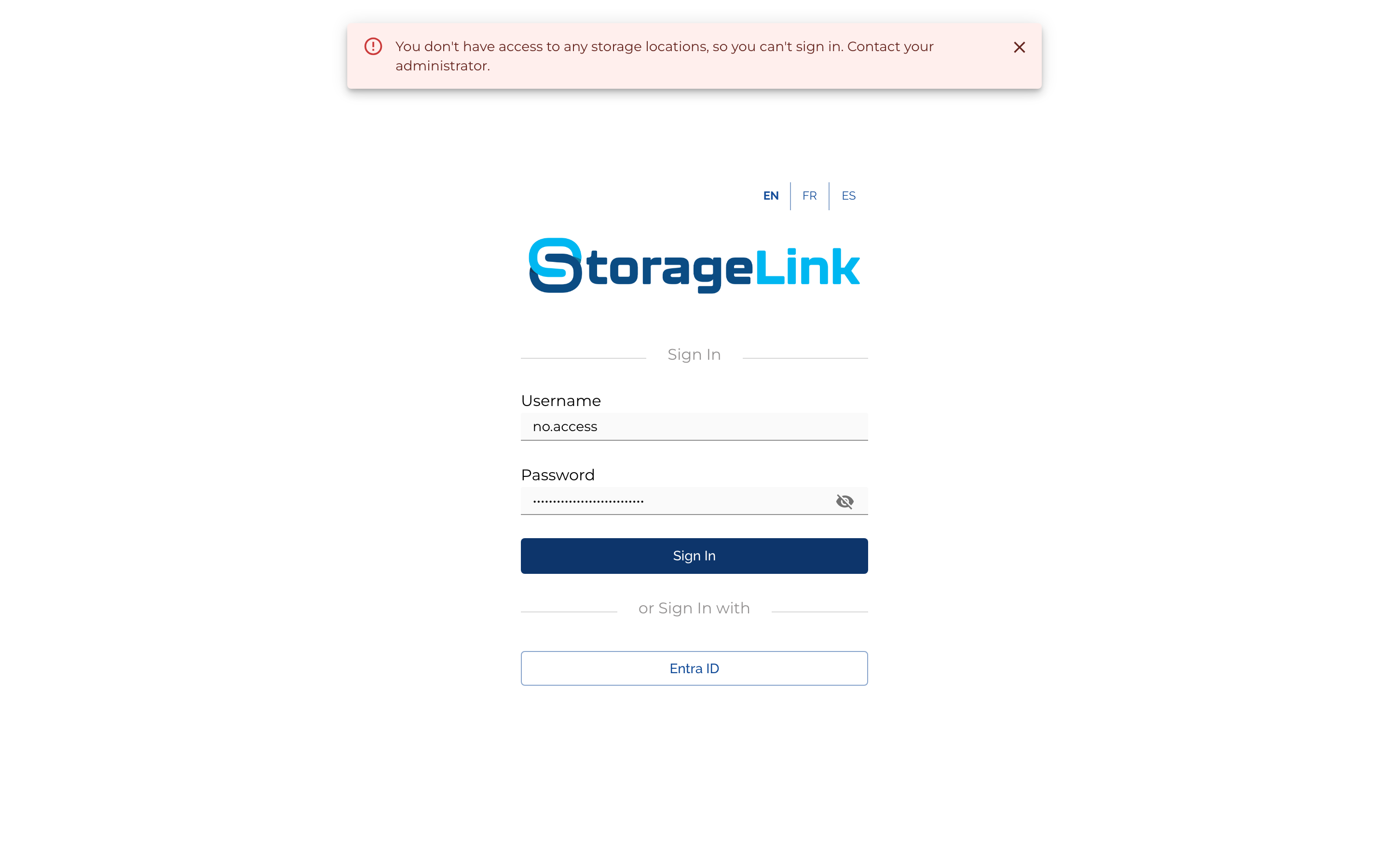
A user with no folders cannot sign in
A non-administrator who reaches no folder is refused at sign-in with "You don't have access to any storage locations, so you can't sign in. Contact your administrator." In 1.3.x such a user signed in to an empty file browser. Give every user at least one folder, through a group or on their own.
Preview Folder Access
Preview Folder Access, on the Groups page, shows the folders a user is granted, or the folders a member of exactly the selected groups would be granted, together with the pass-through folders on the way to them, the capabilities on each, and which group or direct grant gave them (Granted By). Nothing is saved: use it to check a group before you add members to it, or to answer "why can this user reach that folder?"
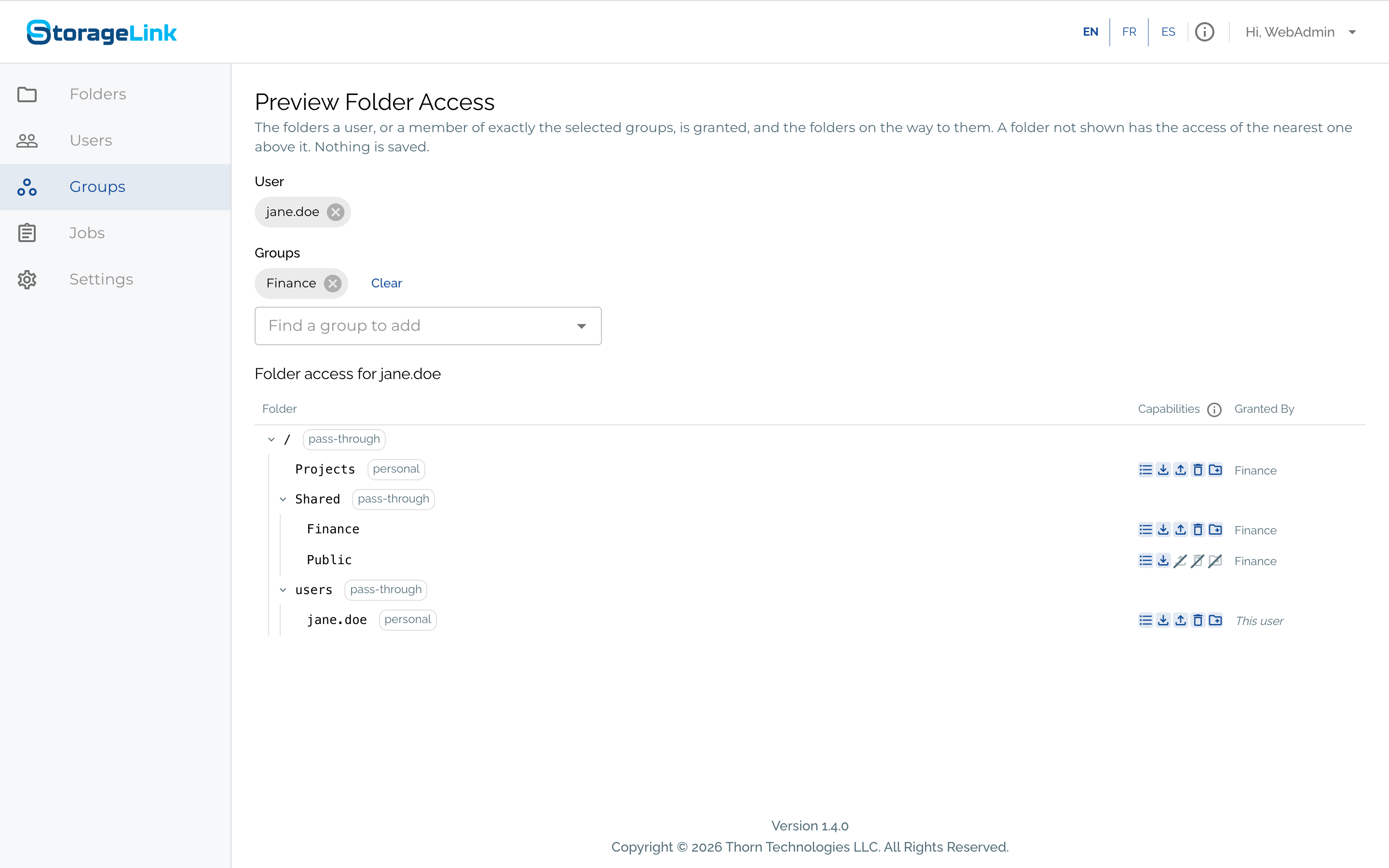
A folder that is not shown has the access of the nearest folder above it.
Groups from your identity provider
An identity provider configured under Settings → Identity Providers can place users into groups at sign-in. On the provider, set the Group Claim Attribute Name to the token claim that lists the user's groups, and add Group Mappings from each provider group to a StorageLink group. Each sign-in through that provider rewrites the memberships the provider placed, so the user's StorageLink groups follow their directory groups.
The walkthrough, including a worked Microsoft Entra ID example, is in Groups from your identity provider.
Common setups
A team folder plus personal workspaces
Create a group per team with a Shared grant on the team folder and a Personal grant on a base folder for workspaces:
Finance
  /Shared/Finance   Shared     List, Download/Preview, Upload, Delete/Overwrite/Rename, Create Folder
  /Shared/Public    Shared     List, Download/Preview
  /Projects         Personal   List, Download/Preview, Upload, Delete/Overwrite/Rename, Create Folder
Every Finance member gets the same /Shared/Finance, can read /Shared/Public, and gets their own /Projects/<username>.
A drop box for outside parties
Create a group with a Personal grant that allows List, Download/Preview, Upload and Create Folder but not Delete/Overwrite/Rename. Each member gets a folder of their own where they can add files but cannot change or remove what is already there. Administrators, who are exempt from grants, collect the files.
A read-only library for everyone
Create one group with a Shared grant on the library folder with List and Download/Preview, and map your identity provider's all-staff group to it, or add every user by hand. Members of other groups keep their write access elsewhere; the library grant only adds read access to the library.
Replacing per-user shared folders from 1.3.x
If you built sharing in 1.3.x by mapping the same cloud storage location under each user's home folder, replace those mappings with one group: a Shared grant on the shared folder, plus a Personal grant on the base folder where users had their homes. See Configuring Sharing Scenarios.
Groups and backups
A backup exported under Settings → Backup & Recovery includes groups, their grants, the memberships administrators added by hand and the provider group mappings. Memberships placed by an identity provider are not included; they are recreated at each user's next sign-in. A 1.4.0 backup cannot be restored by 1.3.x.
Groups in the API
Everything above is available through the REST API, so provisioning scripts can create groups and grants: GET/POST /1.0.0/groups, GET/PATCH/DELETE /1.0.0/groups/{groupId}, GET /1.0.0/groups/{groupId}/members, and GET /1.0.0/users/{userId}/effective-access for the resolved folder tree of a user. On POST and PUT /1.0.0/users, folders granted to the user on their own are directGrants, and manualGroupIds lists the groups to add the user to. The homeFolderPath, homeFolderId and homeFolderPermissions fields of earlier releases are deprecated and will be removed in a future release. The full description is in the OpenAPI document served at /backend/v3/api-docs, which an administrator can download with their access token.
Audit trail
Every change to a group, its grants and its memberships, including the memberships an identity provider adds or removes at sign-in, is recorded in audit-*.log with who made the change and when. See Logging.