Groups from Your Identity Provider
Purpose: Let your identity provider decide which StorageLink groups a person belongs to, so folder access follows your directory instead of being managed by hand (StorageLink 1.4.0 and later)
How it works: At each sign-in through the provider, StorageLink reads the token claim named in Group Claim Attribute Name (groups for Microsoft Entra ID, cognito:groups for Amazon Cognito), matches its values against the provider's Group Mappings, and makes the user a member of exactly the mapped StorageLink groups. The groups' folder grants then apply.
Steps:
- Create the StorageLink groups and their folder grants (Groups in StorageLink)
- Make the provider put the user's groups in the token (Entra ID: a groups claim on the app registration)
- On the provider in Settings → Identity Providers, set Group Claim Attribute Name and add one Group Mapping per directory group
- Decide whether new accounts also get a home folder (Give new users a home folder)
- Sign in as a test user and check Edit Group → Identity Provider Members and Preview Folder Access
Rules to remember: provider-placed memberships are rewritten at every sign-in through that provider; unmapped directory groups are ignored; a user who ends up with no folder cannot sign in.
Product: StorageLink by Thorn Technologies — cloud storage gateway for secure file sharing
How it works
A StorageLink group has folder grants and members. Members can be added by an administrator, or by an identity provider at sign-in:
- The user signs in through the provider. The provider's ID token carries a claim that lists the groups the user belongs to in your directory, usually as group IDs.
- StorageLink reads the claim named in the provider's Group Claim Attribute Name.
- Each value that matches a row in the provider's Group Mappings makes the user a member of that row's StorageLink group. Values that match no row are ignored, so you can map a handful of groups out of hundreds.
- The user gets the folder grants of those groups, plus any folders granted to them on their own, and any groups an administrator added them to by hand. If a group has a Personal grant, the user's personal folder is created at this sign-in.
The memberships a provider places belong to that provider:
- They are rewritten at every sign-in through the provider. Remove a person from the directory group, and their StorageLink membership goes at their next sign-in. Add them, and it appears.
- A password sign-in, or a sign-in through a different provider, removes them until the user next signs in through the provider that placed them. Memberships an administrator added by hand are never touched.
- A token without the claim removes them too. If the provider stops sending the claim, or the claim is misnamed, the user is removed from every group that provider gave them at their next sign-in, and is refused if that leaves them with no folder.
On the group's page, these members appear under Identity Provider Members with the provider that placed them under Origins, separate from the members an administrator added. The group's Identity Provider Mappings table is read-only there; mappings are edited on the provider. A group that a provider maps into cannot be deleted until the mapping is removed.
Worked example: Microsoft Entra ID
This example follows a company that already runs StorageLink with an Entra ID provider for sign-in and wants folder access to follow its Entra ID security groups. It has two cloud storage containers behind StorageLink, one for a development environment and one for staging, each with a few folders:
/Dev/Interfaces      /Stage/Interfaces
/Dev/Reports         /Stage/Reports
/Dev/Images          /Stage/Images
Four kinds of people need access, and each kind is a security group in Entra ID:
| Entra ID security group | Should get |
|---|---|
SL-Dev-ReadWrite | Read and write everywhere under /Dev and /Stage |
SL-Dev-ReadOnly | Read everywhere under /Dev and /Stage |
SL-Stage-ReadWrite | Read and write under /Stage; nothing under /Dev |
SL-Stage-ReadOnly | Read under /Stage; nothing under /Dev |
Step 1: Create the StorageLink groups
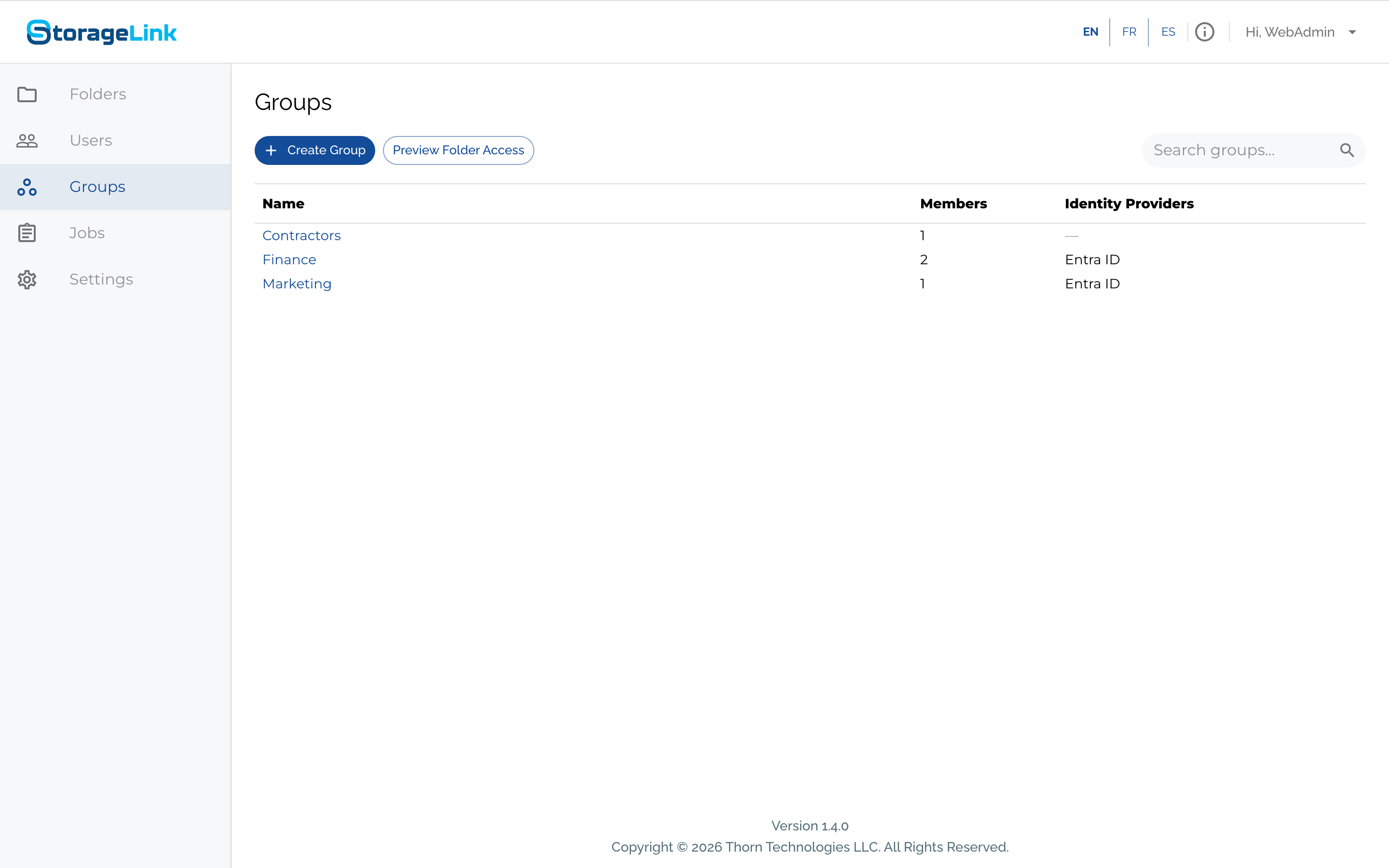
On the Groups page, create one StorageLink group per Entra ID group, with Shared grants on the folders each should reach. Give the read-write groups every capability and the read-only groups List and Download/Preview:
DevRW      /Dev/Interfaces, /Dev/Reports, /Dev/Images, /Stage/Interfaces, /Stage/Reports, /Stage/Images   all capabilities
DevRO      the same six folders                                                                           List, Download/Preview
StageRW    /Stage/Interfaces, /Stage/Reports, /Stage/Images                                               all capabilities
StageRO    /Stage/Interfaces, /Stage/Reports, /Stage/Images                                               List, Download/Preview
You could grant /Dev and /Stage themselves instead of the six folders; a grant covers everything inside the folder. Granting the leaf folders keeps the containers' top levels out of reach, which is what this company wanted.
Leave the groups without members. The provider fills them.
Step 2: Put the groups claim in the token
In the Microsoft Entra admin center, open App registrations, select the registration StorageLink uses (see Microsoft Entra ID Integration if you have not created one), then:
- Open Token configuration and click Add groups claim.
- Choose which groups to include. Security groups is the usual choice. Groups assigned to the application keeps the token small and only includes the groups assigned to the enterprise application, which pairs well with Assignment required? on the enterprise application.
- Under ID, keep Group ID. Entra ID puts each group's object ID in the claim; group names are only available for groups synchronized from on-premises Active Directory.
- Click Add. The registration's manifest now has
"groupMembershipClaims": "SecurityGroup"(or"ApplicationGroup").
With the Azure CLI, the same change is:
az ad app update --id <application-client-id> --set groupMembershipClaims=SecurityGroup
Then collect the object ID of each security group: Groups → the group → Overview → Object ID, or:
az ad group show --group "SL-Dev-ReadWrite" --query id --output tsv
Entra ID leaves the groups claim out of the token when a user belongs to more than 200 groups. For a Users only provider with group mappings, StorageLink then asks Microsoft Graph for the user's groups. For that to work, the provider's Scopes must include User.Read and no other API's scope, the application needs the User.Read delegated permission (new registrations have it), the StorageLink server needs outbound HTTPS to graph.microsoft.com, and the mappings must use group object IDs, because Graph returns IDs only. Graph errors are shown on the provider in the Identity Providers card.
Step 3: Map the groups on the provider
In StorageLink, open Settings → Identity Providers and edit the Entra ID provider:
| Setting | Value in this example |
|---|---|
| Provider Type | Users only |
| Username Attribute | preferred_username, so usernames read jane.doe@example.com rather than an opaque ID |
| Scopes | openid profile email (profile is what carries preferred_username) |
| Prompt | select_account, so people with several Microsoft accounts always get to choose |
| Allow login for users that do not yet exist | Checked: accounts are created at first sign-in |
| Give new users a home folder | Unchecked: these users get access only through their groups |
| Group Claim Attribute Name | groups |
| Group Mappings | One row per security group: the group's object ID on the left, the StorageLink group on the right |
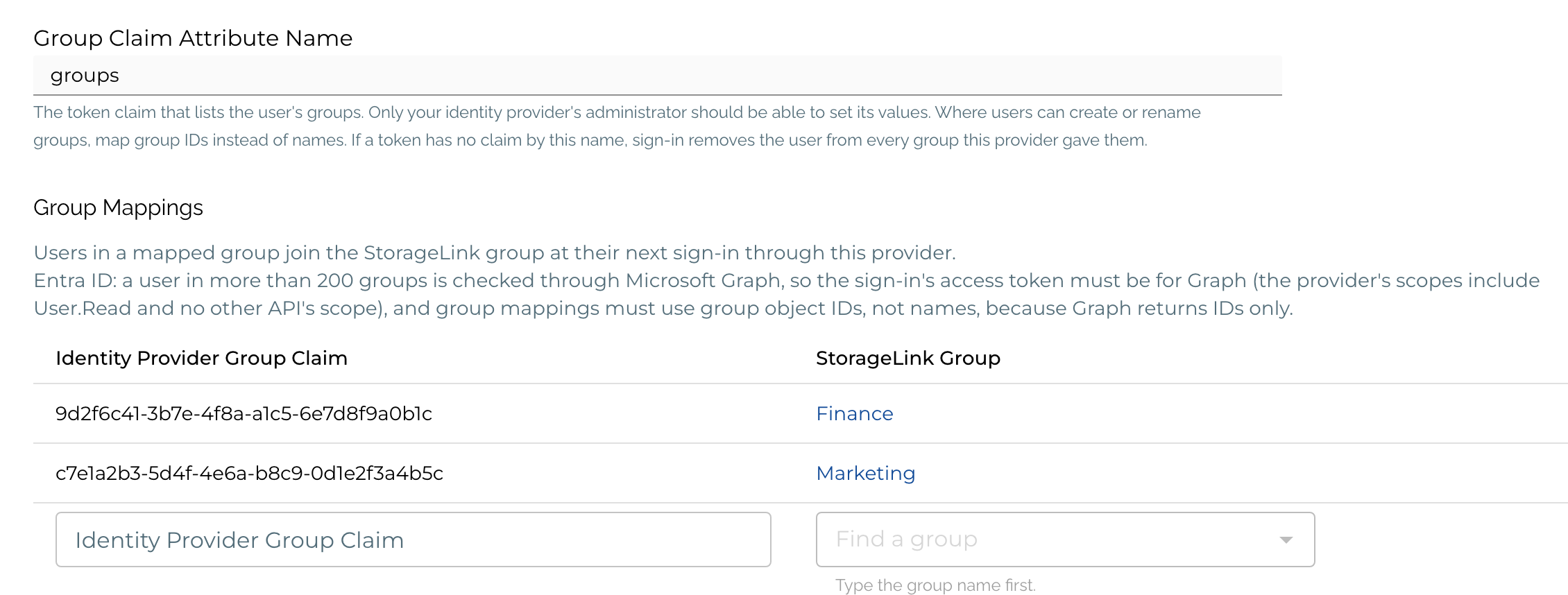
To add a mapping, paste the object ID into Identity Provider Group Claim, start typing the StorageLink group's name under StorageLink Group and pick it, then click Save. The groups must exist before you can map them.
Step 4: Test with one person per group
Sign in through the provider as a member of each security group, and check what they see. A member of SL-Stage-ReadWrite lands with Interfaces, Reports and Images at the top of their view: all their grants sit under /Stage, so the common part is left out. A member of SL-Dev-ReadWrite sees Dev and Stage at the top, with the six folders inside. See What a member sees for the rules.
On the admin side:
- Groups → the group → Identity Provider Members lists who the provider placed, with Entra ID under Origins.
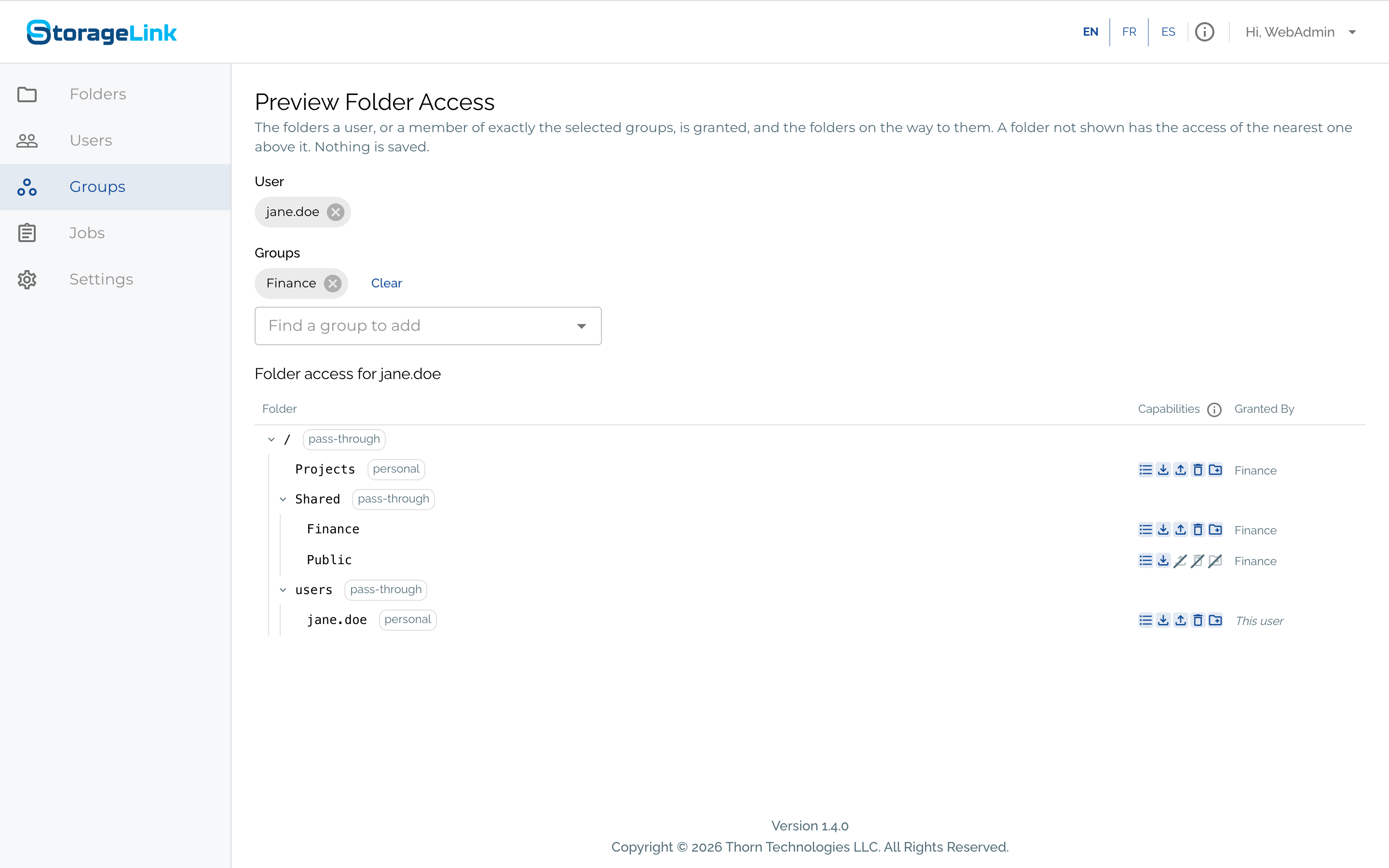
- Preview Folder Access on the Groups page shows a user's resolved folders and capabilities.
audit-*.logrecords the sign-in with the groups the provider added and removed.
Step 5: Decide how people leave
Nothing else is needed for offboarding. Removing a person from every mapped security group removes their StorageLink memberships at their next sign-in. If they have no folder of their own either, they are refused with "You don't have access to any storage locations, so you can't sign in. Contact your administrator." Removing them from the enterprise application, with Assignment required? set, refuses them at Entra ID itself. Their StorageLink account stays, with no access, until an administrator deletes it.
Choosing how new users get folders
With Allow login for users that do not yet exist checked, a person's StorageLink account is created at their first sign-in. What they can reach then depends on two things:
| Setting | Effect |
|---|---|
| Give new users a home folder checked | The account also gets its own folder, /users/<username>, with every capability. People can always sign in, even with no mapped groups, and have a private area. |
| Give new users a home folder unchecked | The account gets access only from mapped groups. A person in no mapped group is refused, which is the safer default when access must follow the directory. |
The setting applies once, at the sign-in that creates the account. Changing it later never adds or removes an existing user's folder; use Edit User → Folders for that. After an upgrade from 1.3.x, every existing provider has it checked, because that is how 1.3.x behaved.
Other providers
- Amazon Cognito puts a user's user-pool groups in the
cognito:groupsclaim of the ID token, as group names. Set Group Claim Attribute Name tocognito:groupsand map the group names. Cognito group names are set by the user pool's administrators, so names are safe to map. - Google does not include group membership in its ID tokens. With a Google provider, add members by hand or grant folders on each user, and use Give new users a home folder for new accounts.
- Other OpenID Connect providers work if they can put a groups claim in the ID token. Set Group Claim Attribute Name to that claim and map its values. Where ordinary users can create or rename groups at the provider, map IDs rather than names, so that nobody can give themselves access by creating a group with a mapped name.
Mixing provider groups with manual access
Everything adds up. A user can be in groups a provider placed them in, in groups an administrator added them to, and have folders granted on their own, all at once; the provider only ever rewrites the memberships it placed itself. That makes it easy to give one person an exception without touching the directory: add them to another group by hand, or add a row under Folders on their user page.
Troubleshooting
| Symptom | Likely cause |
|---|---|
| The user signs in but is in none of the mapped groups | The token has no claim by the configured name, or it holds names where you mapped IDs (or the reverse). Check the provider's claim configuration and compare a value from the token with the mapping. |
| The user is refused with the "no storage access" message | They are in no mapped group and have no folder of their own. Map their group, add them to a group by hand, or grant a folder on their user page. |
| Memberships disappear after a password sign-in | Expected: a password sign-in removes provider-placed memberships until the next sign-in through the provider. Let people sign in only through the provider, or give them memberships by hand. |
| A Graph error appears on the provider | The user is in more than 200 groups and the Graph fallback failed: check that Scopes includes User.Read and no other API's scope, that the application has User.Read, and that the server can reach graph.microsoft.com. |
| A group cannot be deleted | A provider maps into it. Remove the mapping on the provider first. |