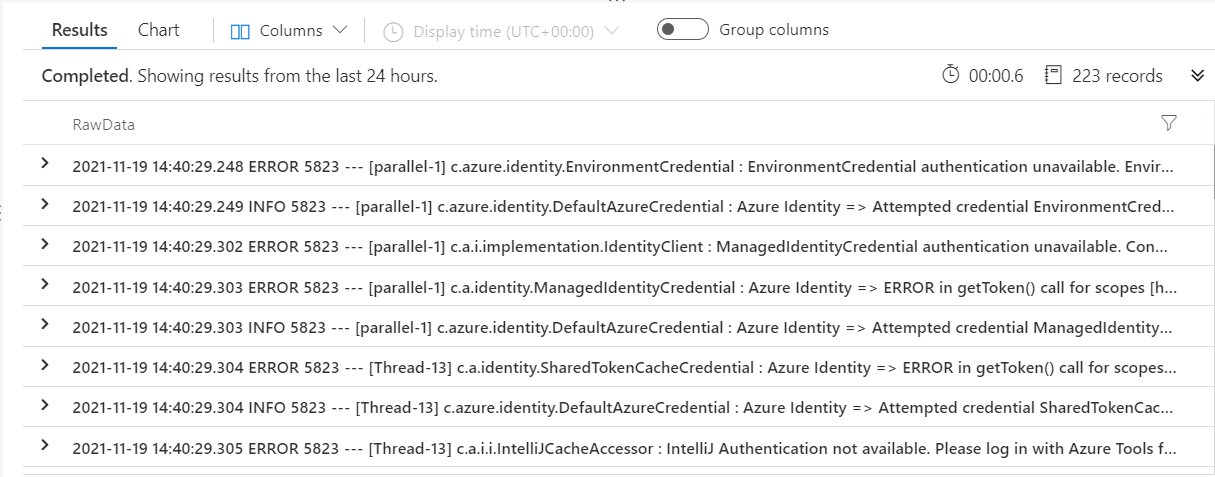
Diagnostic Screen - Azure Log Streaming
TLDR - Quick Summary
What: Stream SFTP Gateway logs to Azure Log Analytics Workspace (v3.4.0+)
Setup: Create Log Analytics Workspace > Connect VM > Add Custom Logs for
/opt/sftpgw/log/application-*.logand/opt/sftpgw/log/sftp-audit-*.logNote: Initial collection takes up to 1 hour; subsequent collection every 5 minutes
Overview
Azure Log Analytics lets you to collect and query log information in Azure. This article walks you through using Azure Log Analytics Workspace to collect and consolidate the SFTP Gateway logs into one location.
Note: This feature applies to SFTP Gateway version 3.4.0 and later.
Create an Azure Log Analytics Workspace
An Azure Log Analytics Workspace is an Azure service for consolidating log information.
To create an Azure Log Analytics Workspace:
Go to the Azure Log Analytics Workspace service
Click Create
Choose your subscription, region, and resource group
Note: you can deploy this into its own resource group, or to the same resource group in which SFTP Gateway is deployed.
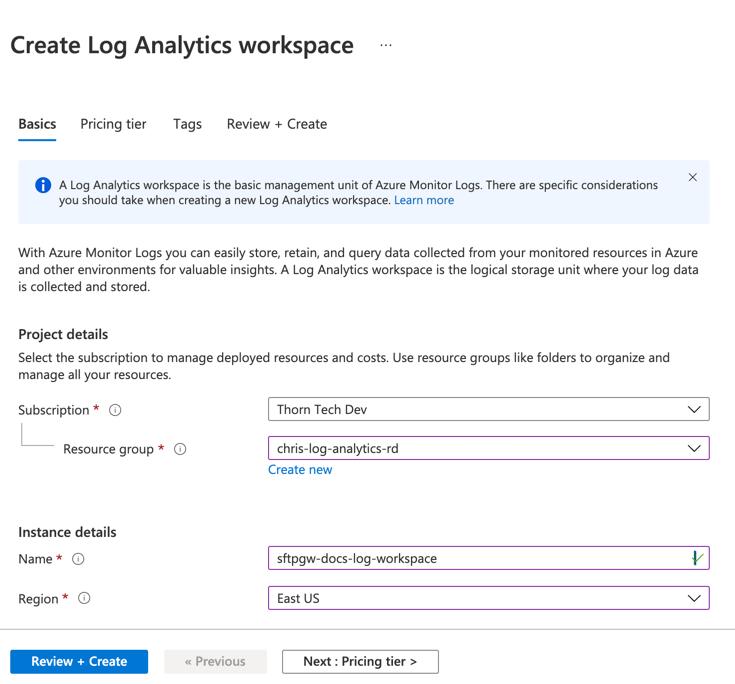
Give the log workspace a descriptive name
Click Review + Create
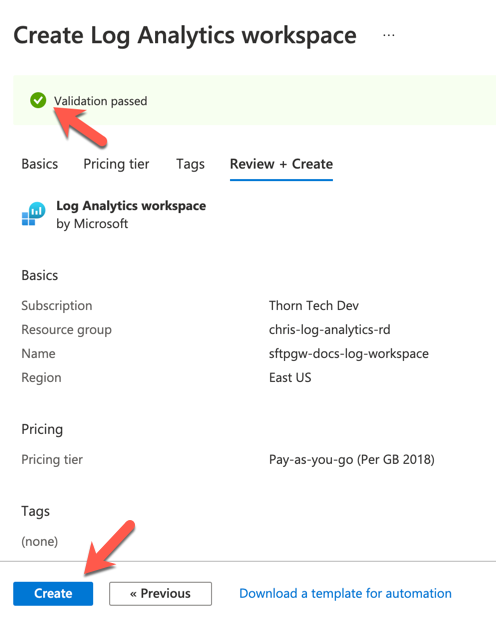
Click Create
Connect your VM to the Workspace
In this section, you will wire your SFTP Gateway VM to the Log Analytics Workspace.
In the Log Analytics Workspace, go to Workspace Data Sources
Go to Virtual Machines.
Select your SFTP Gateway VM.
Click Connect
This connects SFTP Gateway to your Log Analytics Workspace.
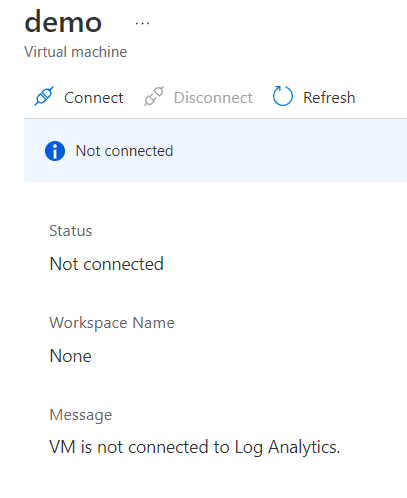
Configure Log Collection
A Custom Log pulls log files from the VM, based on file naming convention and path. Log content is then parsed and stored in the Log Analytics Workspace.
In this section, you will create Custom Logs for both the SFTP Gateway application and audit logs.
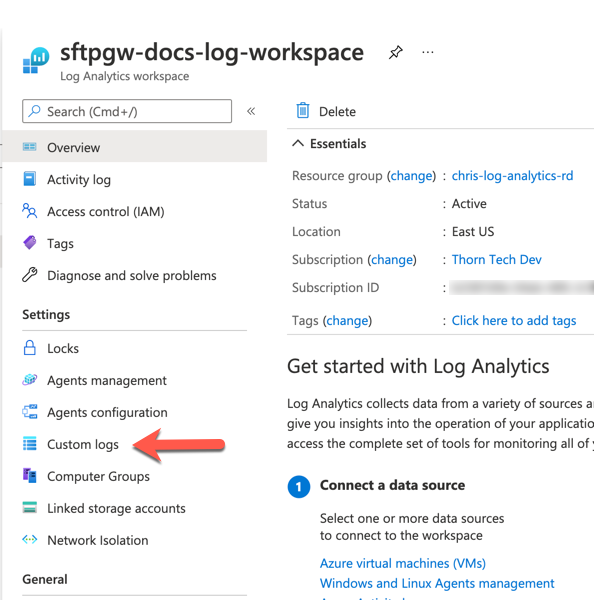
In the Log Analytics Workspace, under Settings, go to Custom Logs
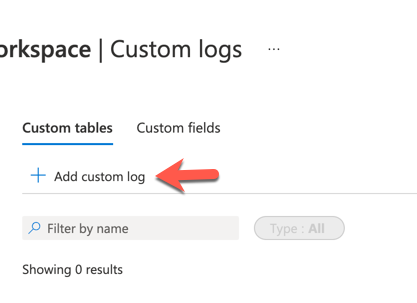
Click Add custom log
 This will bring you to a page that will ask you to upload an Example log. Log Analytics will parse the uploaded file to determine the log format. Sftp Gateway has two types of log files, which you can download below:
- Example application log file
- Example sftp-audit log file
Upload the application log file, and hit Next (later, you'll repeat this process for the audit log file)
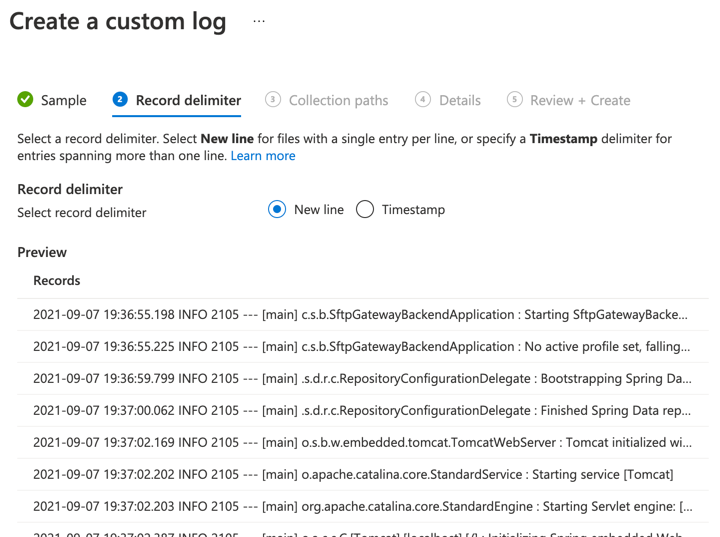
Keep the Record Delimiter set to New Line, and click Next.
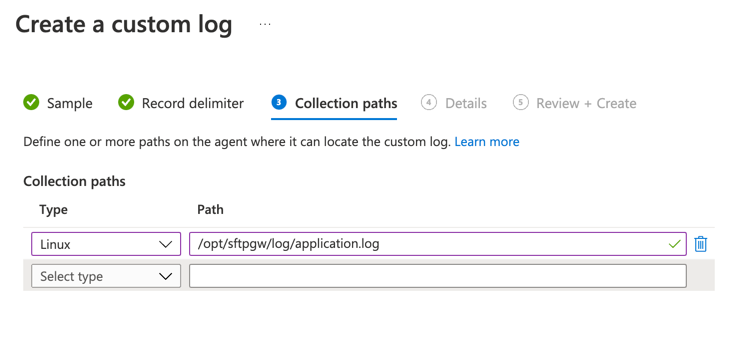
Add the Linux path to the files on the server (see below for corresponding paths). Then click Next.
- Application log:
/opt/sftpgw/log/application-*.log - Audit log:
/opt/sftpgw/log/sftp-audit-*.log
- Application log:
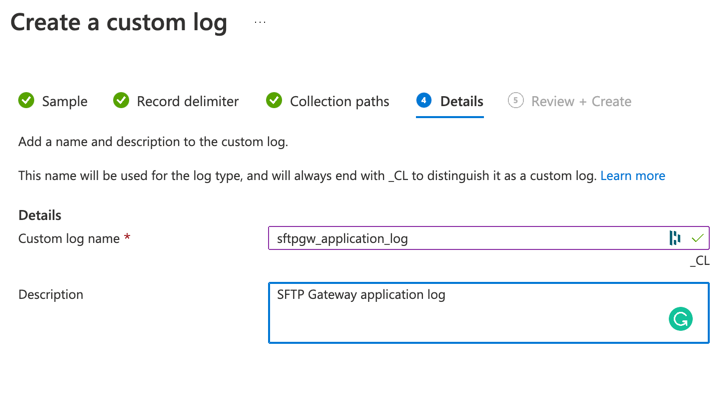
On the Details page, add a name and description to the custom log. Then click Next.
Note: This name will be displayed in the Log Analytics Workspace, and used in log queries.
Review the custom log information. Then click Create.
Once you have created the first custom log, go back and repeat these steps for the audit SFTP Gateway log.
Note: It may take up to 1 hour for the initial collection of the log data from the server. After that, the log data should be collected approximately every 5 minutes. For more detailed information, please refer to the Azure Custom Log documentation.
Query Log Data
To view the logs, you will need to query the data from the Log Analytics Workspace database:
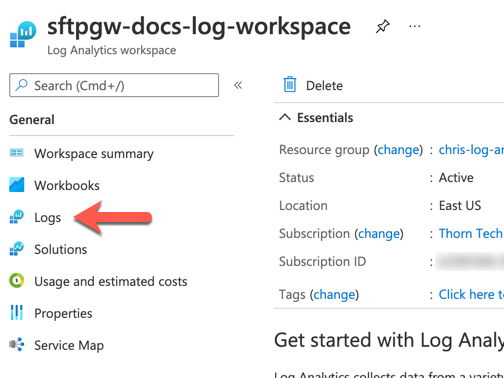
Go to the Logs section of the Workspace
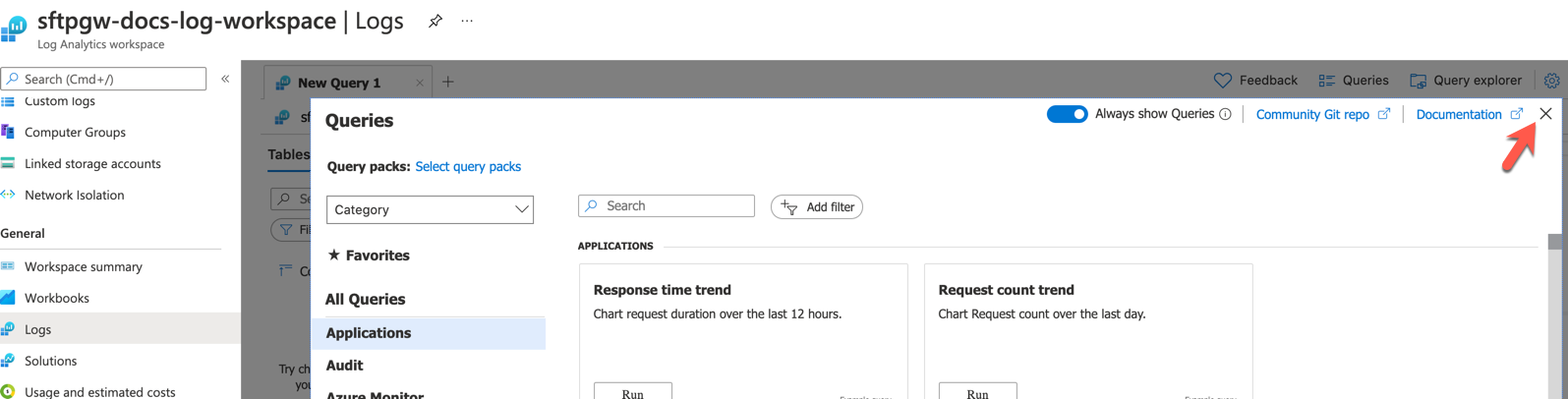
Note: This will open a list of default query templates, which you can close by hitting the X in the upper right corner
To view the raw log data, in the query field enter the following query, then hit Run
<log_file_name>
| project RawData
This will display the data as you would see it in the log file on the server.