Identity Providers
Purpose: Let people sign in to StorageLink with an OpenID Connect identity provider such as Microsoft Entra ID, Amazon Cognito or Google, instead of a StorageLink password
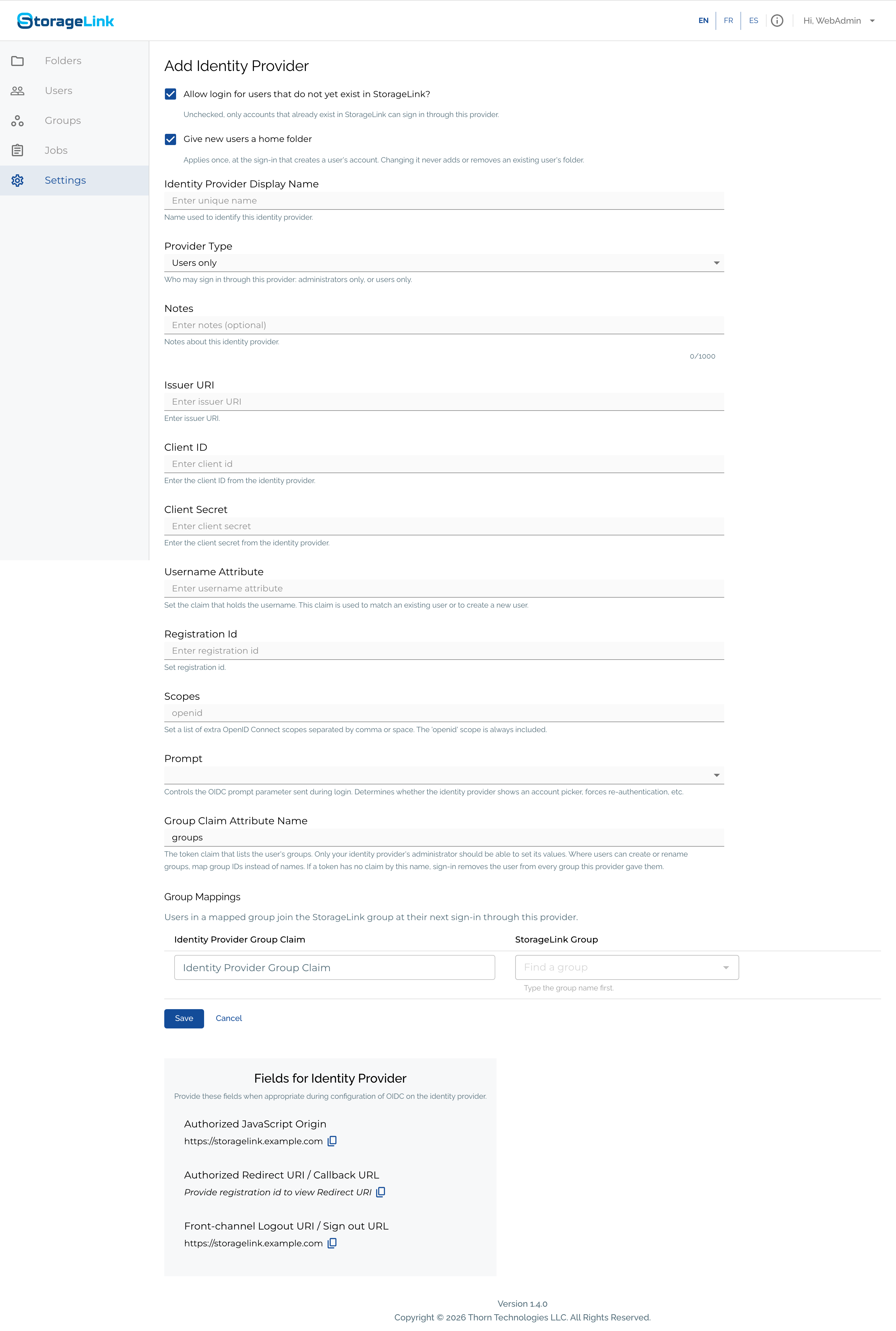
Where: Settings → Identity Providers → Add Identity Provider. The form's Fields for Identity Provider box gives you the redirect URI and sign-out URL to register with the provider.
Decide first:
- Provider Type — Users only or Administrators only. A provider admits one kind of account. Administrators sign in at
https://storagelink-hostname/admin. - Username Attribute — the token claim that becomes the StorageLink username (
preferred_usernamefor Entra ID,usernamefor Cognito,emailfor Google) - Allow login for users that do not yet exist — create accounts at first sign-in, or admit only accounts you created
- Give new users a home folder — whether an account created at sign-in gets its own folder under
/users - Group Claim Attribute Name and Group Mappings — place users into StorageLink groups from their directory groups (see Groups from your identity provider)
Important: A user who reaches no folder cannot sign in. Give every SSO user a folder of their own, a group, or both.
Product: StorageLink by Thorn Technologies — cloud storage gateway for secure file sharing
Overview
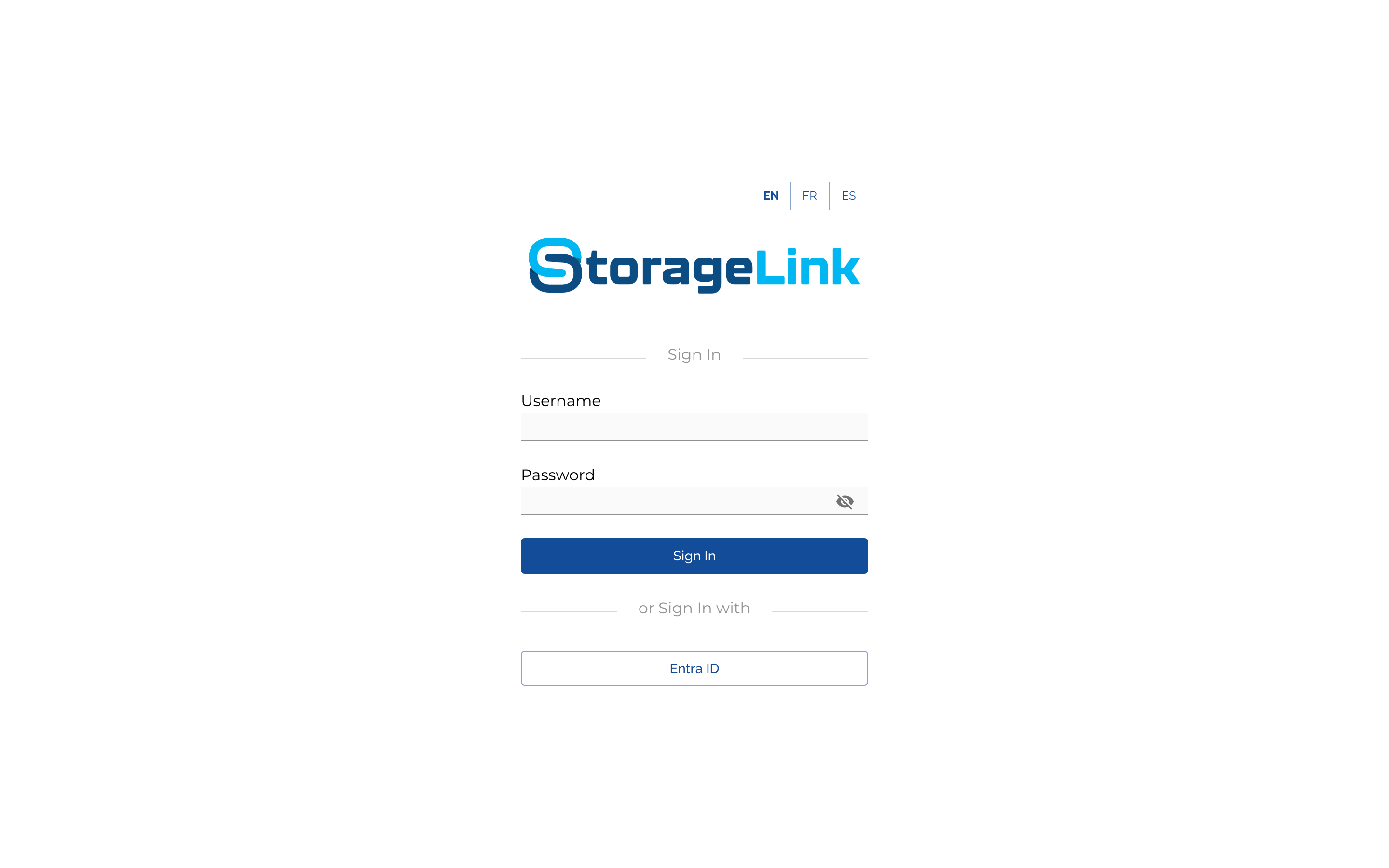
StorageLink signs people in with a username and password of its own, or through any identity provider that supports OpenID Connect (OIDC). Each provider you add appears as a button under or Sign In with on the sign-in page. People who sign in through it never need a StorageLink password, and your identity provider's own policies, such as multi-factor authentication and conditional access, apply to StorageLink.
This page describes the provider settings in StorageLink. The provider-side setup is covered per provider:
Any other OIDC provider works the same way: register a web application with the redirect URI below, and copy its issuer, client ID and client secret into StorageLink.
Add a provider
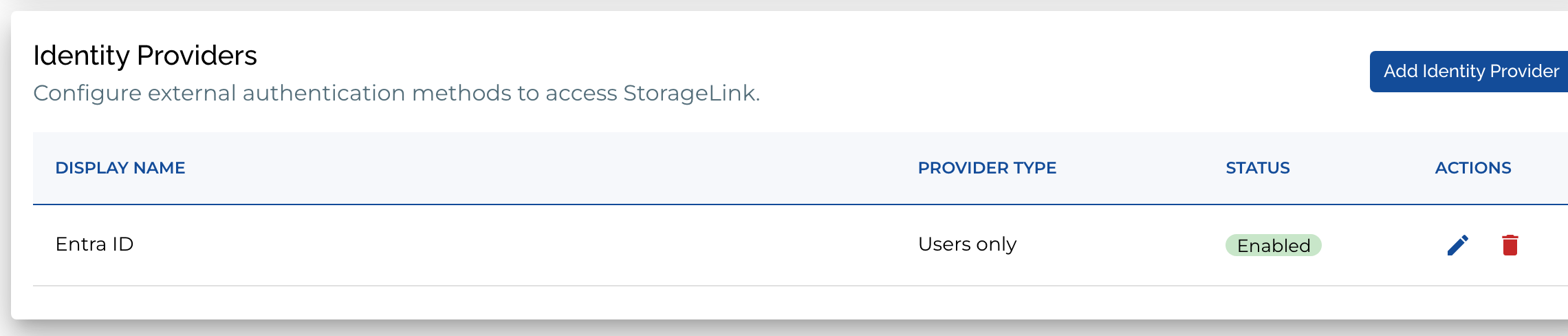
Sign in as an administrator, open Settings, and click Add Identity Provider in the Identity Providers card. The card lists every provider with its Provider Type and whether it is enabled.
The form ends with a Fields for Identity Provider box. It shows the three values the provider may ask for, with copy buttons:
| Value | What it is |
|---|---|
| Authorized JavaScript Origin | https://storagelink-hostname |
| Authorized Redirect URI / Callback URL | https://storagelink-hostname/backend/login/oauth2/code/<registration-id>. The box fills this in once you type a Registration Id. |
| Front-channel Logout URI / Sign out URL | https://storagelink-hostname |
Register these with the provider exactly as shown. The hostname must be the one people use to reach StorageLink; if you change the hostname later, update the provider's registration too.
Settings
| Setting | Description |
|---|---|
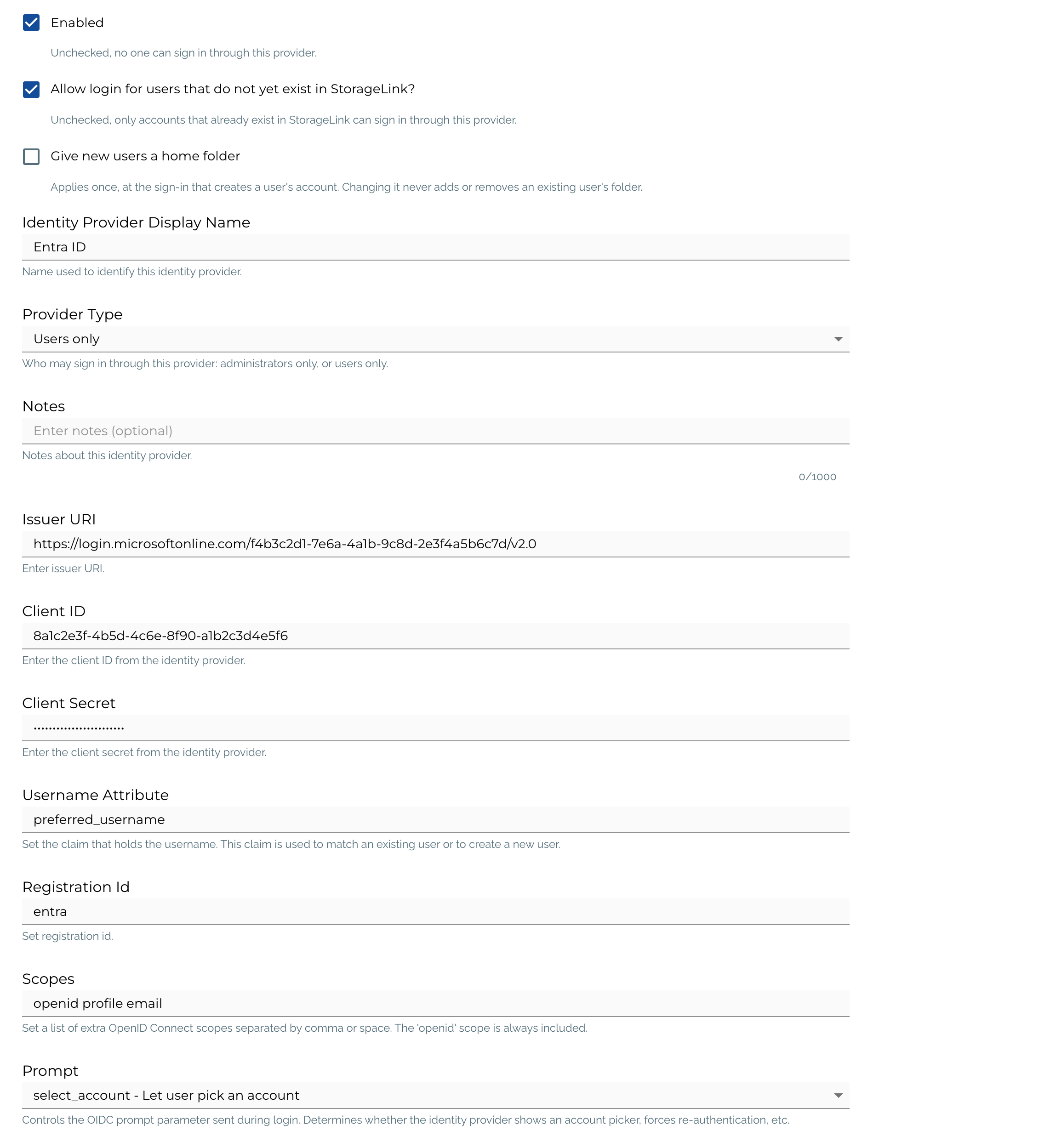
| Allow login for users that do not yet exist in StorageLink? | Checked, a person the provider authenticates who has no StorageLink account yet gets one at that first sign-in, named from the Username Attribute. Unchecked, only accounts that already exist can sign in through this provider; everyone else is refused. A new Administrators only provider starts unchecked, because every account it creates would be an administrator. |
| Give new users a home folder | Checked, an account created at sign-in gets its own folder under the default home base, normally /users/<username>, granted to it with every capability. Applies once, at the sign-in that creates the account; changing it later never adds or removes an existing user's folder. Uncheck it when new users should get access only through group mappings. After an upgrade from 1.3.x, every existing provider has it checked. |
| Identity Provider Display Name | The text on the sign-in button. |
| Provider Type | Users only or Administrators only: who may sign in through this provider. See Who can sign in. |
| Notes | Up to 1,000 characters for your own records. |
| Issuer URI | The provider's OIDC issuer, from which StorageLink discovers its endpoints and signing keys. For example https://login.microsoftonline.com/<tenant-id>/v2.0, https://cognito-idp.<region>.amazonaws.com/<user-pool-id> or https://accounts.google.com. |
| Client ID and Client Secret | The application credentials from the provider. Anyone who can edit the provider can see the secret, so keep administrator accounts to the people who need them. |
| Username Attribute | The claim in the provider's token that holds the username. It is used to match an existing StorageLink user, or to name a new one. Pick a claim that is readable and stable: preferred_username for Entra ID, username for Cognito, email for Google. The opaque sub claim works but produces usernames nobody recognizes. |
| Registration Id | A short name of your choosing that becomes the last part of the redirect URI. Letters, digits and hyphens; it cannot be changed without re-registering the redirect URI at the provider. |
| Scopes | Extra OIDC scopes, separated by commas or spaces. openid is always requested. Add profile email when the username or group claims depend on them, as they do for Entra ID. |
| Prompt | The OIDC prompt value sent at sign-in. Leave it blank for the provider's default, or choose a value such as select_account, which makes Microsoft and Google always show their account picker, or login, which forces re-authentication. |
| Group Claim Attribute Name | The token claim that lists the user's groups; groups for Entra ID, cognito:groups for Cognito. Leave it blank if you do not map groups. See Groups from your identity provider. |
| Group Mappings | Rows of provider group → StorageLink group. Users in a mapped group join the StorageLink group at their next sign-in through this provider. Type the StorageLink group's name to find it; the group must exist already. |
Prompt and the account picker
With Prompt blank, a browser that is already signed in to the provider is signed in to StorageLink silently as that account. That is convenient on a managed workstation, but on a shared computer, or when a person has several accounts, it signs in the wrong one with no chance to choose. Set Prompt to select_account to always show the account picker.
Who can sign in
A provider's type decides who it admits:
| Provider Type | Admits | Sign-in page | New accounts created at sign-in are |
|---|---|---|---|
| Users only | Web Users: accounts that transfer files | The normal sign-in page, https://storagelink-hostname | Web Users |
| Administrators only | Admin Users: accounts that manage StorageLink | https://storagelink-hostname/admin. The button is not shown on the normal page. | Admin Users |
A Users only provider refuses an administrator, and an Administrators only provider refuses a regular user, including people who signed in through that provider before it was retyped. To serve both kinds of people from one directory, add two providers, each with its own application registration at the provider, its own Registration Id and redirect URI, and the administrators' application assigned only to administrators.
Earlier releases had a Default User Role on each provider and let anyone the provider authenticated sign in. In 1.4.0 that setting is Provider Type, and it is enforced. Before upgrading, retype a provider that serves regular users as Web User (Users only after the upgrade), and give administrators who sign in only through a provider their own Administrators only provider. An administrator with no password and no administrators-only provider cannot sign in after the upgrade; the server log names such accounts at each start. See the 1.4.0 release notes.
Besides the type, a sign-in needs:
- An account. Either it exists already, matched by the Username Attribute, or Allow login for users that do not yet exist is checked and one is created.
- Folder access, for a Web User. A user who reaches no folder, through their own folders or a group, is refused with "You don't have access to any storage locations, so you can't sign in. Contact your administrator." Administrators are exempt, since they reach every folder.
Accounts with a password and a provider
An account you created with a password can also sign in through a provider whose Username Attribute matches its username. The first sign-in through the provider asks for the account's StorageLink password once, which links the account to the provider; after that the provider alone signs the user in. An account created without a password can sign in only through a provider.
Each sign-in resets provider-placed groups
A sign-in through a provider rewrites the group memberships that provider placed, from the groups claim in the token. A password sign-in, or a sign-in through a different provider, removes them until the user next signs in through the provider that placed them. Memberships an administrator added by hand are never touched. Details are in Groups from your identity provider.
Test a provider
Sign out, open the sign-in page (or /admin for an administrators-only provider), and click the provider's button. You are sent to the provider, authenticate there, and return signed in to StorageLink. After the provider sends you back, StorageLink completes the sign-in with a single-use code that is delivered only to the StorageLink server and expires after five minutes.
If sign-in fails, the Identity Providers card shows an error code for the provider; the full message from the provider is in the server log. Common causes:
- Redirect URI mismatch: the URI registered at the provider differs from the one in Fields for Identity Provider, often because of the hostname or the Registration Id.
- Invalid client secret: the secret expired or was pasted with a trailing space. Create a new one at the provider and save it in StorageLink.
- Refused as the wrong kind of account: the provider's type does not match the account. Check Provider Type and which page the person started from.
- No storage access: the account has no folder and no group. Grant one, or map the person's directory group to a StorageLink group.
- Signed in as the wrong account: the browser was already signed in to the provider. Set Prompt to select_account.
Microsoft Entra ID notes
- Username: use
preferred_username, and request theprofilescope. In 1.4.0 StorageLink readspreferred_usernamefrom the ID token when the provider's UserInfo response lacks it, which fixed the "SSO login is temporarily unavailable" error that this attribute produced in 1.3.x. - Large requests: sign-in no longer fails with a 400 when the browser sends large request headers, such as many Microsoft cookies. The VM images and the container both accept 128KB of request headers.
- Many groups: when a user belongs to more than 200 groups, Entra ID leaves the groups out of the token. For a Users only provider with group mappings, StorageLink then reads the user's groups from Microsoft Graph. The provider's Scopes must include
User.Readand no other API's scope, the application needs theUser.Readdelegated permission (new registrations have it), and the StorageLink server needs outbound HTTPS tograph.microsoft.com; map group object IDs, not names, because Graph returns IDs only. Graph errors are shown on the provider in the Identity Providers card. - Entra External ID tenants and the national clouds are recognized as Entra ID.
Security notes
- The error text a provider returns to the sign-in callback is not shown in the admin UI, only its code; the detail is in the server log.
- Changes to providers, and the memberships a provider adds or removes at sign-in, are written to the audit log; see Logging.
- The single-use code's lifetime is
features.api.single-use-code-time-to-live-seconds(default 300) inapplication.properties.