Add & Configure Users
Purpose: Create StorageLink users and control their home folder, permissions, and cloud storage access
User Types:
- Admin Users — manage folders, users, and settings, with access to the entire file system
- Web Users — password users chrooted to their home folder, with configurable permissions
Permissions: List Files, Upload, Create Folder (new in 1.3.0), Download, Overwrite/Delete — per user and per folder
Home Folder: Defaults to /users/<username>; can point to any existing or new folder
User Limit (1.3.0+): Set by your license; administrators are not counted. StorageLink BYOL: 10 users on the free trial, then 10, 100 or 1,000 by tier — book a 15-minute call to add users. Pay-as-you-go listing: 10 users.
Product: StorageLink by Thorn Technologies — cloud storage gateway for secure file sharing
Users Overview
Users in StorageLink can be separated into two categories:
- Admin User
- Web User
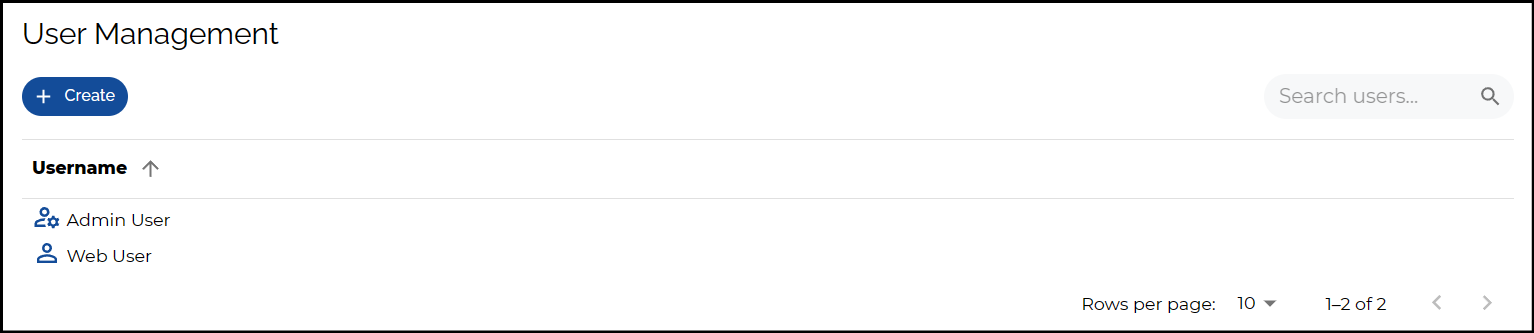
Admin Users are administrative users who create Folders, Users & Settings within the Web Admin Interface. They are able to access the entire FileSystem from the Folders tab and able to provision new Folder mappings to S3 Buckets, Azure Blob Storage Accounts & Google Cloud Buckets.
Web Users are regular users who are chrooted to a specific location on the filesystem, and are unable to access folders & files outside of their root folder. Web Users are configured with Password authentication and their permissions are configurable.
From StorageLink 1.3.0, the number of StorageLink users you can create is set by your license. Administrators are not counted against the limit.
- StorageLink BYOL — the free 30-day trial covers 10 users, and a purchased license covers 10, 100 or 1,000 users, by tier. To add users, book a 15-minute call with our Sales team and we'll issue an updated license file. See Purchasing a License.
- Pay-as-you-go listing — licensed for 10 users. The limit cannot be raised on that listing; for more users, move to StorageLink BYOL as described in StorageLink Standard vs BYOL.
The limit applies when creating users: existing users keep working, but once every seat is in use a new or replacement user cannot be added, and the message names the cap and points to sales@thorntech.com.
Home Folder Permissions
The five configurable Web User permissions are List Files, Upload, Create Folder, Download and Overwrite/Delete.
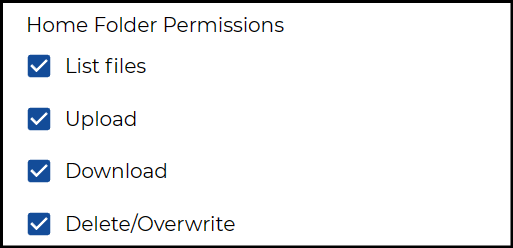
These permissions are configurable on a per-user basis & can also be modified on specific folders, if there's a directory you don't want accessed by a particular user.
Creating folders is a separate permission from Upload. A user with Upload but not Create Folder can add files to folders that already exist, but cannot create new ones. This suits a drop-box arrangement where administrators control the folder layout.
- Uploading a folder from the browser, or dragging in a nested tree, creates folders along the way, so those uploads are refused for a user without Create Folder; the message names the folder that would have been created. Files that land in existing folders are still uploaded.
- Renaming or copying a folder also requires Create Folder, since both change the folder layout. Renaming a file does not.
- Create Folder narrows Upload rather than replacing it: a user needs both to create folders, and Create Folder without Upload grants nothing.
- After an upgrade to 1.3.0, every user who could upload can also create folders, matching the behavior of earlier releases. Remove the permission deliberately where you do not want it.
Home Folders
By default, Web Users Home Folder are set to /users/<username>, so a user named Bryce would have a Home Folder of:
/users/Bryce
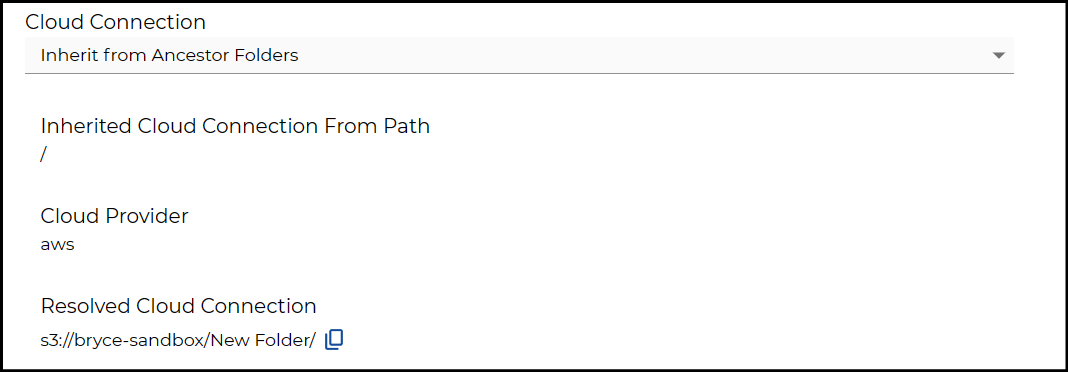
However, the Home Folder can also be changed to point to an already existing directory or to create a New Folder by specifying a unique Home Folder name. When creating a new folder, the Cloud Connection will be set to Inherit, which just means it is subfolder under the parent directory.
Some valuable information shown under an Inherited Cloud Connection are:
Inherited Cloud Connection From Path: This is the folder path you're inheriting from. Since our
New Folderis a subfolder under the root directory, it is inheriting from the root folder /.Cloud Provider: The Cloud Provider you're connecting to, can be aws, azure or gcp.
Resolved Cloud Connection: The Cloud Path in Cloud Storage you're connecting to. Will Show the Bucket or Container name & Folder path this user is connecting to.
Cloud Connections
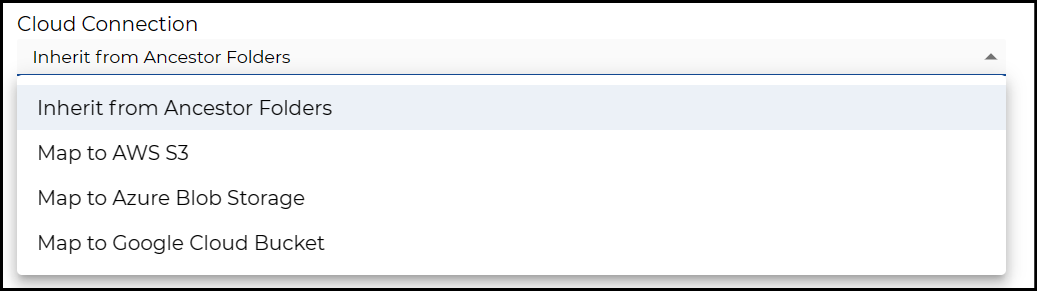
Instead of using an Inherited connection, you may want to point your user towards a specific cloud storage location. Under Cloud Connections, you have the option of mapping your user to S3, Blob Storage or Google Cloud Storage.
For more Information about Cloud Connections, check out this documentation.