Folders in StorageLink
Purpose: Use folders to map StorageLink paths to cloud storage for home directories, shared folders, and multi-cloud transfers
Folder Types:
- Inherited (default) — uses the parent folder's cloud connection and creates a matching subdirectory in cloud storage
- Cloud Connection — maps directly to a specific cloud storage location
Permissions: List, Download, Upload, Create Folder (new in 1.3.0), and Delete/Overwrite — per user and per folder
Use Cases: Separate storage accounts or buckets per folder, shared group folders, and drag-and-drop transfers between AWS, Azure, and Google Cloud
Important: Deleting a folder that points to a cloud storage location deletes all files and folders in that location. Change it to Inherited first, then delete it.
Product: StorageLink by Thorn Technologies — cloud storage gateway for secure file sharing
Use cases for Folders
Folders in StorageLink are logical mappings. They can map a subdirectory to a Cloud Connection (AWS S3, Azure Blob Storage & Google Cloud Storage) or create a regular subfolder.
In other words, Folders allow you to map to different Cloud Storage locations.
Default Configuration
By default, StorageLink has a root Folder that maps to the default Cloud Connection:
/ <-- maps to default Cloud Connection
StorageLink comes with a default Folder structure that looks like this:
/              <-- maps to default Cloud Connection
/users/        <-- a regular Folder that inherits from the parent directory
/users/userA/  <-- an inherited Folder that acts as the Home Directory of userA
/users/userB/  <-- an inherited Folder that acts as the Home Directory of userB
From the Web User's point of view, their file system will be chrooted to their Home Directory. For example, userA will log in and see the following:
/
This chroot directory corresponds to this Folder:
/users/userA/
And any uploaded files will end up in Cloud Storage:
/default-bucket/users/userA/
Folder Permissions
The five configurable Web User permissions are List, Download, Upload, Create Folder and Delete/Overwrite.

Create Folder (new in 1.3.0) is granted separately from Upload: a user can be allowed to upload into existing folders without being able to add new ones. Renaming or copying a folder also requires it. See Add & Configure Users for the details.
These permissions are configurable on a per-user basis & can also be modified on specific folders, if there's a directory you don't want accessed by a particular user.
Setting a folder to Inherited will use the same permissions that Web User has on the parent folder.
Do Folders in StorageLink create subdirectories?
When creating a Folder, you can select one of two options:
- Inherited - normal subfolder
- Cloud Connection - maps to a Cloud Storage location
Folder is set as Inherited
Inherited is the default option. Basically, it creates a subfolder under the current directory, "inheriting" the folder path & Cloud Storage location of the parent folder.
When you use the Inherited option, file uploads will go to the Cloud Connection defined by the parent Folder. For example, you can have a chain of Inherited Folders that all point to the default Cloud Connection:
/              <-- maps to default Cloud Connection
/users/        <-- inherits from the root path "/"
/users/userA/  <-- inherits from /users/
It's important to note that an Inherited Folder will create an subdirectory of the same name. For example, these Folder objects:
/users/        <-- inherited
/users/userA/  <-- inherited
will create the following paths in Cloud storage:
/default-bucket/users/
/default-bucket/users/userA/
Folder is set to Cloud Connection
You can also point a Folder directly to a Cloud Connection.
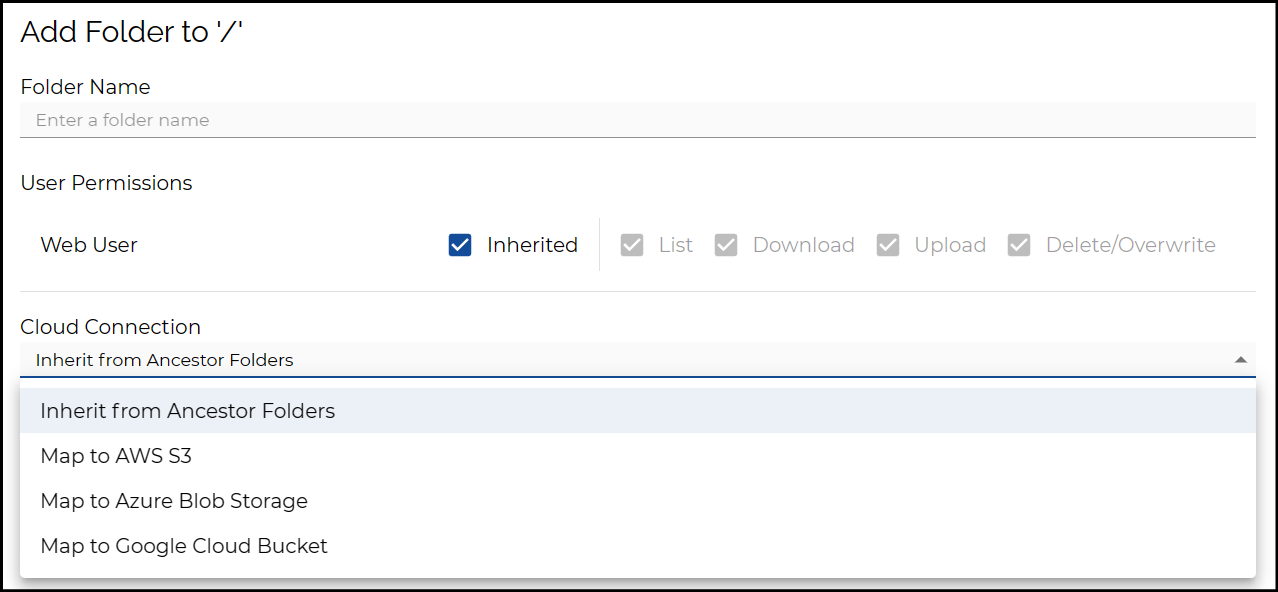
For example:
/              <-- maps to default Cloud Connection
/users/        <-- inherited Folder
/custom/       <-- points to "Cloud Connection B"
Files uploaded to the /custom/ Folder will end up in Cloud Connection B rather than the default Cloud Connection.
Deleting a folder pointing towards a Cloud Storage location will delete all the files & folders inside that Cloud Storage location. To safely delete a folder pointing towards Cloud Storage, change the folder to Inherited, then delete it.
Custom Configurations
You can use Folders and Cloud Connections for more complicated setups. For example, you want to share files between different accounts. Or, you want to transfer files between Cloud providers.
Here are some configuration examples:
Use case 1: multiple Storage Accounts
For example, an Web User can have two subfolders under their chroot directory:
/
|--folderA/  <-- maps to Storage Account A
|--folderB/  <-- maps to Storage Account B
Each Folder maps to its own Blob path in a different Storage Account.
Use case 2: group folder
You can use Folders for file sharing.
/
|--userA/  <-- maps to a location dedicated to UserA
|--group/  <-- maps to a shared location
A second user can be configured in the same way:
/
|--userB/  <-- maps to a location dedicated to UserB
|--group/  <-- maps to a shared location
Both userA and userB have their own folder.
They also have a group folder mapped for sharing files.
Use case 3: multi-cloud transfer
You can use StorageLink to transfer files between cloud providers:
/
|--aws-folder/  <-- maps to an S3 bucket
|--azure-folder/  <-- maps to an Azure Blob Storage Account
|--google-folder/  <-- maps to an Google Cloud bucket
This configuration lets you drag and drop files between AWS, Azure and Google Cloud.