Editing Files on Linux: nano & vi
Purpose: Edit files on the StorageLink VM from the command line, such as /opt/swiftgw/application.properties
Quick Steps (nano): nano test.txt → type your changes → Ctrl+X → Y → Enter
Quick Steps (vi): vi filename → i to insert → Esc → :wq and Enter to save and quit, or :q! to quit without saving
Tip: nano lists its commands at the bottom of the screen; in vi, --INSERT-- at the bottom-left means you're in Insert Mode
Product: StorageLink by Thorn Technologies — cloud storage gateway for secure file sharing
Overview
After you SSH into the StorageLink VM, you sometimes need to edit a file by hand — for example /opt/swiftgw/application.properties to adjust the password policy or other application properties. Two terminal text editors are available on the VM:
- nano — user-friendly, with on-screen command hints. Best if you're new to the command line.
- vi — powerful and available on virtually every Linux system, but it uses modes you need to learn.
Use whichever you prefer. The tabs below cover each editor.
- nano
- vi
The nano text editor is a user-friendly, terminal-based editor pre-installed on most Linux distributions, including the one StorageLink runs on. Unlike vi, there are no modes to learn — what you see is what you edit, and the available commands are listed at the bottom of the screen.
Creating and editing a file
1. Navigate to your directory
cd /path/to/your/directory
Tip: Running cd with no path takes you to your home directory.
2. Create a new file or open an existing one
nano test.txt
Replace test.txt with your file name. If the file doesn't exist, nano creates it when you save. To verify a file exists, run:
ll
This stands for "long listing" — a shortcut for ls -la.
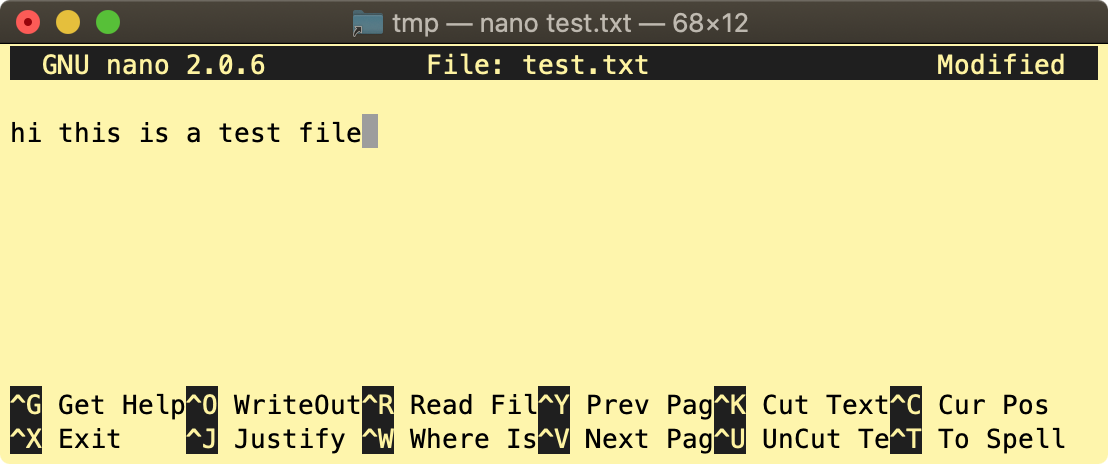
3. Edit the file
- Enter text: start typing.
- Navigate: use the arrow keys to move the cursor.
You should see something like this:
4. Save and exit
Press Ctrl+X to exit. The bottom helper text changes to ask whether to save:
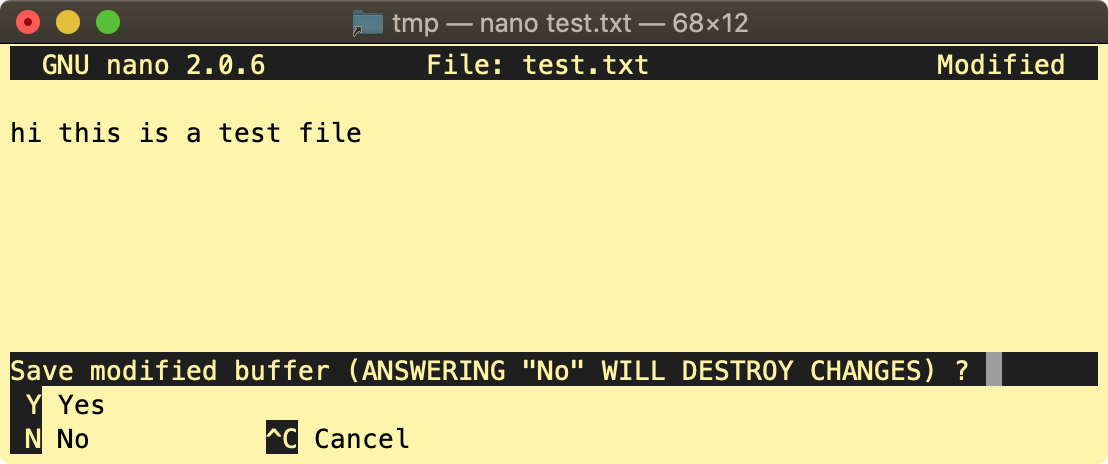
Choose Yes by typing the uppercase letter Y. Nano then prompts for the file name to save to:
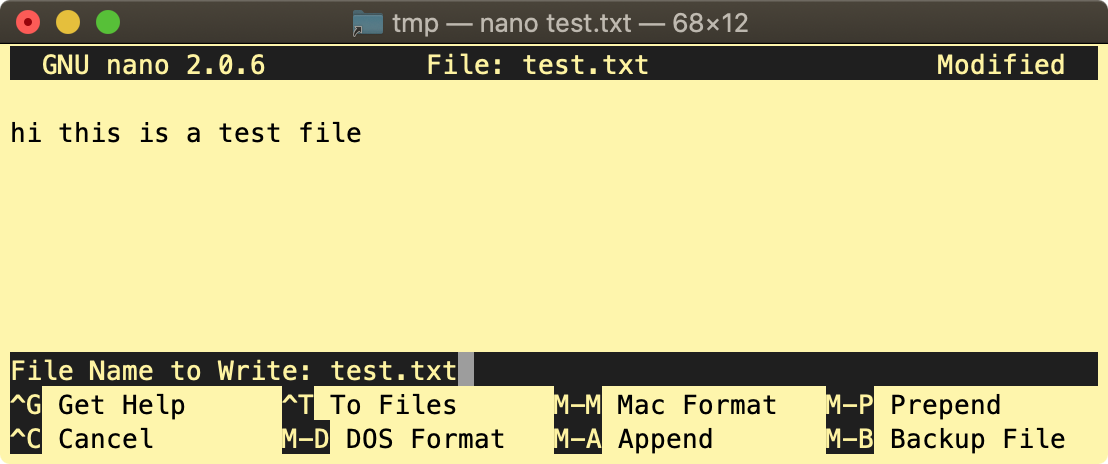
To accept the existing name, press Enter. You return to the command prompt. Verify your changes with:
cat test.txt
You'll see the file's contents:
hi this is a test file
The vi text editor is a powerful tool for editing files from the command line. The key thing to understand is that vi has two modes: Command Mode (for navigating and running commands) and Insert Mode (for typing text).
Opening a file in vi
To edit a file with vi, type:
vi filename
Replace filename with the file you want to edit. If it doesn't exist, vi creates it. For example, to edit the StorageLink application properties:
sudo vi /opt/swiftgw/application.properties
Enter Insert Mode to start typing
When you first open a file you're in Command Mode, so typing may seem to do nothing. Switch to Insert Mode:
- Press
ito enter Insert Mode. - Start typing your text.
If you make a mistake, press Esc to return to Command Mode, where you can delete or move around.
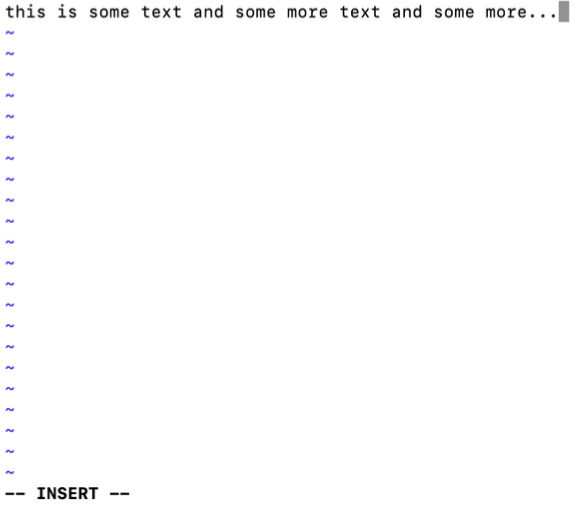
Tip: --INSERT-- appears at the bottom of the screen to confirm you're in Insert Mode.
Navigating within the file
Navigation happens in Command Mode. If the cursor won't move, press Esc first. Basic movements:
- Arrow keys — move up, down, left, right
- G — jump to the end of the file
- gg — jump to the beginning of the file
- w — move forward one word
- b — move backward one word
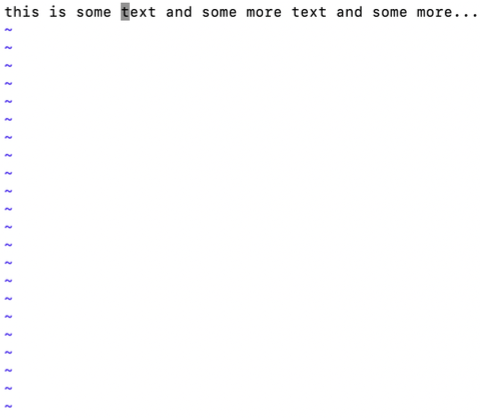
The absence of --INSERT-- at the bottom-left confirms you're in Command Mode.
Editing the file
Insert text
- Press
i, type your text, then pressEsc.
Delete text
- x — delete a single character
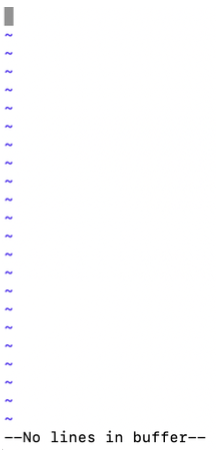
- dd — delete an entire line
After using dd to delete the only line, vi reports --No lines in buffer--:
Undo changes
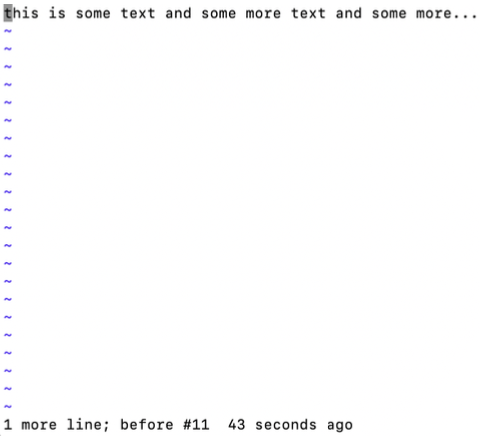
Press u to undo your last action. After using u, the deleted line is restored:
Save and exit
In Command Mode:
- :w — save the file
- :q — quit vi
- :wq — save and quit
- :q! — quit without saving
To save and exit:
- Press
Escto ensure you're in Command Mode. - Type
:wqand pressEnter.
You'll be back at your terminal: