Purchasing a License
Purpose: License a StorageLink BYOL VM or container, or see how a pay-as-you-go (Standard) instance is licensed
Recommended: StorageLink BYOL on AWS, Azure, or Google Cloud — no marketplace software fee. It starts unlicensed; start the free 30-day trial (10 users) in the admin UI.
Purchase: Book a 15-minute call for a 10-, 100- or 1,000-user license (Standard, Professional or Enterprise tier). On AWS, you buy it as a private offer on the BYOL listing in AWS Marketplace.
Activate: In Settings → License, paste or drop the license file, click ACTIVATE, then COMPLETE ACTIVATION if shown; activation binds the license to your deployment's Cluster ID
Standard Listing: Pay-as-you-go at $0.08 USD/hour with a 30-day free trial, licensed automatically for 10 StorageLink users from 1.3.0 (administrators not counted)
Product: StorageLink by Thorn Technologies — cloud storage gateway for secure file sharing
Overview
StorageLink is available three ways. StorageLink BYOL (Bring Your Own License) is the recommended listing for new deployments: a free marketplace listing on AWS, Azure, and Google Cloud, where you buy the license from Thorn Technologies. Standard is the original pay-as-you-go marketplace listing on the same clouds. The container edition runs on your own Docker Compose, Kubernetes, or OpenShift platform and is licensed the same way as BYOL. The software is the same in each case; only licensing and billing differ.
| Deployment | How you pay | Free trial | User limit |
|---|---|---|---|
| BYOL VM — the StorageLink BYOL listing on AWS, Azure, or Google Cloud | License purchased from Thorn Technologies; no marketplace software fee (you pay only for the VM) | 30 days, started in the admin UI | 10, 100 or 1,000 users, by license tier |
| Container — Docker Compose, Kubernetes, or OpenShift | License purchased from Thorn Technologies | 30 days, started in the admin UI | 10, 100 or 1,000 users, by license tier |
| Standard VM — the pay-as-you-go listing on AWS, Azure, or Google Cloud | Pay-as-you-go via marketplace billing ($0.08 USD/hour software fee, plus VM cost) | 30 days, automatic | 10 StorageLink users from 1.3.0 (administrators not counted) |
If you deployed a BYOL VM or are running the StorageLink container, you need to purchase and activate a license. Both use the same licensing flow: a free trial activated by email, followed by a license purchased from Thorn Technologies in a 10-, 100- or 1,000-user tier. Each BYOL VM or container generates a stable identifier called the Cluster ID; a purchased license is bound to it when you activate it.
If you deployed StorageLink from the Standard listing, your subscription and billing are handled entirely through the marketplace — no separate license is needed. From StorageLink 1.3.0, the instance is licensed for up to 10 StorageLink users; marketplace images before 1.3.0 had no user limit. If you upgraded an existing Standard instance in place instead of launching a new one, see Licensing after the upgrade.
Not sure which option fits? See StorageLink Standard vs BYOL for a side-by-side comparison and the steps to move from Standard to BYOL.
Option 1: BYOL (VM or Container)
If you deployed a VM from the StorageLink BYOL listing on AWS, Azure, or Google Cloud, or you are running the StorageLink container, you need to purchase a license and activate it in the admin UI.
The StorageLink BYOL listing is free to subscribe to — you pay only for the VM:
- AWS: StorageLink BYOL - Web-based file transfers to S3
- Azure: StorageLink BYOL - Web-based file transfers to Azure Blob Storage
- Google Cloud: StorageLink BYOL
The Installation guide walks through deploying from each listing.
A BYOL VM or container starts unlicensed. Administrators can sign in and have full access to configuration and user management, but until a trial or license is activated, non-administrator users cannot sign in and file transfers (uploads, downloads, and transfer jobs) are disabled for everyone.
The container edition uses the same trial and activation flow described below. For unattended deployments, the LICENSE environment variable supplies the license at startup (trial for evaluation, or your license). If it is unset, license the deployment from the admin UI after the first sign-in as described below. See the Container Deployment Reference for details.
Start a free trial
Before purchasing, you can activate a 30-day free trial directly from the admin UI. No credit card is required.
Sign in to the StorageLink admin interface and complete the First Launch setup. The Start a 30-day free trial card appears at the top of the admin UI.
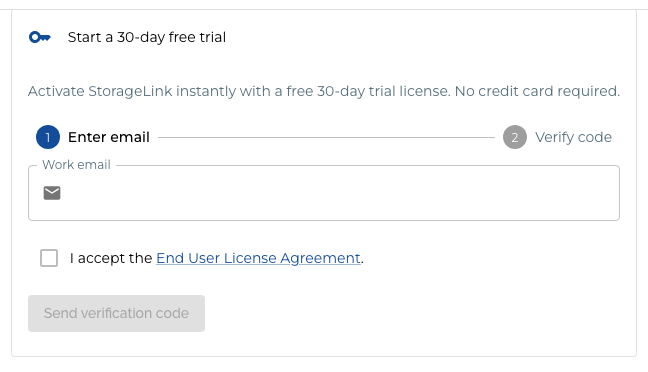
Under Enter email, type your work email address, tick I accept the End User License Agreement, and click Send verification code.
Check your email for a 6-digit verification code. If it does not arrive within a few minutes, check your spam folder.
Under Verify code, enter the code and click Start trial. If the code has not arrived, wait for the Resend available in countdown to finish and request a new one.
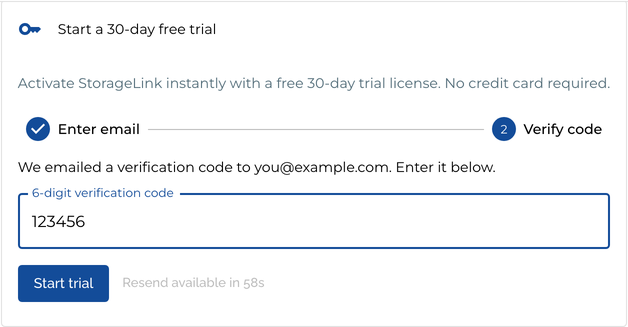
Your trial activates immediately and covers up to 10 StorageLink users. While it is active, a banner at the top of the admin UI shows how many days remain. You can hide it with Dismiss for today. You can check the trial's expiry date and the number of users it allows on the License card in Settings.

Each email address is eligible for one free trial. If a trial has already been started with your email address, you will see a message that the trial has already been used, with a link to purchase a license.
Purchase a license
Ready to purchase a license? Book a 15-minute call with our Sales team. We will walk you through pricing, help you size the license for your deployment, and email you the license file.
Licenses are priced by the number of users, so have your expected user count ready.
For the StorageLink BYOL listing on AWS, the purchase itself is completed in AWS Marketplace: our Sales team prepares a private offer on the StorageLink BYOL listing, which you accept and pay for in AWS Marketplace, billed to your AWS account. Activating the license in the admin UI works the same way on every cloud.
Activate your license
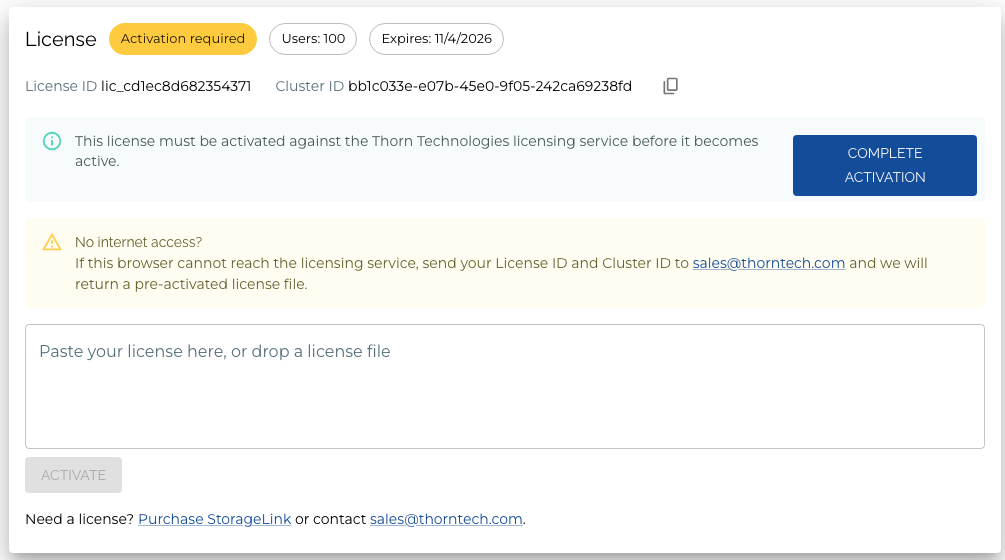
Activating a license binds it to your deployment's Cluster ID. You can see the Cluster ID on the License card in Settings, along with the license status, the number of users the license allows, its expiry date, and the License ID.
Sign in to the StorageLink admin interface and go to Settings.
On the License card, open the license file and paste its contents into the Paste your license here, or drop a license file box, or drag the file onto it. Use the license exactly as it was delivered — do not edit or reformat it.
Click ACTIVATE.
If the card shows Activation required and the message "This license must be activated against the Thorn Technologies licensing service before it becomes active." — the normal case for a newly issued license — click COMPLETE ACTIVATION. The license is checked with the Thorn Technologies licensing service and bound to this deployment's Cluster ID. Until you do this, a banner at the top of the admin UI reminds you that the license still needs to be activated for this cluster. A pre-activated license file (see Activating without internet access) skips this step.

The status chip changes to Licensed.
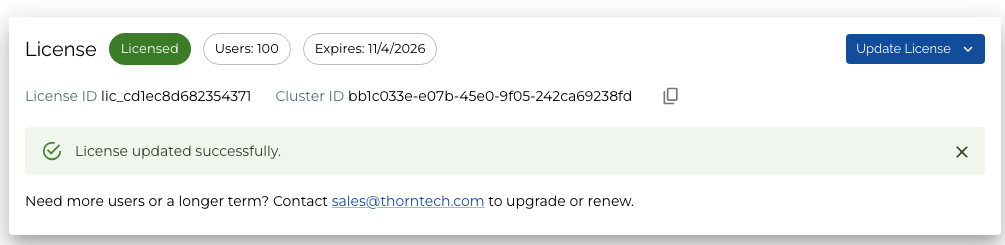
Your StorageLink deployment is now licensed. File transfers are enabled and non-administrator users can sign in immediately — no restart or page refresh required.
Activation is limited to 5 attempts per 60 seconds. If you reach the limit, the admin UI shows a countdown. Wait for it to finish and try again.
Activating without internet access
Completing activation requires a connection to the Thorn Technologies licensing service at licensing.thorntech.com. The License card in the Activation required state also carries a No internet access? note. It is for deployments that cannot reach the licensing service, for example on an isolated network. If COMPLETE ACTIVATION fails for that reason:
- Copy the License ID and Cluster ID from the License card (use the copy button next to the Cluster ID).
- Email both values to sales@thorntech.com.
- We will return a pre-activated license file. Paste or drop it into the License card and click ACTIVATE to finish. A pre-activated file does not need the COMPLETE ACTIVATION step.
Renewing your license
When your license is due to expire, a banner at the top of the admin UI reads "Your license expires in N days. Contact sales@thorntech.com to renew." You can hide it with Dismiss for today. You can also check the expiry date at any time on the License card in Settings.
To renew, or to add users, book a 15-minute call with our Sales team or email sales@thorntech.com. Sales issues a new license file that covers your remaining time plus the renewal term. Then, on the License card in Settings, click Update License and follow the prompt to paste or drop the new file. If the card asks you to complete activation, click COMPLETE ACTIVATION as before. The new license replaces the old one.
Moving a license to a new deployment
A license is bound to one Cluster ID. If you rebuild your VM, migrate to a new cluster, or otherwise create a new deployment, that deployment has a new Cluster ID, and your existing license file is rejected with the message "This license is already bound to a different cluster."
To move a license, contact support@thorntech.com. Have your License ID and the Cluster ID of the new deployment ready. We will issue a new license file for the new deployment and invalidate the old one. Activate the new file as described in Activate your license.
Before decommissioning the old deployment, export a backup so you can bring your users, folders, connections, and settings across. See the upgrade guide.
Option 2: Standard Listing (Pay-as-you-go)
If you deployed StorageLink from the Standard (pay-as-you-go) listing on AWS Marketplace, Azure Marketplace, or Google Cloud Marketplace, you are already subscribed. Billing is automatic through your cloud provider at a flat rate of $0.08 USD per hour that the VM is running, on top of the underlying VM infrastructure cost. See Pricing for details.
The Standard listing includes a 30-day free trial of the software fee — you are not charged license fees for the first 30 days after deployment. This is a billing trial; there is nothing to activate in the admin UI.
The links below go to the Standard listing. If you search the marketplace by name instead, make sure you choose the pay-as-you-go listing (its name does not include the word Standard, but it shows an hourly software price), not the StorageLink BYOL listing.
- AWS
- Azure
Subscribe on AWS Marketplace
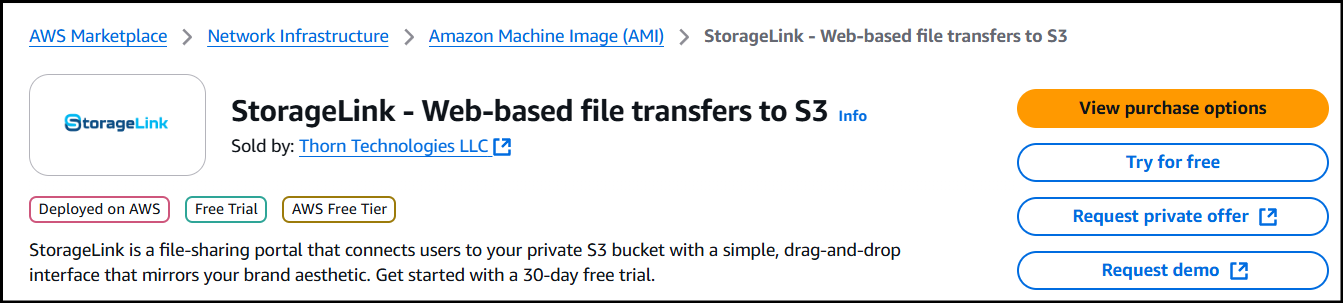
Go to the StorageLink product page on AWS Marketplace and click Try for free.
Edit the
Offer detailssection and select anOffer typeof Public offer.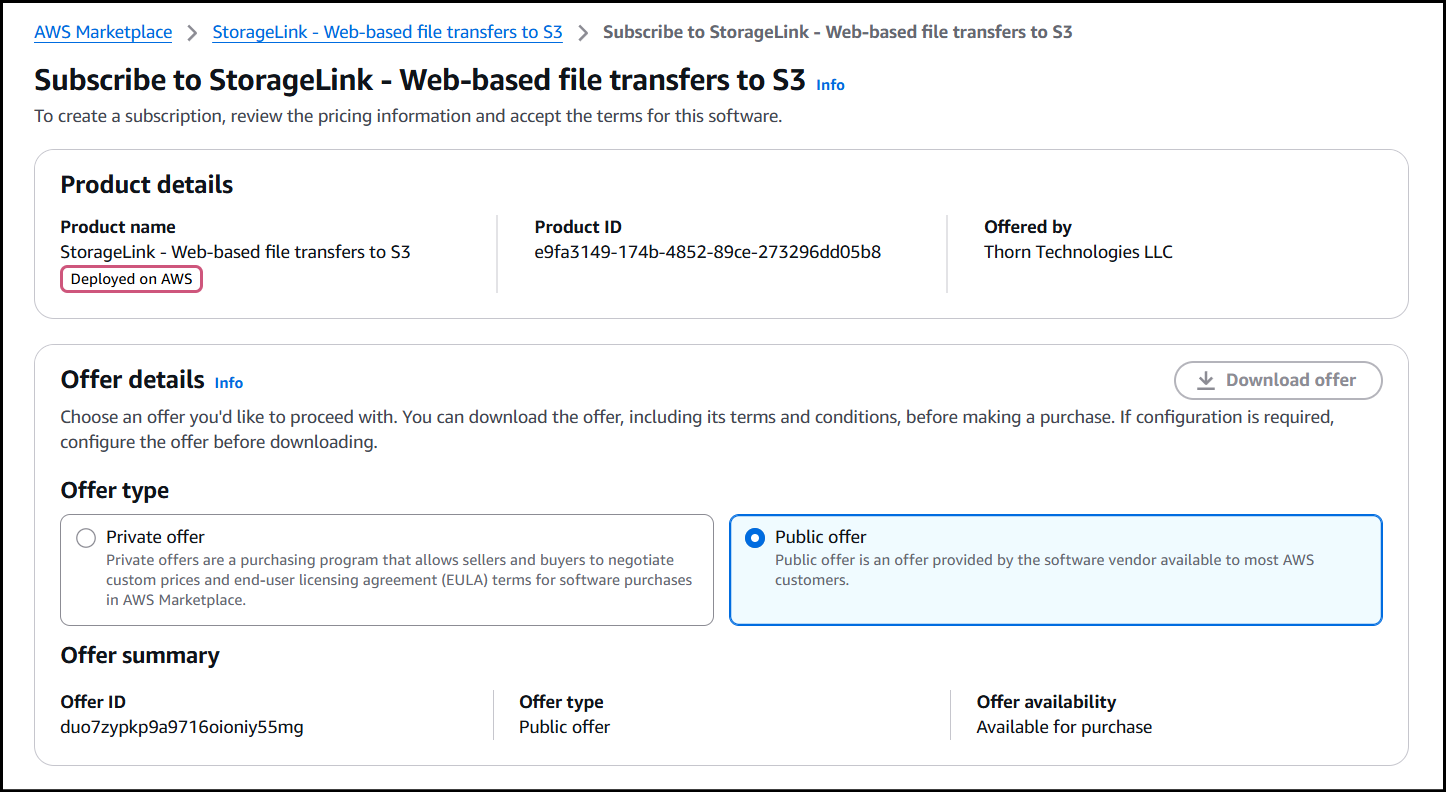
Scroll down a little and update the
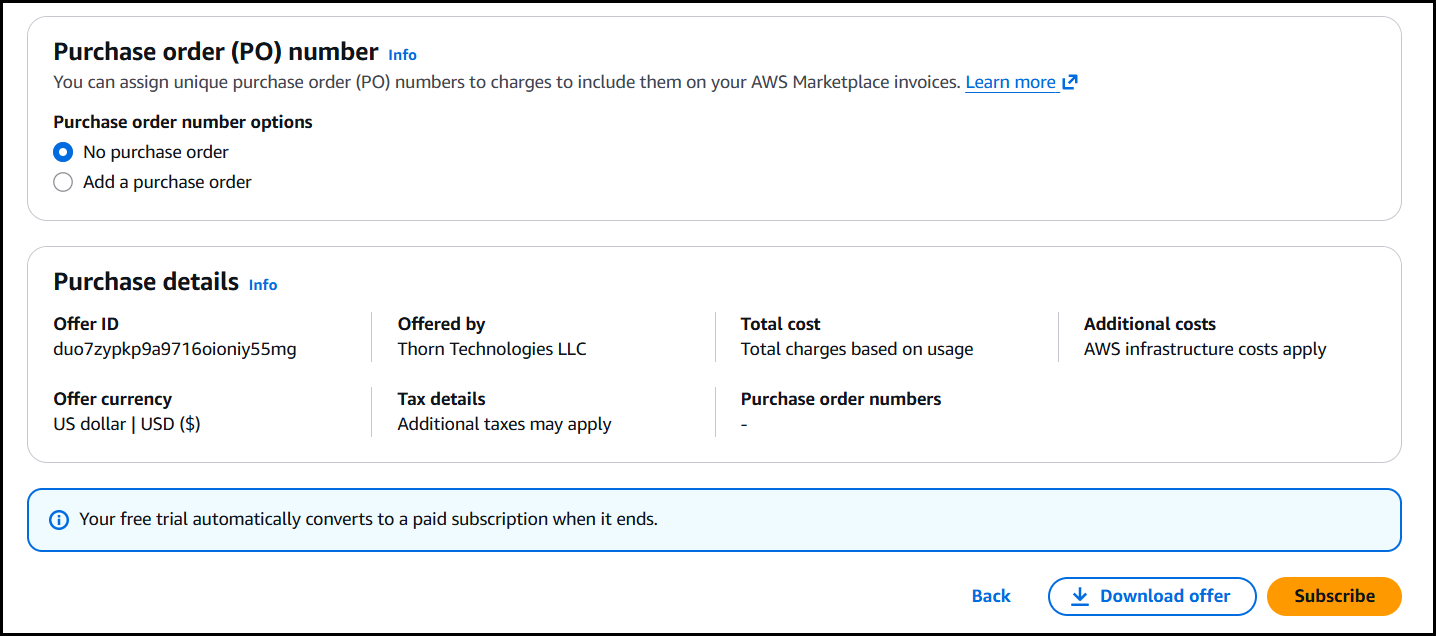
Purchase detailsto be Usage based. The Offer & Purchase details should then look like this: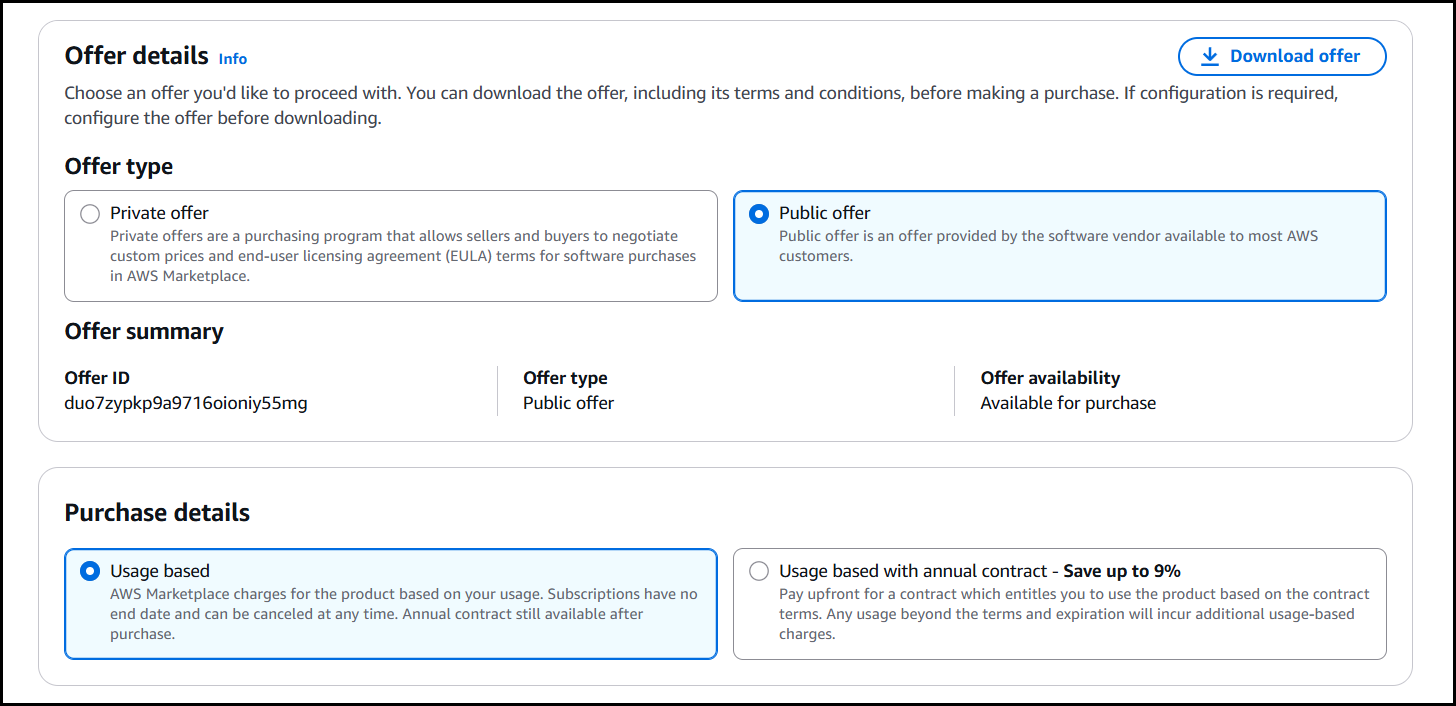
Scroll to the bottom of the page and click Subscribe.
 info
infoSubscribing does not cost anything by itself. It allows your AWS account to launch the product. Each AWS account must subscribe individually — child accounts do not inherit subscriptions from a parent account.
The subscription process takes a few minutes. Once you are subscribed, click Launch your software and deploy with CloudFormation as described in the Installation guide.

Annual pricing
If you are running StorageLink in production and know which EC2 instance size supports your workload, consider the annual pricing model. This locks you in for a year but provides a discount, similar to a reserved instance.
Subscribe on Azure Marketplace
Click Get It Now and sign in with your Azure account.
Under Plan, choose StorageLink, review the pricing terms, and click Create to begin the deployment wizard.
You will be charged $0.08/hr for the software whenever the VM is running. To stop being charged, deallocate (not just stop) the VM in the Azure Portal.
Subscribe on Google Cloud Marketplace
Go to the StorageLink product page on Google Cloud Marketplace.
Click Get Started and select your project.
Review the pricing terms and complete the deployment wizard.
You will be charged $0.08/hr for the software whenever the VM is running. To stop being charged, stop the VM in the Google Cloud Console.
How the Standard listing license works
A 1.3.0 instance launched from the Standard listing licenses itself. It confirms with your cloud provider that it was launched from that listing, so there is no license to enter and nothing to bind — the instance is licensed from first boot. The License card in Settings shows that the license came from the marketplace.
Keep the following in mind:
- 10 StorageLink users. From 1.3.0, a Standard listing instance is licensed for 10 StorageLink users; marketplace images before 1.3.0 had no user limit. Administrators are not counted against the limit. Every subscriber of the listing gets the same limit.
- The limit applies to creating users. If your instance already has more than 10 users, all of them keep working, but you cannot add or replace a user.
- Restoring a backup with more than 10 users. The restore completes and the first 10 users are imported. Each remaining user is skipped and reported by name with the message
User <username> was not imported: the license user cap (10) has been reached. Contact sales@thorntech.com to raise the limit.The limit cannot be raised on the Standard listing itself; Sales will help you move to a BYOL license sized to your user count. For the restore procedure, see Restore. - Need more than 10 users? Deploy from the StorageLink BYOL listing (Option 1), where licenses come in 10-, 100- or 1,000-user tiers (Standard, Professional and Enterprise), or use the container edition. See StorageLink Standard vs BYOL for how to move an existing deployment.
- Nothing to move. Because the license is tied to the listing rather than to a machine, autoscaling, rebuilds, resizes, and disaster-recovery replacements need no license action. A Standard listing license cannot be transferred or moved to a BYOL VM or container.
The license check runs in the background and only needs attention if it cannot complete — most often because the instance metadata service has been firewalled off, on Google Cloud because the subnet does not have Private Google Access enabled or the instance has no service account attached, or on Azure because the VM's clock is more than five minutes off. In that case the admin UI explains what is blocked and links to Marketplace License Network Requirements in the in-app help. AWS and Azure instances need no outbound internet access for this check.
Contact Sales
For custom licensing, volume pricing, or enterprise agreements, book a 15-minute call with our Sales team or email sales@thorntech.com.