Reset VM Password
Purpose: Regain SSH access to a StorageLink Azure VM by resetting the Linux admin user's credentials with the Azure portal's Reset password tool
Steps:
- On the VM details page, go to Reset password
- Reset the password or SSH public key of your admin user (for example
azureuser), or create a new Linux admin user with a new username
Important: Do not select Reset configuration only — it wipes the StorageLink-specific settings in /etc/ssh/sshd_config
Troubleshooting: The tool relies on the enablevmaccess extension, which needs Python and free disk space — check both with Run command (python --version, df -h) and restart the VM after installing Python
Product: StorageLink by Thorn Technologies — cloud storage gateway for secure file sharing
Overview
If for some reason you cannot SSH into your VM (on port 22) using your
Linux admin user (e.g. azureuser), you can reset your
credentials via the Azure Portal.
Reset your credentials with the Reset Password tool
The Reset Password tool in the Azure Portal lets you update the credentials of Linux admin users,
as well as create new users.
Under the VM details page, go to Reset password.
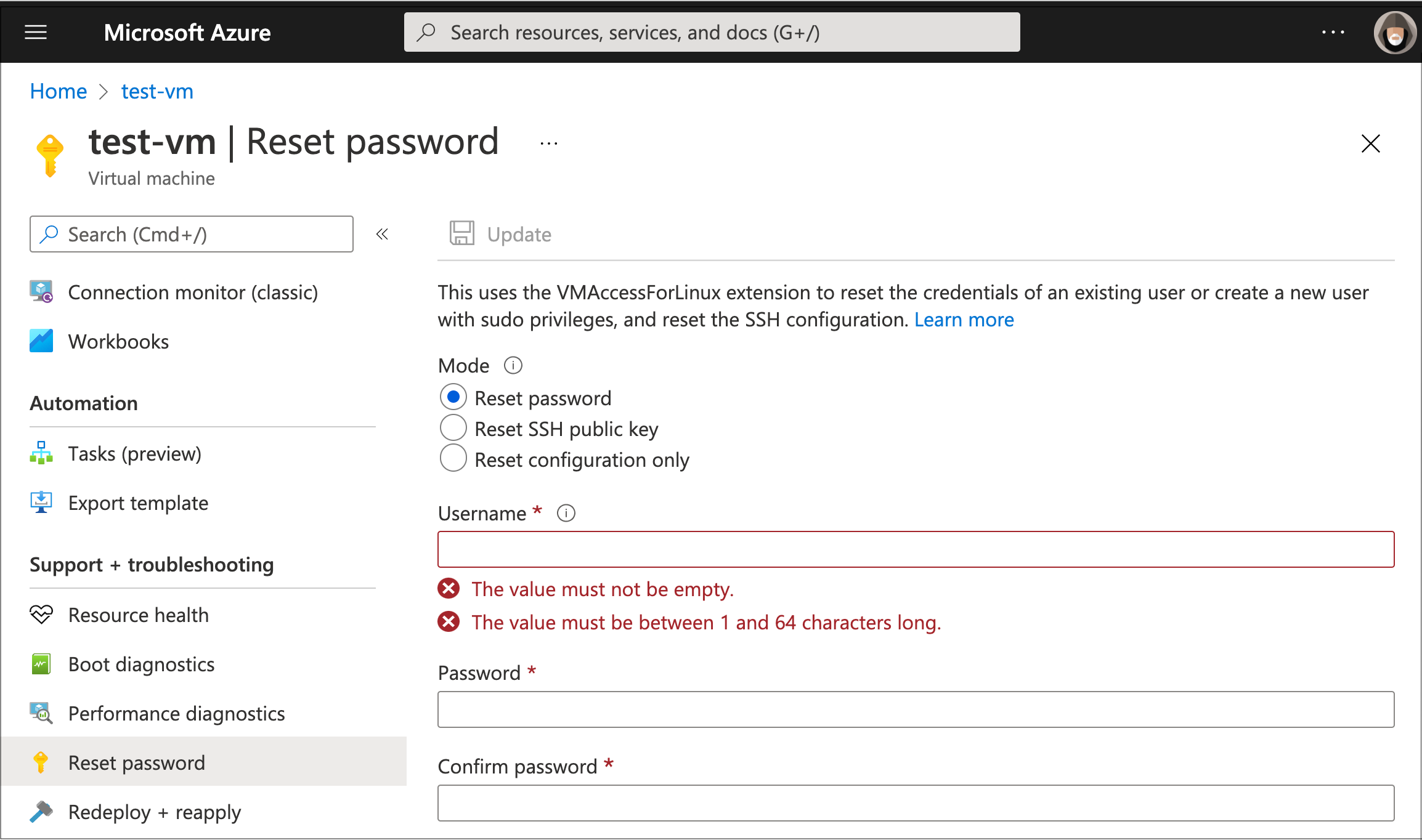
This page gives you the option to reset your password or SSH public key.
You can also create a new Linux admin user, as long as you specify a new username.
Be careful not to select Reset configuration only — this will wipe out the
StorageLink-specific settings in the /etc/ssh/sshd_config file.
Video Reference
Troubleshooting
If the Reset Password tool is not working properly, there are a couple of things you can check.
Python version
The Reset Password feature in the Azure Portal relies on the pre-installed enablevmaccess Linux extension. However, this extension requires Python, which may not be configured properly on some VM images.
In this section, you will verify whether Python is installed, and install it if necessary.
On the VM details page, open the Run command tab from the left side menu.
Click on RunShellScript. This opens a modal that lets you submit Bash commands.
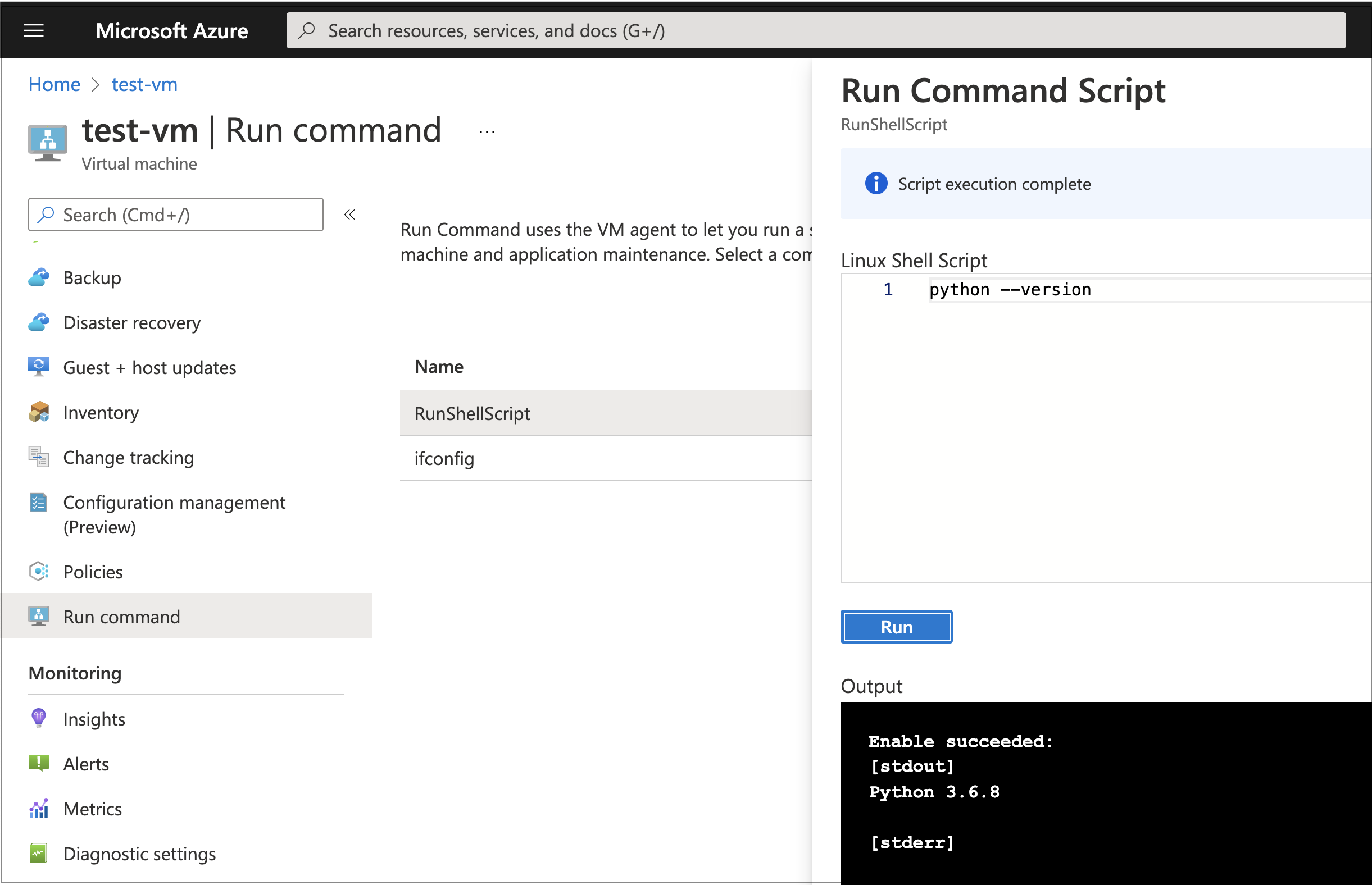
Type in the following command:
python --version
Click Run. It will take a minute or two for the script to execute.
If you see a Python version (e.g. Python 3.6.8) in the standard output ([stdout]), you can skip to the next section.
Otherwise, install Python 3 using your VM's package manager. On a Debian/Ubuntu-based StorageLink VM:
apt-get update
apt-get install -y python3
ln -sf /usr/bin/python3 /usr/bin/python
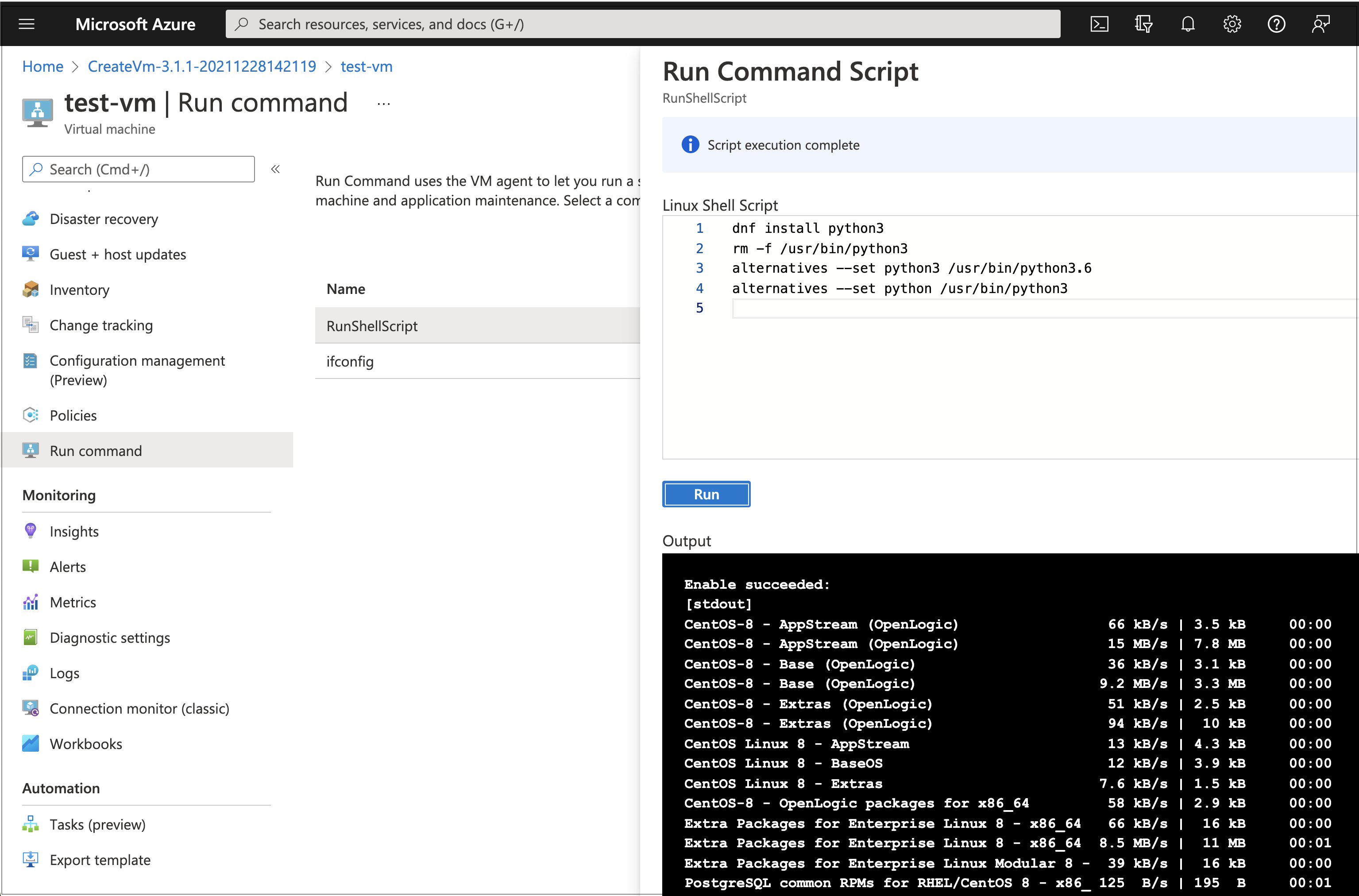
On an RPM-based image, the equivalent is:
dnf install python3
rm -f /usr/bin/python3
alternatives --set python3 /usr/bin/python3.6
alternatives --set python /usr/bin/python3
You should see output confirming the installation (the example below shows the RPM-based dnf output):
Once Python is installed, return to the VM Overview page and Restart the VM. The Reset Password tool will not work until this Restart has taken place.
Disk space
To check your disk space, use the Run command utility in the Azure Portal to run:
df -h
If the root partition is full, the Linux agent will not be able to perform the necessary commands to reset credentials. If this is the case, you'll need to find files to delete (e.g. large log files in /var/log/) to free up some space.