Branding in StorageLink
Purpose: Replace StorageLink's default branding with your own logo, favicon, colors, and page title
Location: Settings → Theme Customizations
Key Settings:
- Logo — PNG or SVG, about 45px tall
- Favicon — 32×32
- Page Title — replaces
StorageLinkin the browser title bar - Primary/Secondary Theme Color and Primary/Secondary Font Color — hex values
Apply: Click Save to apply changes immediately, or Reset to Default to restore the standard StorageLink branding
Product: StorageLink by Thorn Technologies — cloud storage gateway for secure file sharing
Overview
StorageLink lets you white-label the web interface so it matches your organization's look and feel. Branding applies everywhere your users see StorageLink — the sign-in page, the navbar, and the browser tab — for both Admin Users and Web Users.
All branding lives in Settings → Theme Customizations.
Open Theme Customizations
Sign in as an Admin User, click Settings in the left sidebar, and scroll to the Theme Customizations section.
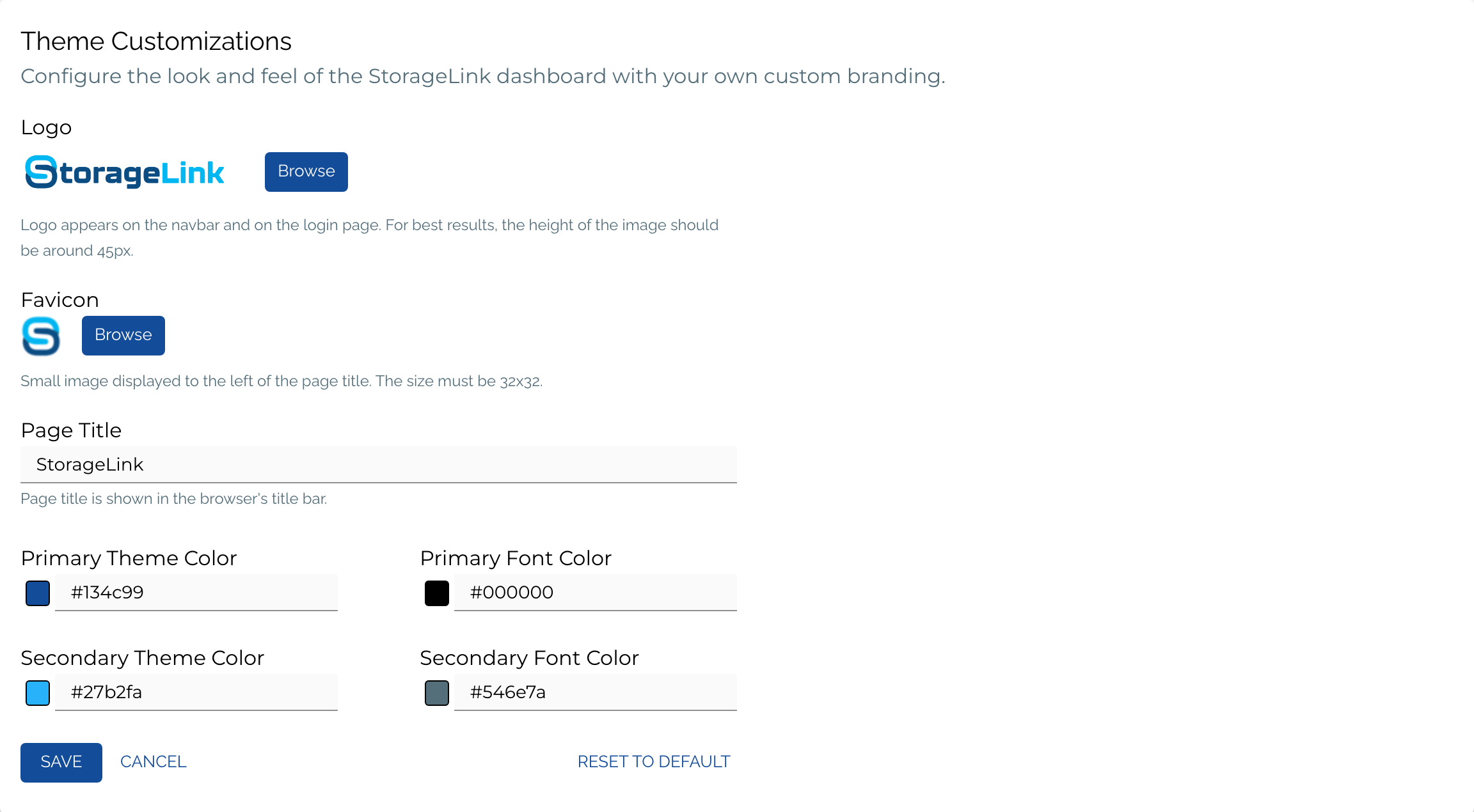
Branding options
| Field | Controls | Notes |
|---|---|---|
| Logo | The word-mark in the navbar and on the sign-in page | PNG or SVG. For best results, use an image about 45px tall. |
| Favicon | The icon in the browser tab | Must be 32×32. |
| Page Title | The text in the browser's title bar | Replaces StorageLink. |
| Primary Theme Color | Main interface color — buttons, links, and accents | Hex value, e.g. #134c99. |
| Primary Font Color | Text color on primary elements | Hex value, e.g. #000000. |
| Secondary Theme Color | Secondary accent color | Hex value, e.g. #27b2fa. |
| Secondary Font Color | Text color on secondary elements | Hex value, e.g. #546e7a. |
To set a Logo or Favicon, click Browse next to the field and select your image. For each color, type a hex code or pick one from the color swatch.
Apply or reset changes
- Click Save to apply your changes. They take effect immediately across the web interface.
- Click Reset to Default to discard your customizations and restore the standard StorageLink branding.
How branding appears
Once saved, your logo and colors apply everywhere users interact with StorageLink. The logo appears in the top-left of the navbar on every page:

It also appears on the sign-in page, above the form:
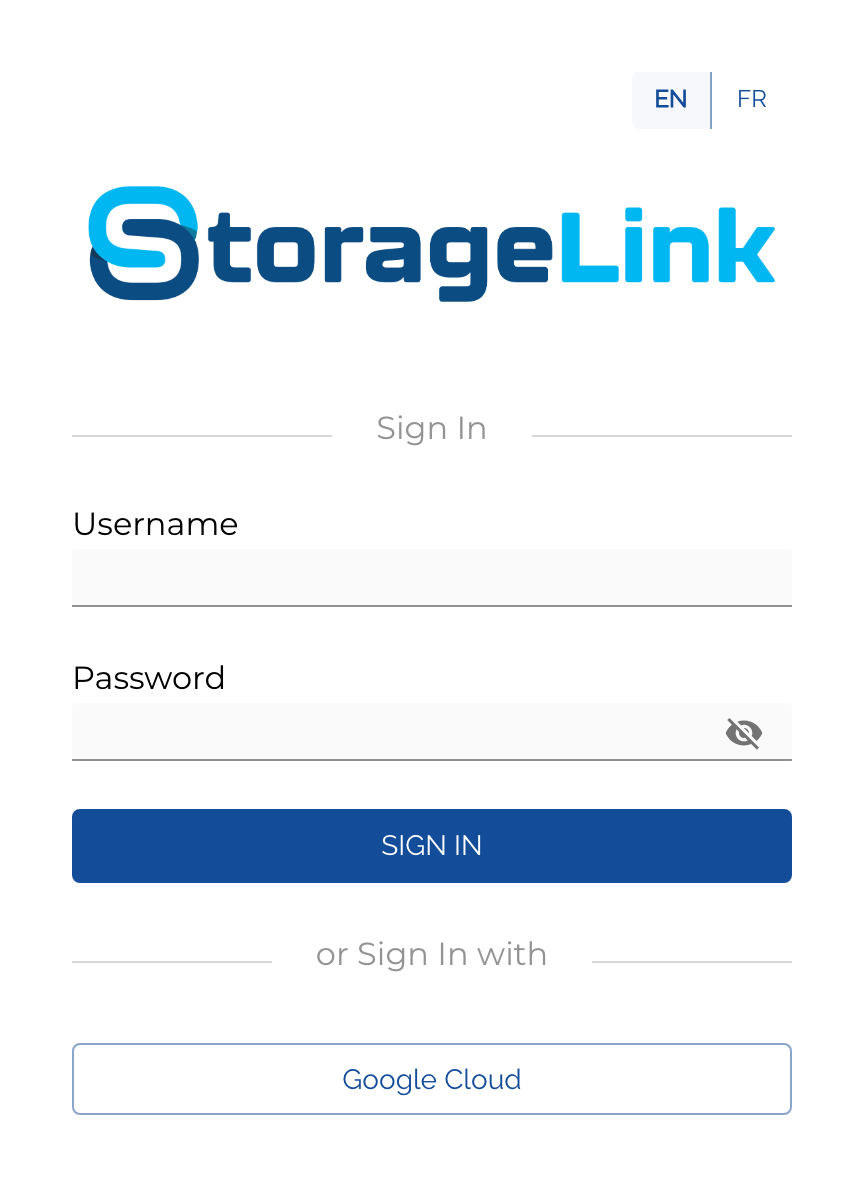
Branding is purely cosmetic — it does not change any functionality or permissions. It gives external partners a familiar, trusted experience when they sign in to exchange files with your organization.
Example: a custom logo and theme color
Change the logo and the colors together to fully re-skin the interface. Here is Theme Customizations configured with a sample AcmeCloud brand — a custom logo, a purple Primary Theme Color (#7c3aed), and a lighter purple Secondary Theme Color (#a78bfa):
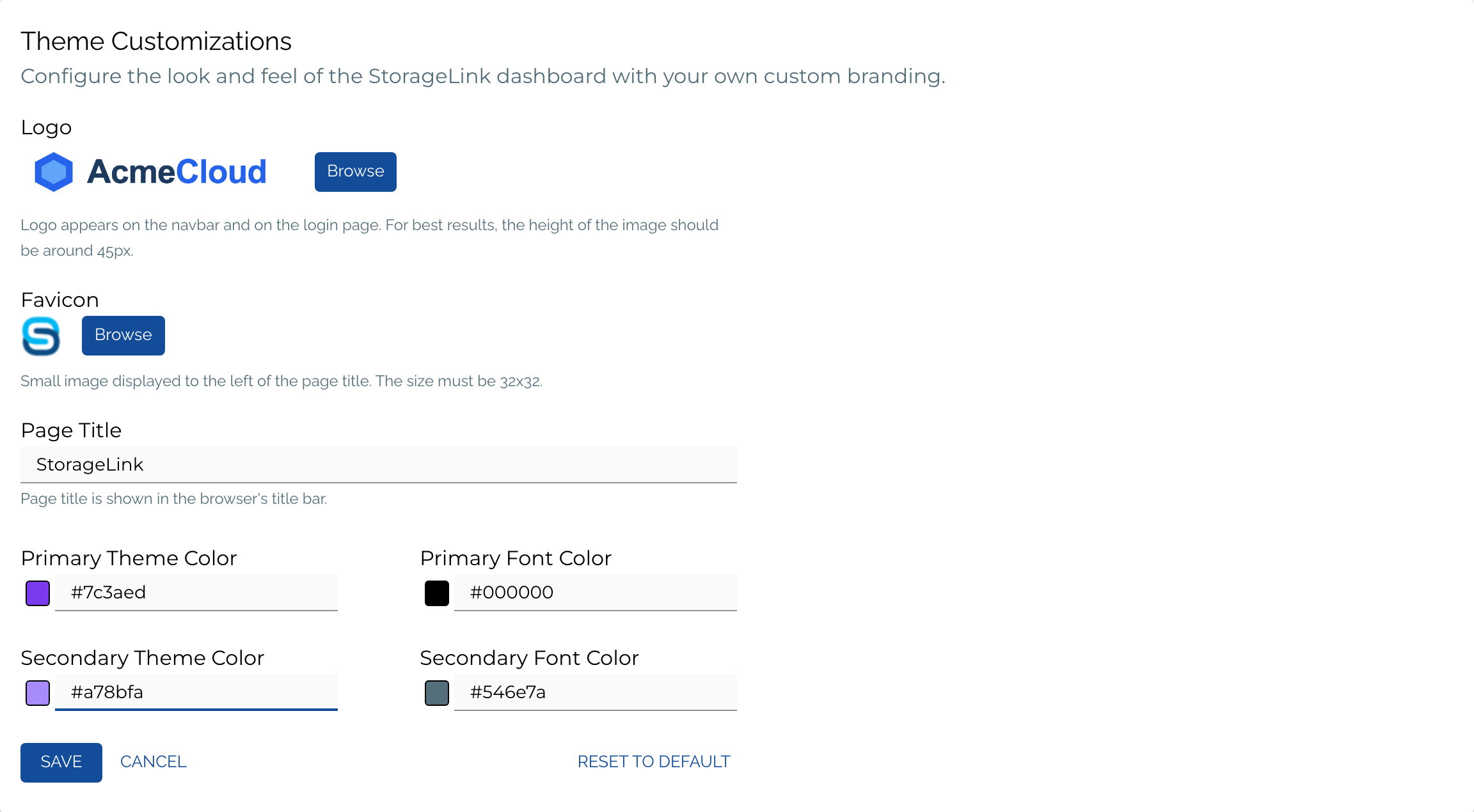
After you click Save, both the logo and the new colors apply across the interface. On the sign-in page, the AcmeCloud logo appears above the form and the Sign In button picks up the new primary color — compare it with the default StorageLink branding shown earlier:
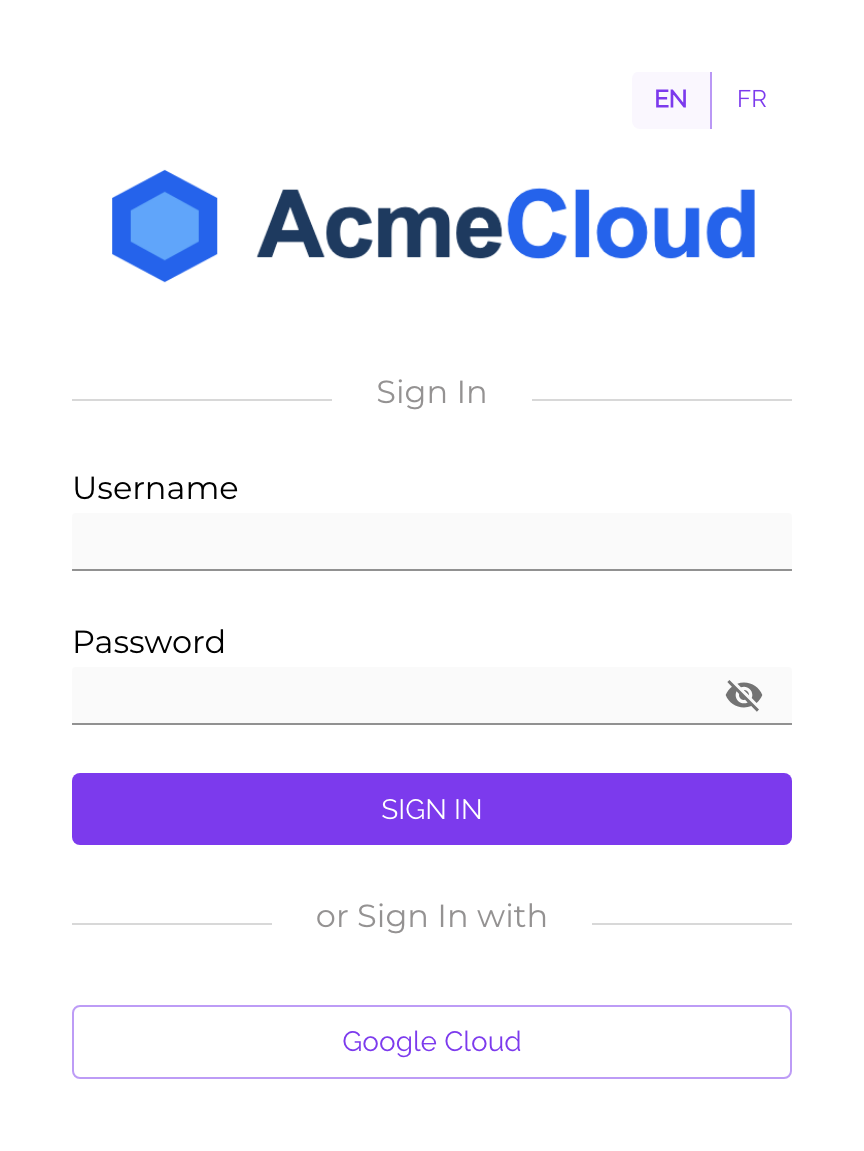
The custom logo also replaces the StorageLink word-mark in the navbar at the top of every page:

The Primary Theme Color drives buttons, links, and accents throughout the web interface, while the Logo appears on the navbar and sign-in page. Together they let you match StorageLink to your organization's brand.
To return to the standard look at any time, open Theme Customizations and click Reset to Default.