How to Apply Your License
TLDR - Quick Summary
What: Activate the SFTP Gateway license file you received from Thorn Technologies
Where: Web admin interface → Diagnostics tab → License Information → Update License
How: Drag and drop the license file into the License Key field and click Activate License
Result: Status changes to Active, and the panel shows your license tier, user limit and expiration date
Requires: Outbound HTTPS from the instance to
licensing.thorntech.com; otherwise use offline activation through support
Overview
When you purchase a license for SFTP Gateway (BYOL) on Azure, Thorn Technologies emails you a license file (a .json
file). The license is not applied automatically: your deployment keeps running on its current license (for example the
30-day trial) until you load the new file through the web admin interface. This article walks through applying the license
and confirming that it is active.
The same steps apply to your first license, a renewal, and an upgrade to a higher user tier.
Before you begin
- Your license file. Save the attachment from the fulfillment email to your computer and keep it as a file. Copying the text out of an email can add line breaks that break the license signature. If you don't have a license yet, see Purchasing a License.
- Admin access to the SFTP Gateway web admin interface.
- Outbound internet access from the SFTP Gateway instance to
https://licensing.thorntech.com. Activation binds the license to your deployment's Cluster ID through the Thorn Technologies licensing service. If the instance can't reach the internet, see Offline activation below.
Apply the license
1. Open the Diagnostics tab
Sign in to the web admin interface and click Diagnostics in the top navigation. The License Information panel shows the current state of your license. A new deployment without a trial shows No License; a trial deployment shows the trial details.
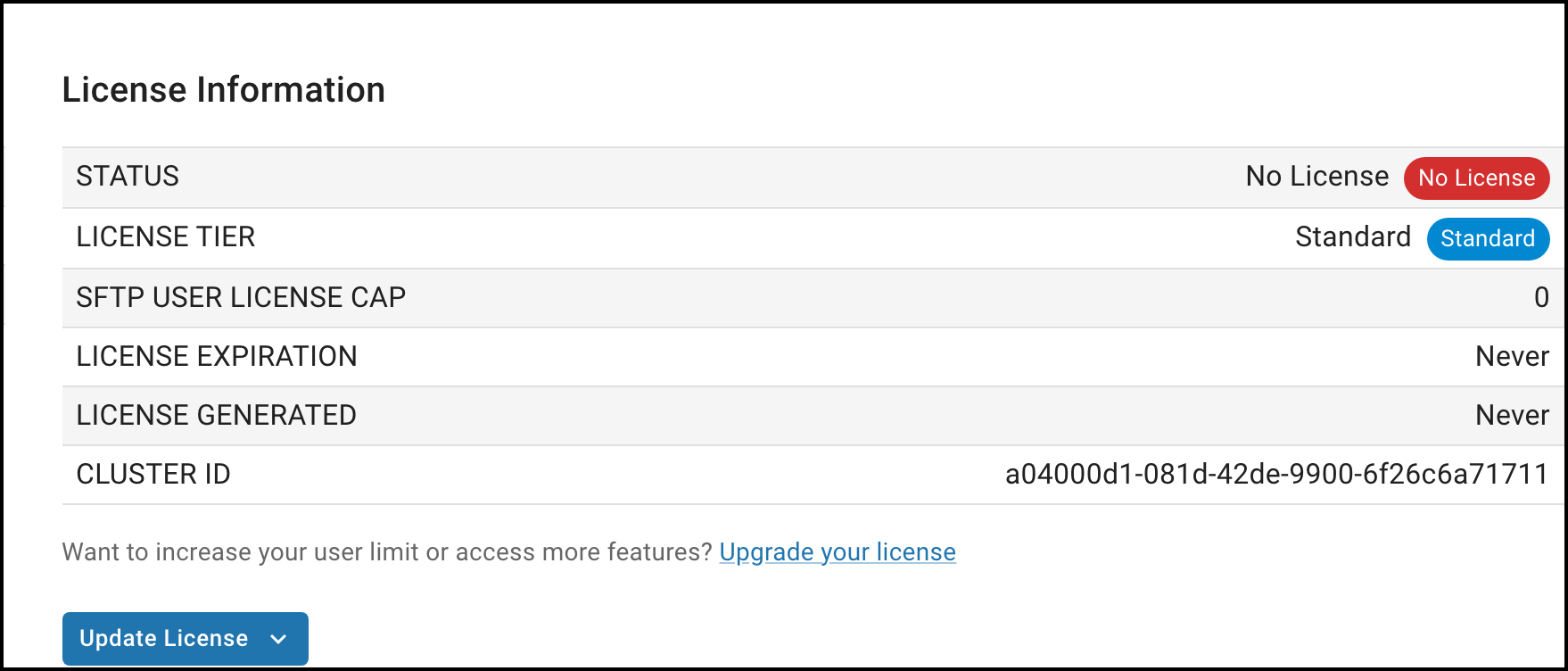
2. Click Update License
Click Update License. A License Key field opens below the panel.
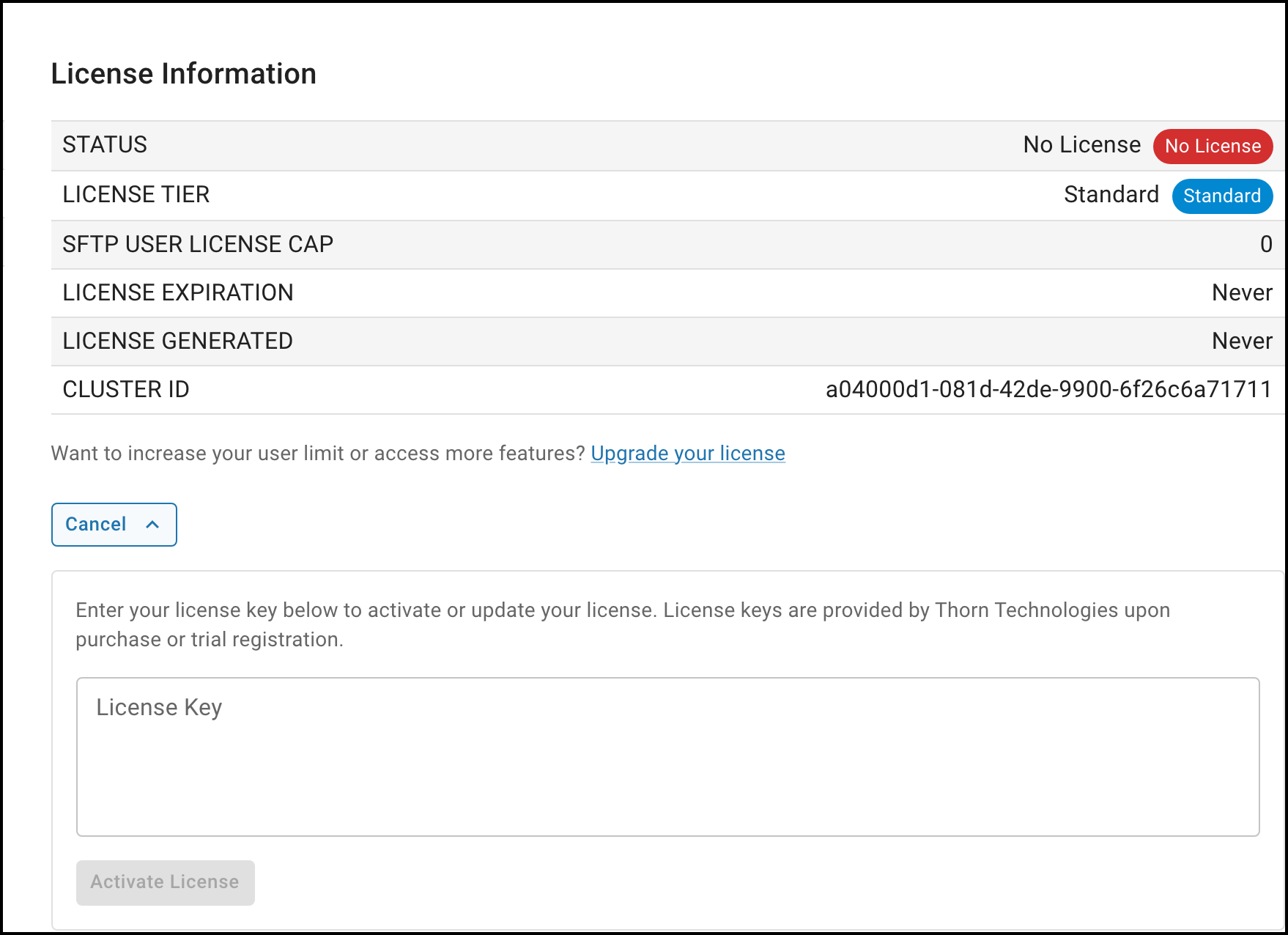
3. Add your license file
Drag and drop the license file into the License Key field. You can also open the file in a text editor and paste its contents, as long as you include the entire file.
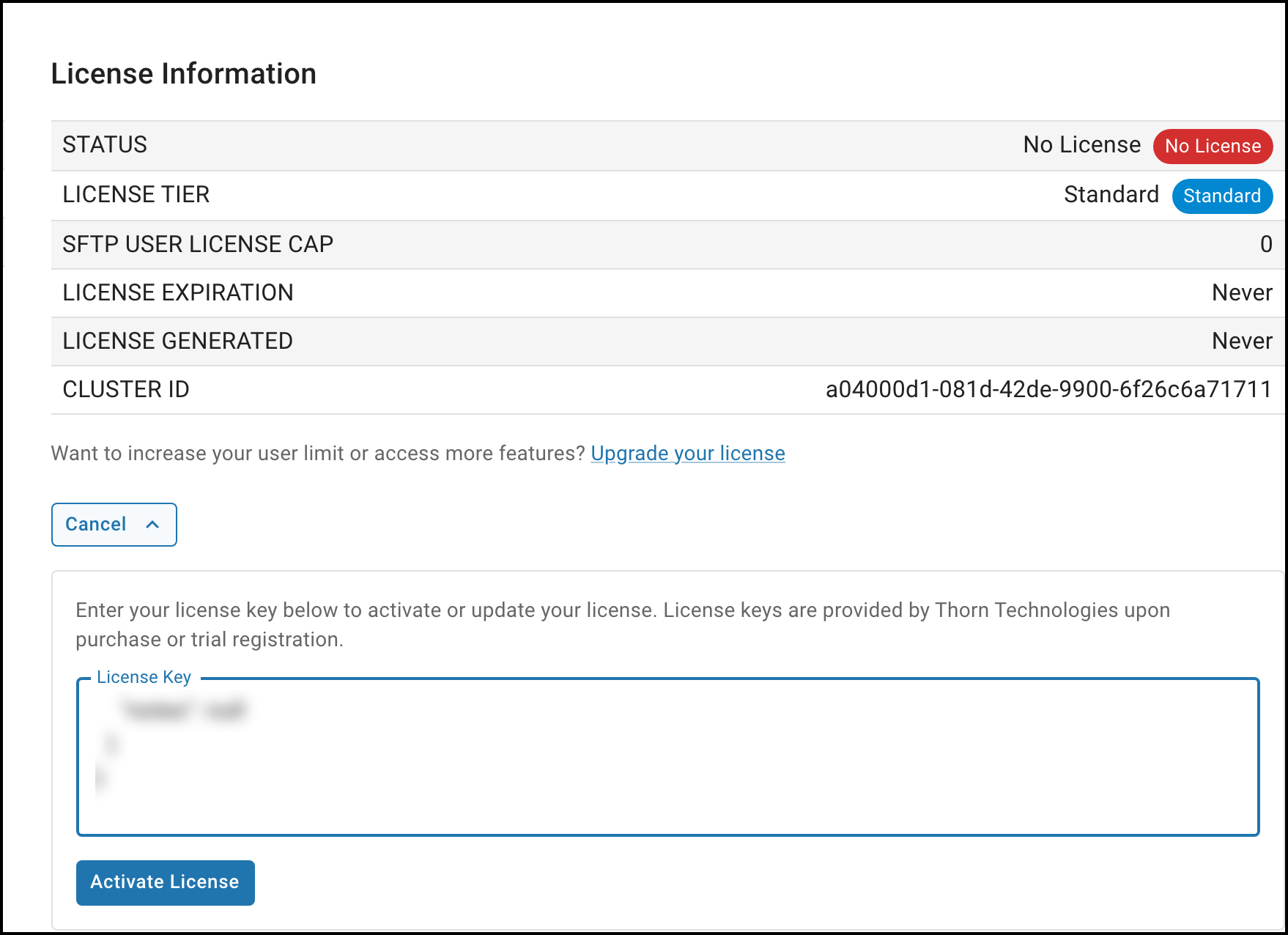
4. Click Activate License
Click Activate License. SFTP Gateway checks the file's signature, stores it, and contacts the Thorn Technologies licensing service to bind the license to your Cluster ID. This takes a few seconds.
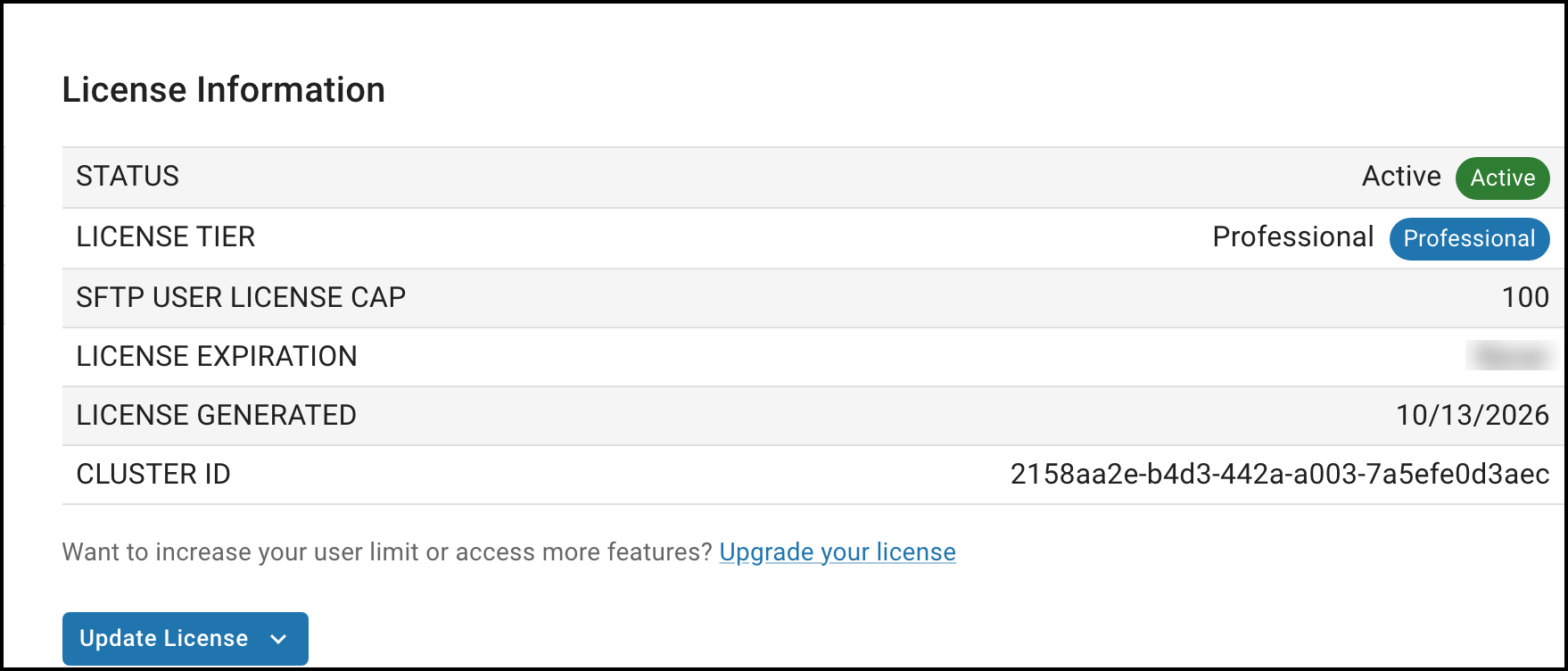
5. Confirm the license is active
The License Information panel now shows Status: Active along with your license tier, SFTP user license cap, expiration date and Cluster ID. The new user limit is in effect immediately; no restart is required.
If you see "License Requires Activation"
If SFTP Gateway could not complete the binding, for example because the instance has no outbound internet access or the licensing service rejected the request, the panel shows License Requires Activation together with your License ID and Cluster ID.
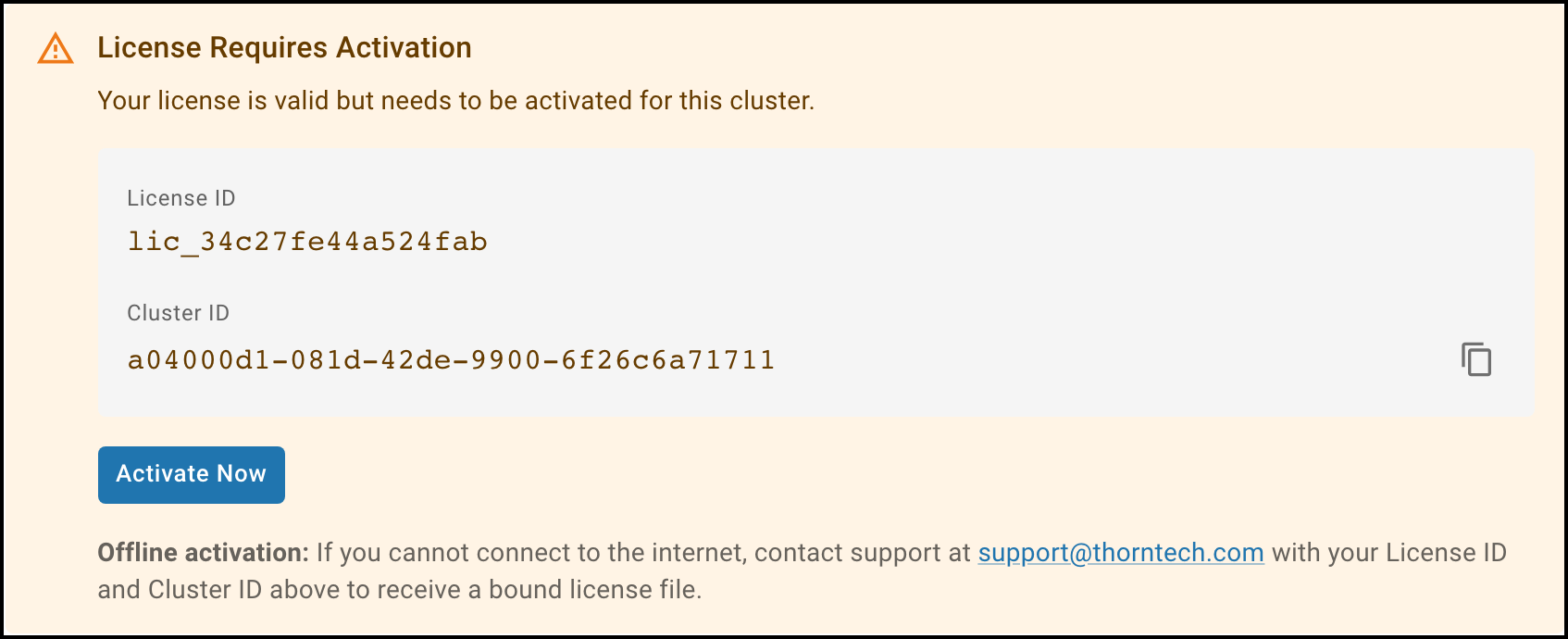
- Click Activate Now to try the online activation again. If it succeeds, the status changes to Active.
- If the instance cannot reach
licensing.thorntech.com, use offline activation below. - If the attempt fails with an error such as
Invalid license signature, the file is out of date or was altered. Drag and drop the original file again, or contact support.
Offline activation
If your SFTP Gateway instance cannot reach licensing.thorntech.com, complete steps 1 to 4 above, then email
support@thorntech.com with the License ID and Cluster ID shown in the
License Requires Activation message. Support will send you a license file that is already bound to your cluster. Apply
that file with steps 2 to 4; no online activation is needed for a bound file.
High availability deployments
Apply the license once, on any node. The license is stored in the shared database, and the other nodes pick it up within a minute or two.
Troubleshooting
| Message | What it means | What to do |
|---|---|---|
Invalid license signature | The file could not be verified, usually because its text was changed when it was pasted, or the file is out of date | Drag and drop the original file instead of pasting. If it still fails, contact support |
Your license has expired. SFTP functionality is disabled. | The license on the deployment is past its expiration date | Apply your renewal license file, or contact support to renew |
Your license is restricted to 0 users. (when adding a user) | The deployment has no active license | Apply your license, or start the 30-day trial described in Getting Started |
| License is bound to a different cluster | The file was already activated on another deployment, for example an instance you replaced | Contact support to transfer the license to your new Cluster ID |
Questions about your license? Email support@thorntech.com.