Azure Monitor Agent
TLDR - Quick Summary
What: Send the SFTP Gateway application, SFTP audit and license audit logs to a Log Analytics Workspace with the Azure Monitor Agent (AMA) (v3.3.3+)
Setup: Create LAW > Create three custom tables (PowerShell) > Create one Data Collection Rule (DCR) per log > Grant the VM the Log Analytics Data Reader role
Logs:
SFTPGWApplication_CL,SFTPGWAudit_CLandSFTPGWLicenseAudit_CLtables (the license audit log exists in SFTP Gateway 3.8.0 and later)Not required: a Data Collection Endpoint (DCE). The VM can stay running while you create the DCRs.
Overview
This article shows you how to install the Azure Monitor Agent (AMA) and send the SFTP Gateway log files to an Azure Monitor Log Analytics Workspace (LAW).
The high level steps are as follows:
- Create a Log Analytics Workspace
- Create a custom table for each log in your Log Analytics Workspace
- Create a Data Collection Rule (DCR) for each log. The first DCR also:
- Installs the Azure Monitor Agent (AMA) on the VM
- Enables the System Assigned Managed Identity on the VM
- Grant the VM read access to the Log Analytics Workspace, so the web admin Diagnostics screen can display the logs
The custom tables must exist before you create the DCRs that send data to them.
Create a Log Analytics Workspace
Azure Monitor is a service for aggregating logs and metrics. This information is organized into Log Analytics Workspaces.
In the Azure Portal, go to the Log Analytics workspaces service
Click Create
Choose your Subscription
Choose or create a Resource Group
Give the Log Analytics Workspace a Name
Choose your Region. The DCRs you create later must use the same region as the workspace, so keeping all your resources in one region makes setup and troubleshooting easier.
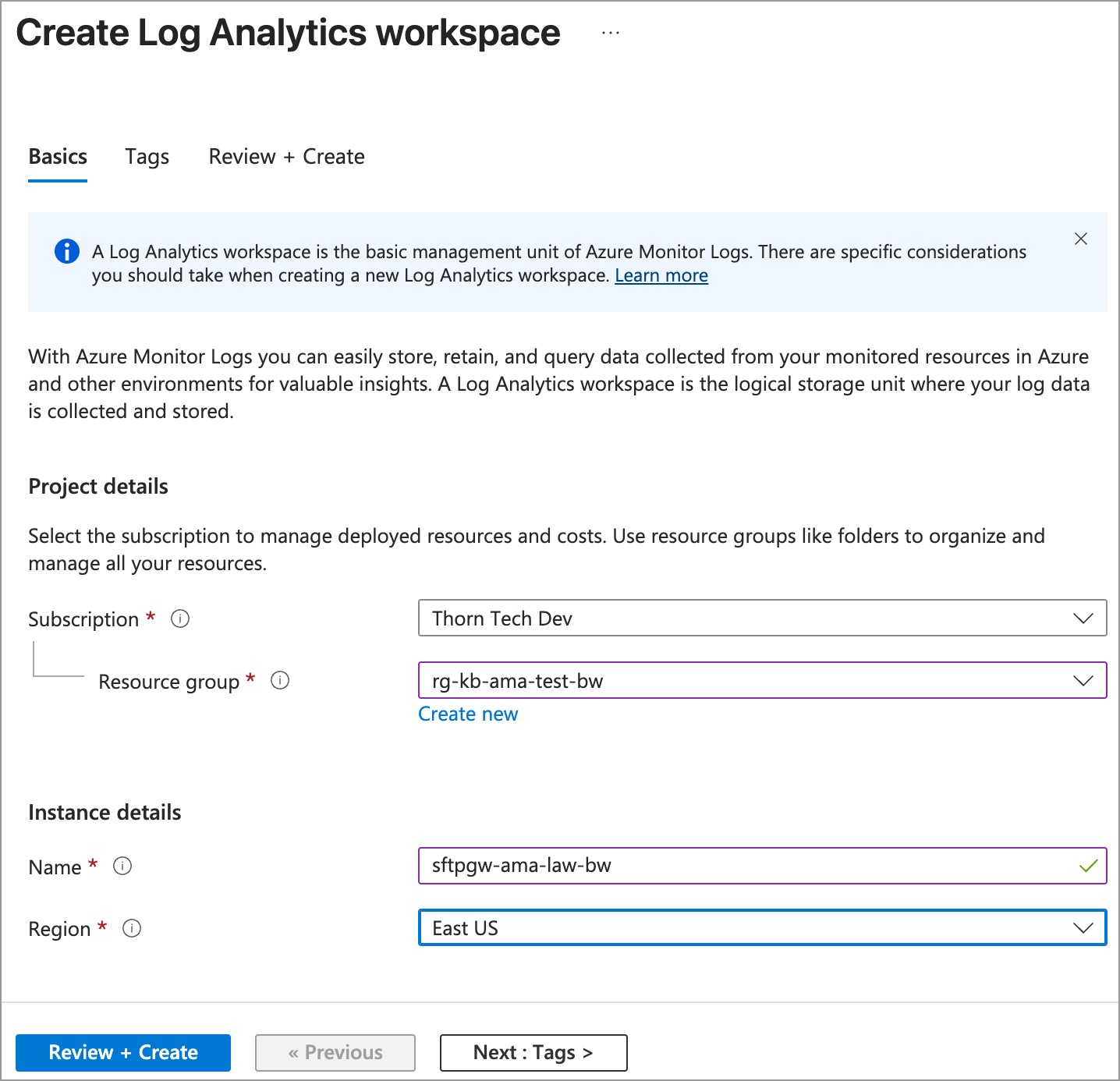
Click Review + Create, then Create
Create the Custom Log Tables
The SFTP Gateway logs do not match a standard schema, so you need to create a table in the Log Analytics Workspace for each log.
SFTP Gateway writes three logs to /opt/sftpgw/log/:
| Log | File pattern | Table | Contents |
|---|---|---|---|
| Application Log | application-*.log | SFTPGWApplication_CL | Events for troubleshooting the Java application |
| SFTP Audit Log | sftp-audit-*.log | SFTPGWAudit_CL | SFTP actions and authentication attempts |
| License Audit Log | license-audit-*.log | SFTPGWLicenseAudit_CL | License activation and validation events (SFTP Gateway 3.8.0 and later) |
In the Azure Portal, you should see the Cloud Shell icon at the top of your screen, to the right of the search bar. Click this to open up the command line console.
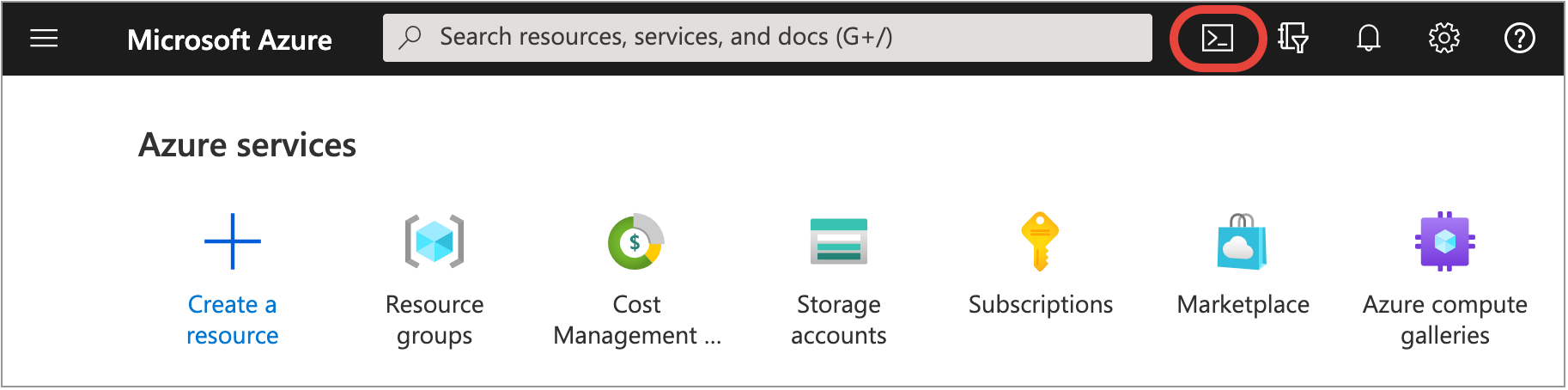
You want to be in the Azure PowerShell environment. If Cloud Shell opens in Bash, click Switch to PowerShell in the Cloud Shell toolbar.
To run the commands below, you need your Subscription ID, Resource group name and Workspace Name. The Essentials section on your Log Analytics Workspace's Overview page shows all three:

Copy each command and replace the values in <> with your subscription and resource values. First, create the Application log table:
$tableParams = @'
{
    "properties": {
        "schema": {
               "name": "SFTPGWApplication_CL",
               "columns": [
                    {
                        "name": "TimeGenerated",
                        "type": "DateTime"
                    },
                    {
                        "name": "RawData",
                        "type": "String"
                    },
                    {
                        "name": "FilePath",
                        "type": "String"
                    },
                    {
                        "name": "Computer",
                        "type": "String"
                    }
              ]
        }
    }
}
'@

Invoke-AzRestMethod -Path "/subscriptions/<subscription-id>/resourceGroups/<resource-group-name>/providers/Microsoft.OperationalInsights/workspaces/<log-analytics-workspace-name>/tables/SFTPGWApplication_CL?api-version=2021-12-01-preview" -Method PUT -payload $tableParams
Then, create the SFTP Audit log table:
$tableParams = @'
{
    "properties": {
        "schema": {
               "name": "SFTPGWAudit_CL",
               "columns": [
                    {
                        "name": "TimeGenerated",
                        "type": "DateTime"
                    },
                    {
                        "name": "RawData",
                        "type": "String"
                    },
                    {
                        "name": "FilePath",
                        "type": "String"
                    },
                    {
                        "name": "Computer",
                        "type": "String"
                    }
              ]
        }
    }
}
'@

Invoke-AzRestMethod -Path "/subscriptions/<subscription-id>/resourceGroups/<resource-group-name>/providers/Microsoft.OperationalInsights/workspaces/<log-analytics-workspace-name>/tables/SFTPGWAudit_CL?api-version=2021-12-01-preview" -Method PUT -payload $tableParams
Finally, create the License Audit log table:
$tableParams = @'
{
    "properties": {
        "schema": {
               "name": "SFTPGWLicenseAudit_CL",
               "columns": [
                    {
                        "name": "TimeGenerated",
                        "type": "DateTime"
                    },
                    {
                        "name": "RawData",
                        "type": "String"
                    },
                    {
                        "name": "FilePath",
                        "type": "String"
                    },
                    {
                        "name": "Computer",
                        "type": "String"
                    }
              ]
        }
    }
}
'@

Invoke-AzRestMethod -Path "/subscriptions/<subscription-id>/resourceGroups/<resource-group-name>/providers/Microsoft.OperationalInsights/workspaces/<log-analytics-workspace-name>/tables/SFTPGWLicenseAudit_CL?api-version=2021-12-01-preview" -Method PUT -payload $tableParams
The output of each command shows StatusCode : 200 when the table is created.
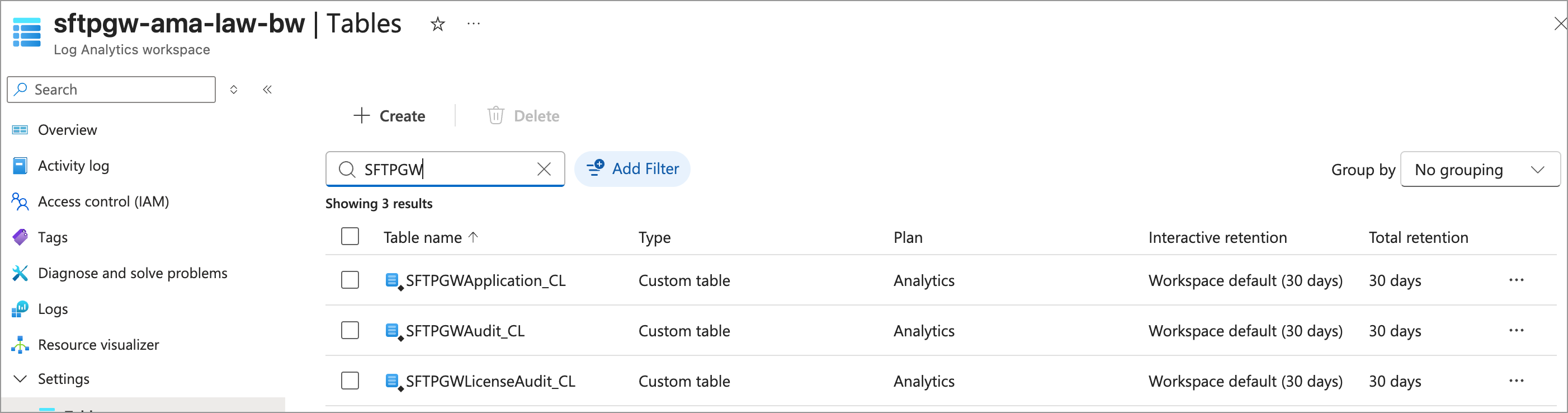
To confirm, open your Log Analytics Workspace, go to Settings > Tables, and filter by SFTPGW. All three custom tables appear:
Create the Data Collection Rules (DCRs)
A Data Collection Rule (DCR) wires the VM to the Log Analytics Workspace and defines which log file is collected into which table. You create one DCR per log, starting with the application log.
Note: Custom text logs don't need a Data Collection Endpoint (DCE) unless your network uses Azure Private Link. Leave every Data Collection Endpoint field in the wizard empty. The VM can stay running while you create the DCRs.
To create the first DCR:
In the Azure Portal, go to the Azure Monitor service
Under Settings, click Data Collection Rules
Click + Create a data collection rule
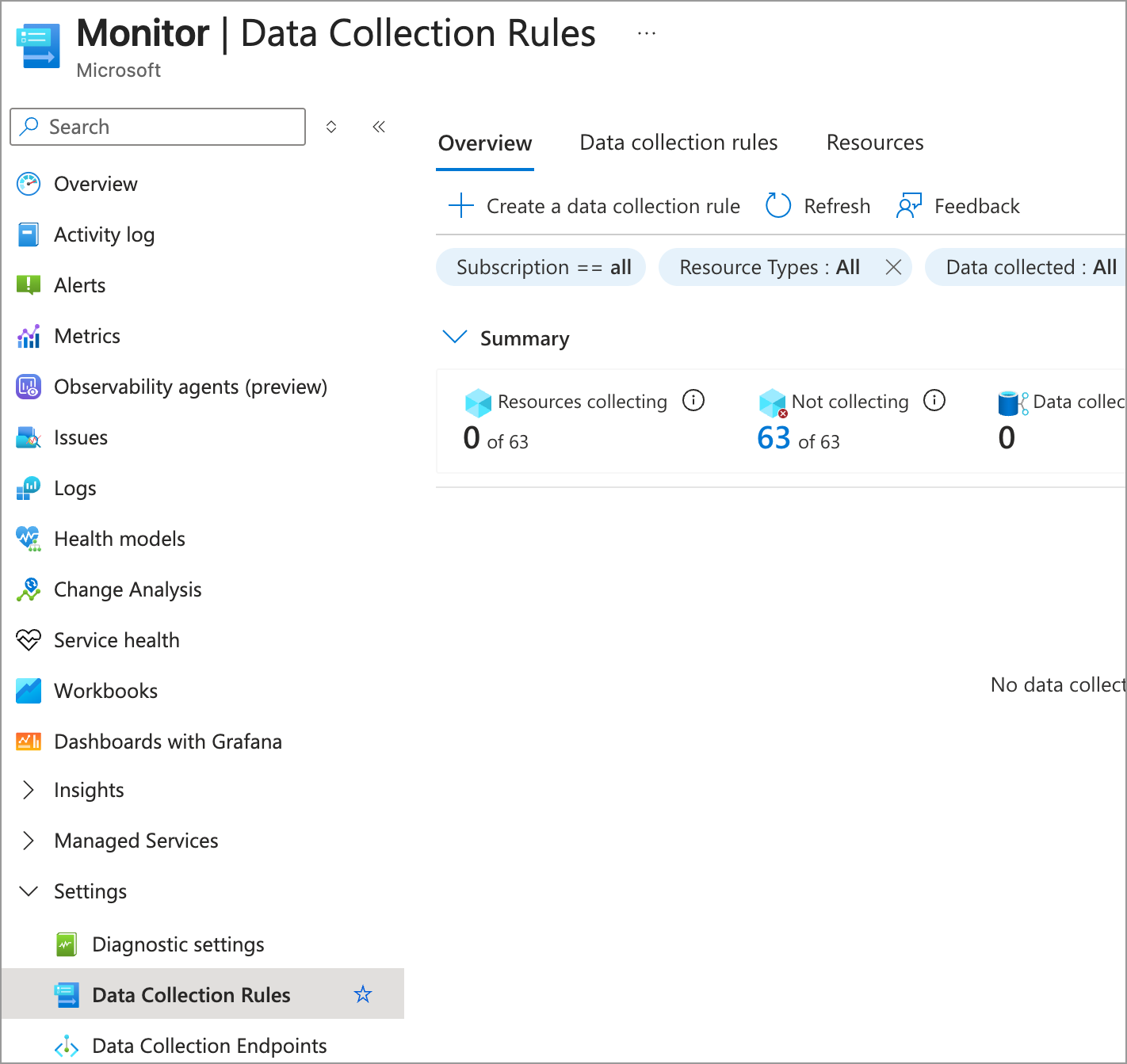
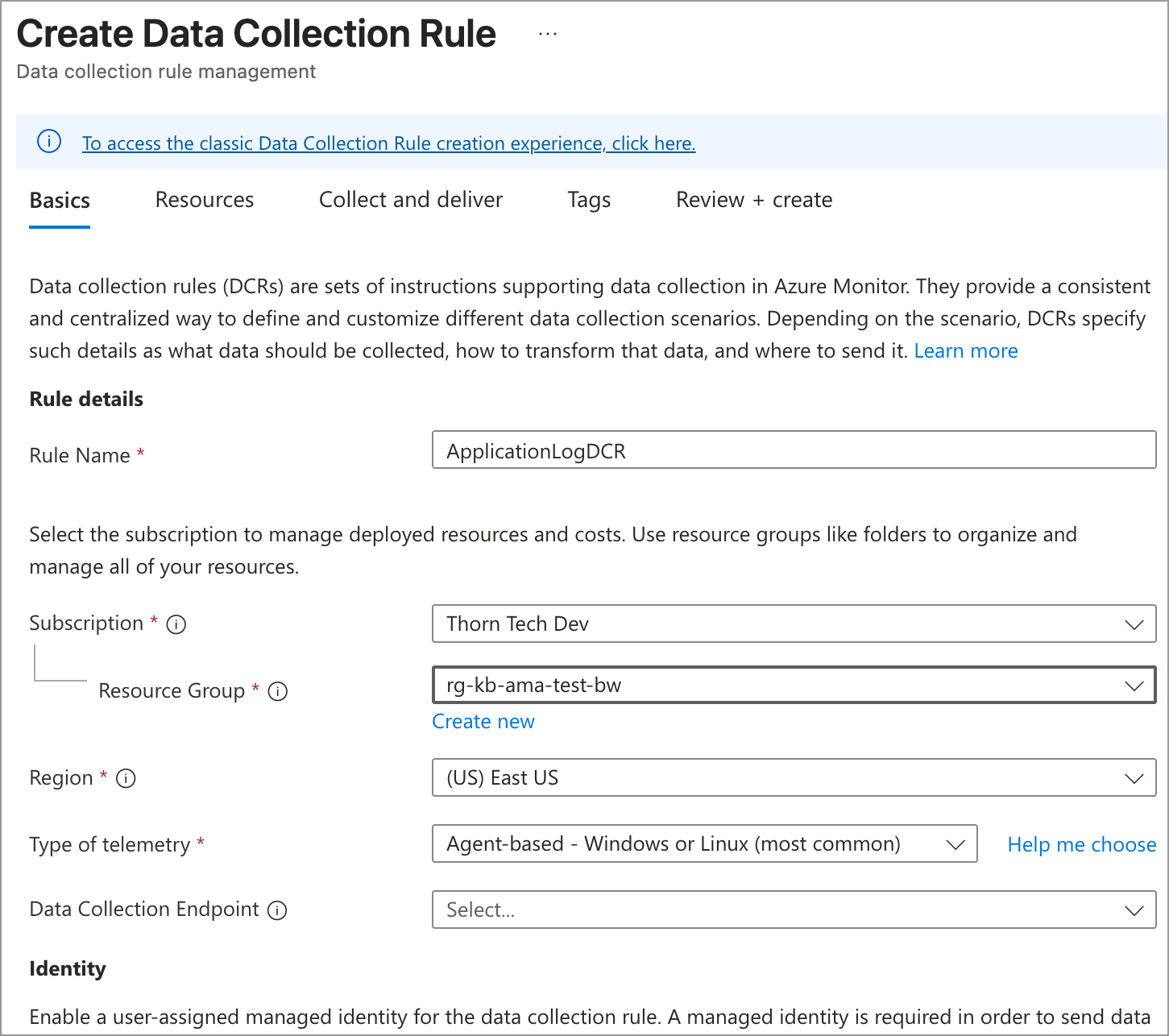
On the Basics tab, configure the following:
- Rule Name:
ApplicationLogDCR - Subscription and Resource Group: Use the same ones as your Log Analytics Workspace
- Region: Use the same region as your Log Analytics Workspace. The Destination step only lists workspaces in the DCR's region.
- Type of telemetry: Leave it on
Agent-based - Windows or Linux (most common) - Data Collection Endpoint: Leave it empty
- Rule Name:
Click Next
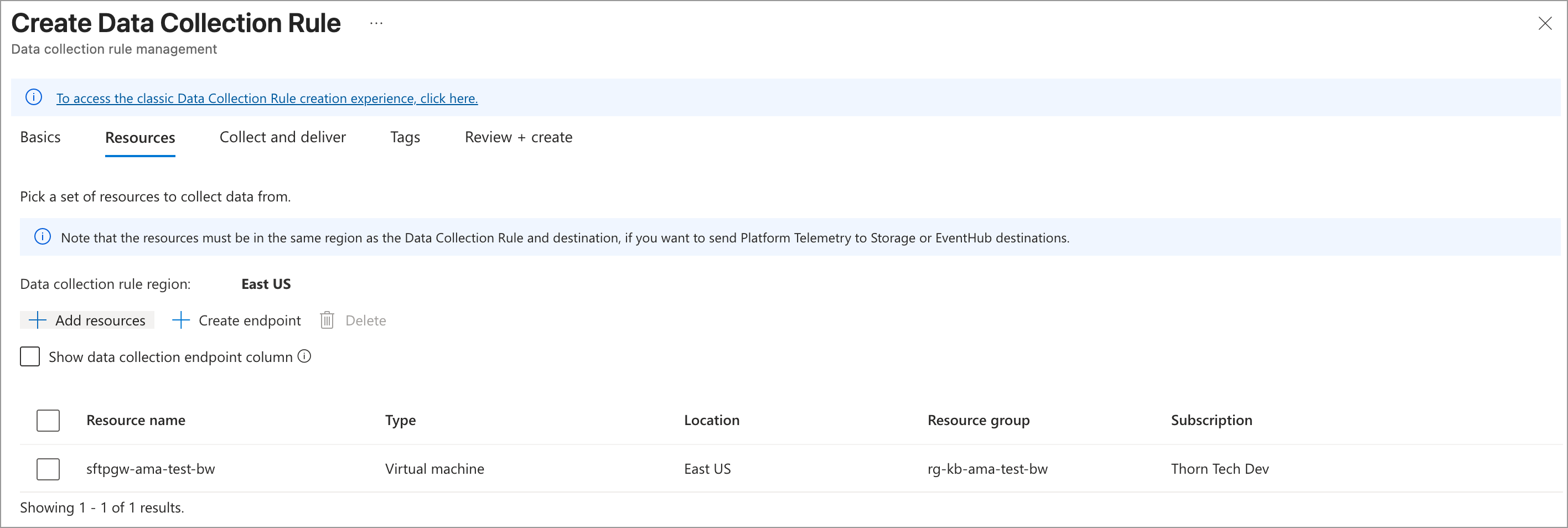
On the Resources tab, do the following:
- Click + Add resources
- In Select a scope, search for your SFTP Gateway VM, check the box next to it, and click Apply
- Leave Show data collection endpoint column unchecked
Click Next
On the Collect and deliver tab, click + Add new data source. This opens the Add new data source page.
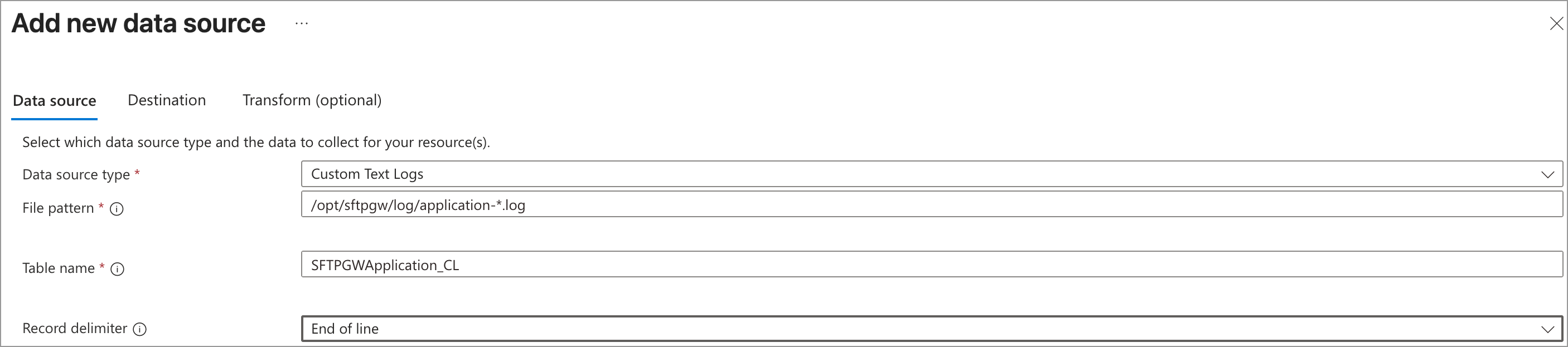
On the Data source tab, set the following options:
- Data source type:
Custom Text Logs - File pattern:
/opt/sftpgw/log/application-*.log - Table name:
SFTPGWApplication_CL - Record delimiter:
End of line
- Data source type:
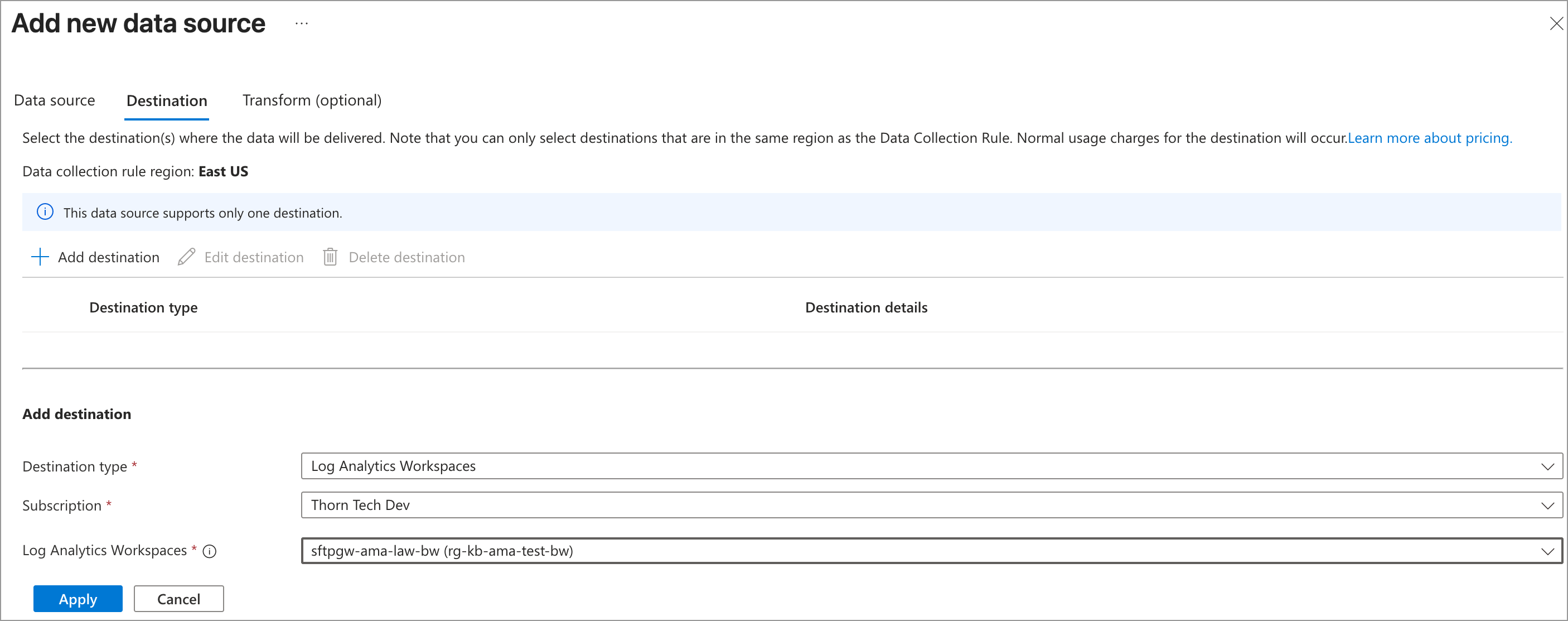
Click Next: Destinations, then click + Add destination and set the following:
- Destination type:
Log Analytics Workspaces - Subscription: Your subscription
- Log Analytics Workspaces: The workspace you created earlier. This list starts on the subscription's default workspace, so check that it shows yours.
- Destination type:
Click Apply. You can skip the Transform (optional) tab.
Click Save. The data source now appears on the Collect and deliver tab:
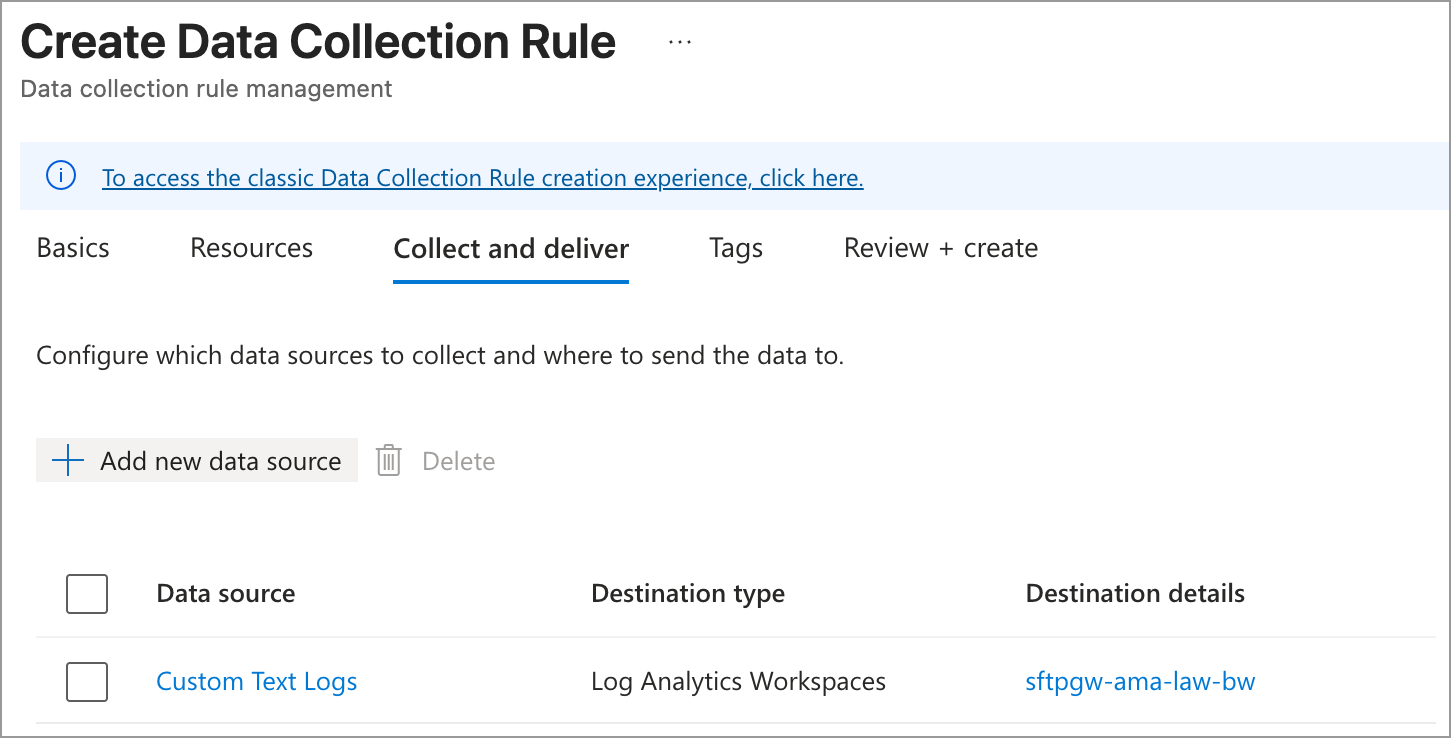
Click Review + create, then Create
Note: SFTP Gateway log timestamps include milliseconds, for example
2026-10-06T15:28:57.354Z. The TimeStamp record delimiter's ISO 8601 format doesn't accept fractional seconds, so keep End of line. Each line in the log file becomes one row in the table, so a multi-line entry such as a Java stack trace arrives as several rows.
Then, repeat this process for the other two logs, changing only these values:
| Rule Name | File pattern | Table name |
|---|---|---|
AuditLogDCR | /opt/sftpgw/log/sftp-audit-*.log | SFTPGWAudit_CL |
LicenseAuditLogDCR | /opt/sftpgw/log/license-audit-*.log | SFTPGWLicenseAudit_CL |
The Azure Monitor Agent picks up each new DCR within about five minutes, without a restart of the VM or the agent.
Adding the license audit log to an existing setup
If you already collect the application and SFTP audit logs, for example after upgrading to SFTP Gateway 3.8.0 or later, two steps add the license audit log:
Create the
SFTPGWLicenseAudit_CLtable with the License Audit command in Create the Custom Log TablesCreate the
LicenseAuditLogDCRDCR as described above
Your existing DCRs don't need any changes, and the VM can stay running.
Granting Permissions for your Log Analytics Workspace
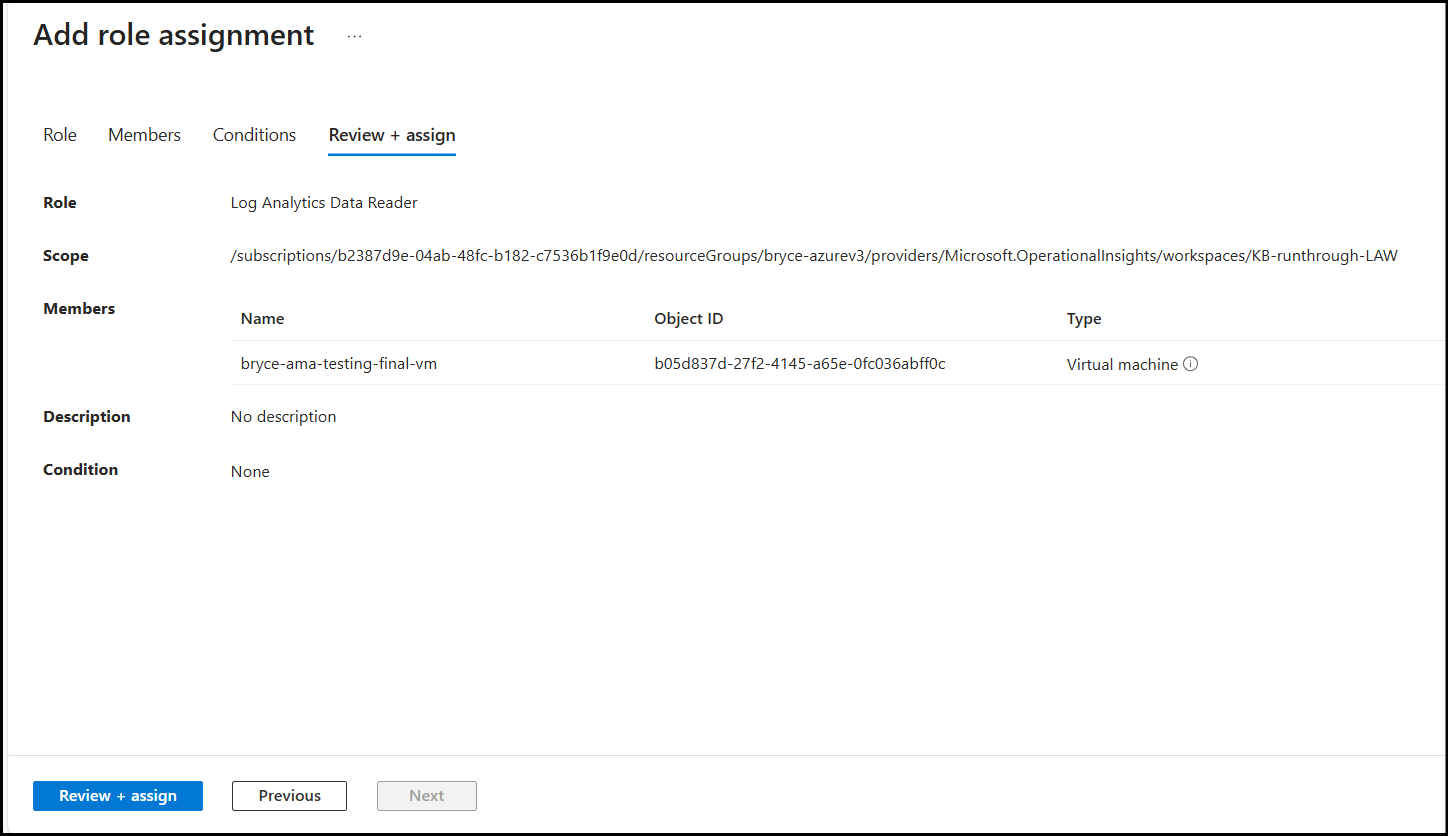
The web admin Diagnostics screen reads the application and SFTP audit logs back from your Log Analytics Workspace. For this, the VM's managed identity needs the Log Analytics Data Reader role on the workspace.
Navigate to your Log Analytics Workspace and go to the Access control (IAM) section.
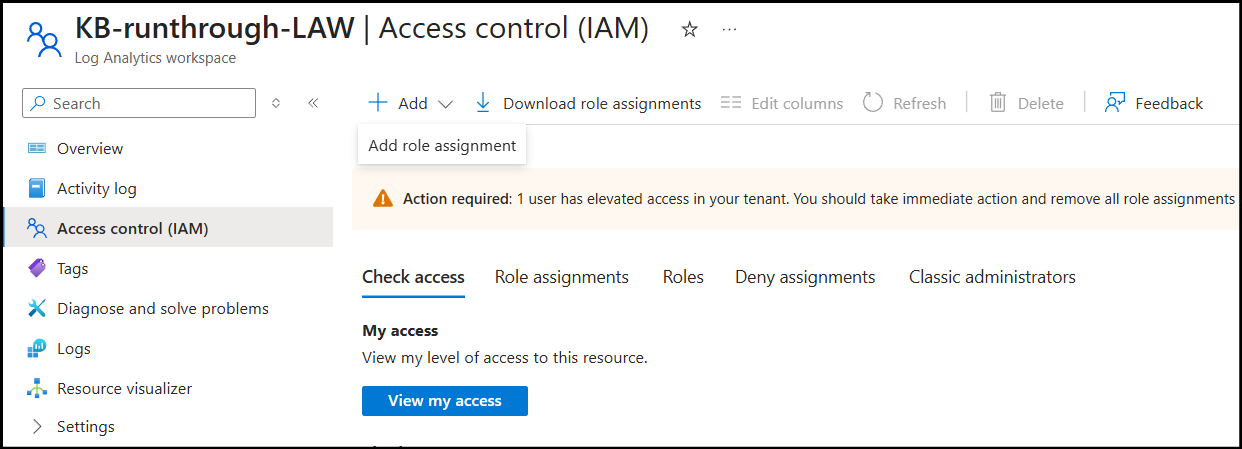
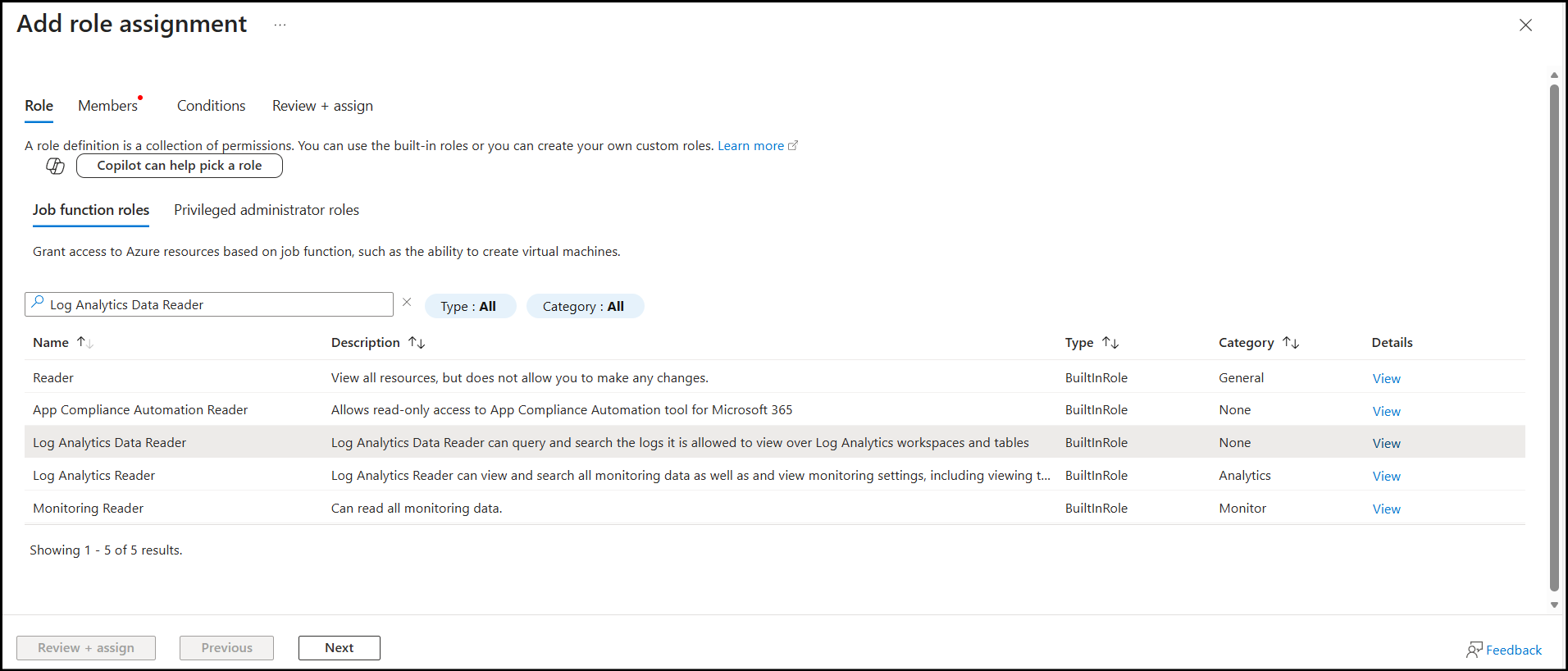
Click + Add ---> Add role assignment and search for the Log Analytics Data Reader role. Select the role and click Next.
Select the radio button for Managed identity, then click + Select members, choose Virtual machine under Managed identity, and select your SFTP Gateway instance. If your virtual machine doesn't appear, enable the System Assigned Managed Identity under Security ---> Identity on the VM.
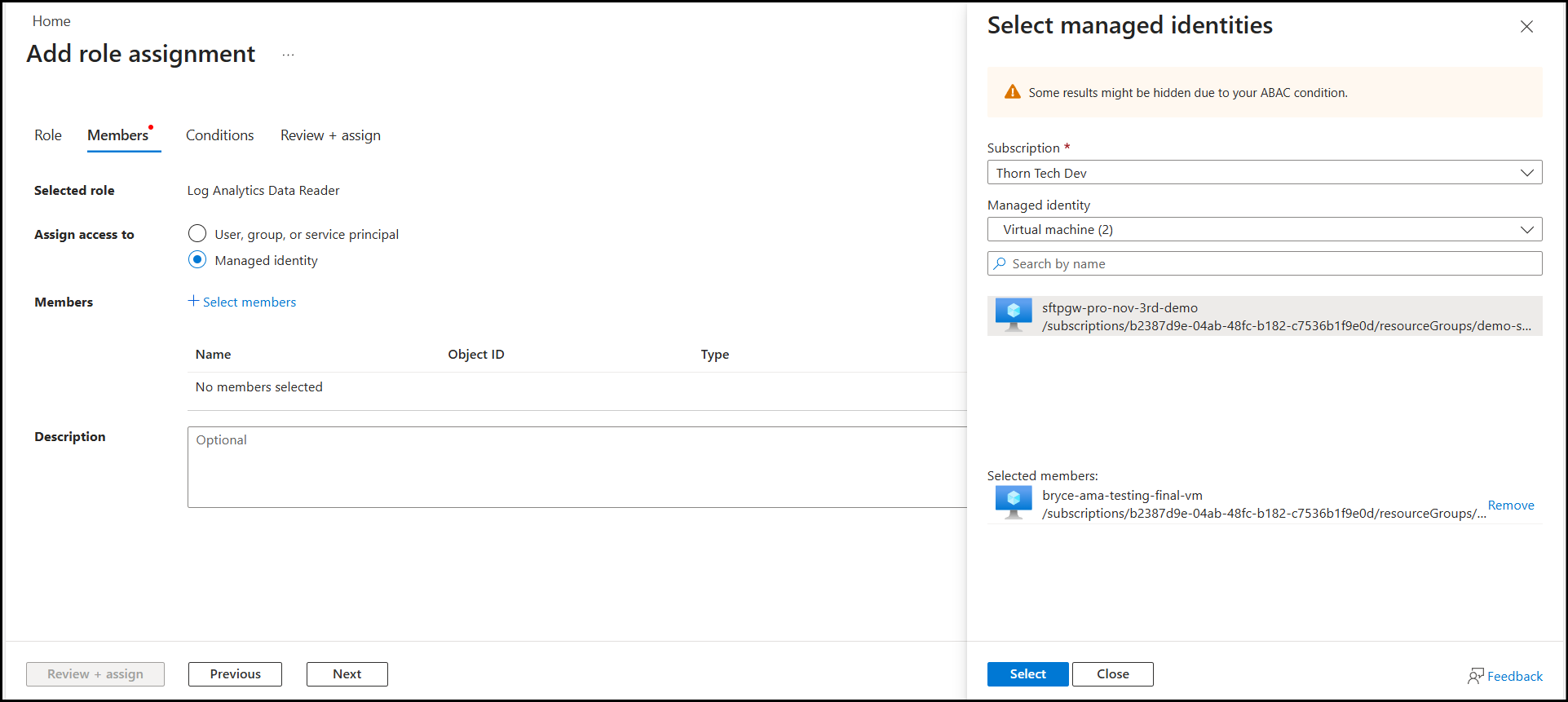
Click Select, then click Review + assign twice.
Then, in the SFTP Gateway web admin, go to Diagnostics > Cloud Log Connection and enter the following:
- Workspace ID: From the Essentials section of the workspace's Overview page
- Application Log Table:
SFTPGWApplication_CL - Audit Log Table:
SFTPGWAudit_CL
Click Save. After 3-5 minutes, the Server Log and SFTP Activity Log tabs show entries from the workspace. The Diagnostics screen doesn't display the license audit log, so query SFTPGWLicenseAudit_CL in the workspace instead, as shown in Check for incoming logs. See the Diagnostics screen article for more on this screen.
Verify the Azure Monitor Agent installation
When you created the first DCR, Azure installed the Azure Monitor Agent (AMA) on the VM. To verify this, do the following:
Go to the VM detail page in the Azure Portal
Under Settings, click Extensions + applications
You should see
AzureMonitorLinuxAgentwith a status ofProvisioning succeeded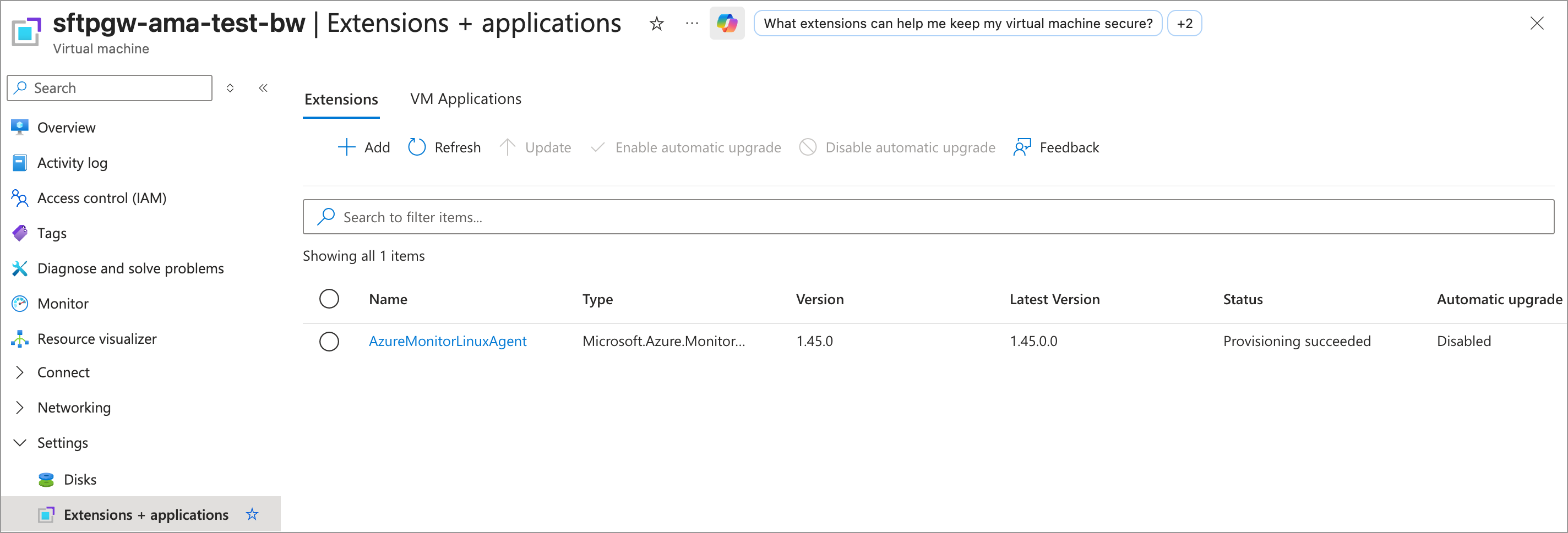
The portal installs the agent with Automatic upgrade disabled. To have Azure keep the agent up to date, select AzureMonitorLinuxAgent and click Enable automatic upgrade.
Check for incoming logs
At this point, everything should be wired properly. In this section, you are going to check the Log Analytics Workspace for incoming logs. It may take up to 20 minutes for the logs to show up initially. The agent collects lines written after a DCR takes effect, so entries already in the files before then don't appear.
In the Azure Portal, search for Log Analytics workspaces
Select the Log Analytics Workspace you created earlier
In the left menu, click Logs
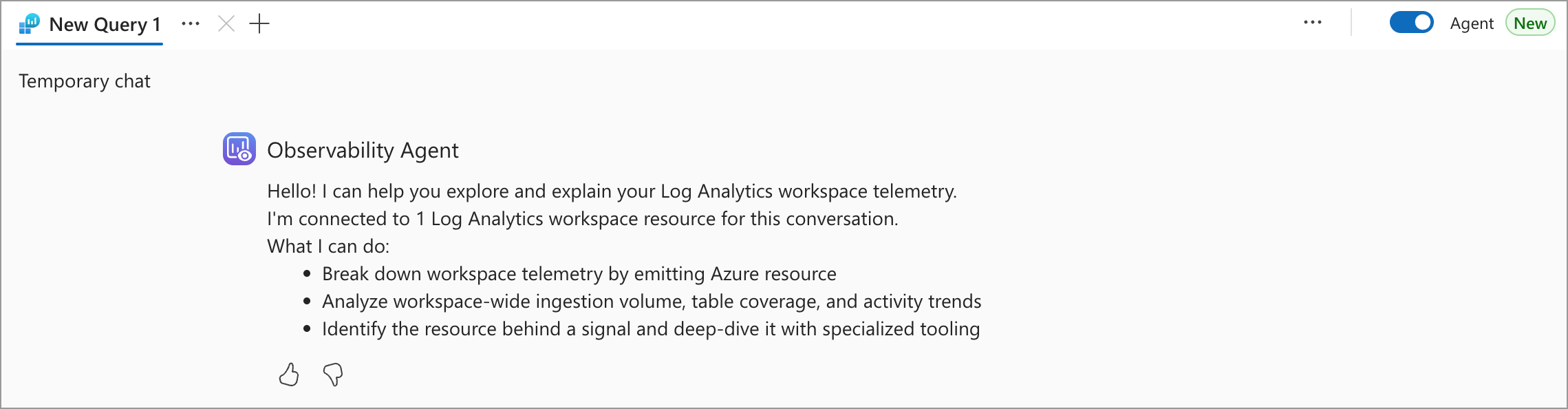
If the page opens in the Observability Agent chat, turn off the Agent toggle at the top right, and click Discard if asked. Close any welcome or Queries pop-up.
In the drop-down on the right, switch from Simple mode to KQL mode
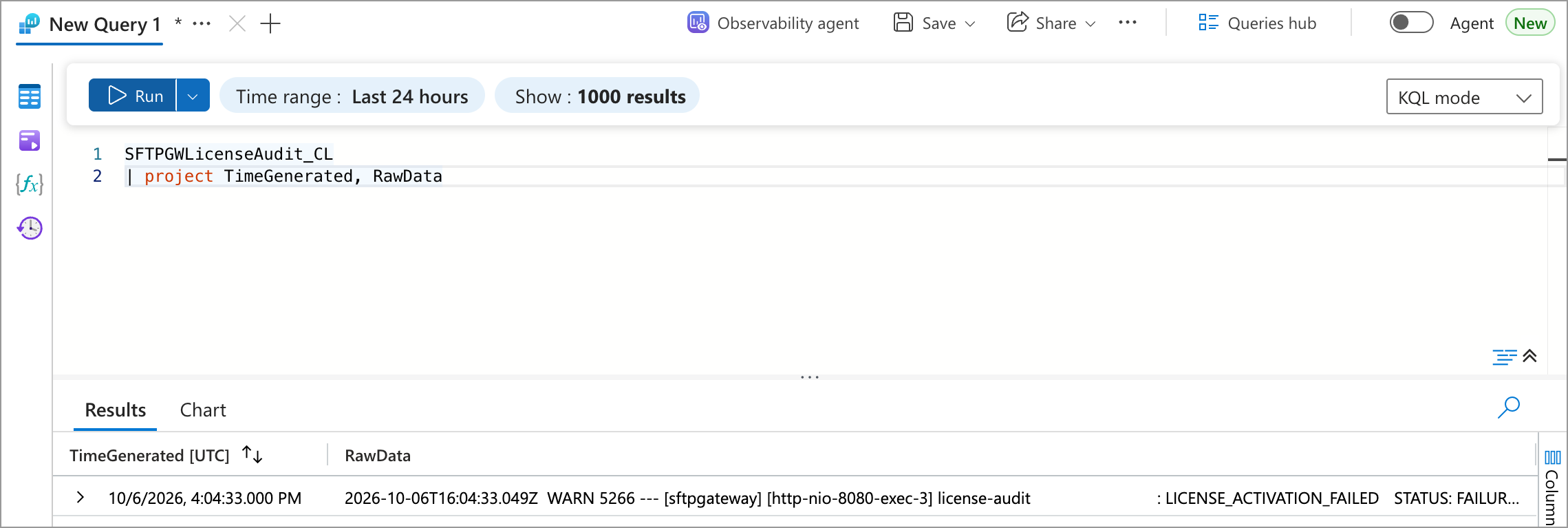
Type the following query and click Run:
SFTPGWApplication_CL
| project TimeGenerated, RawData
You should see rows of results in the table below.
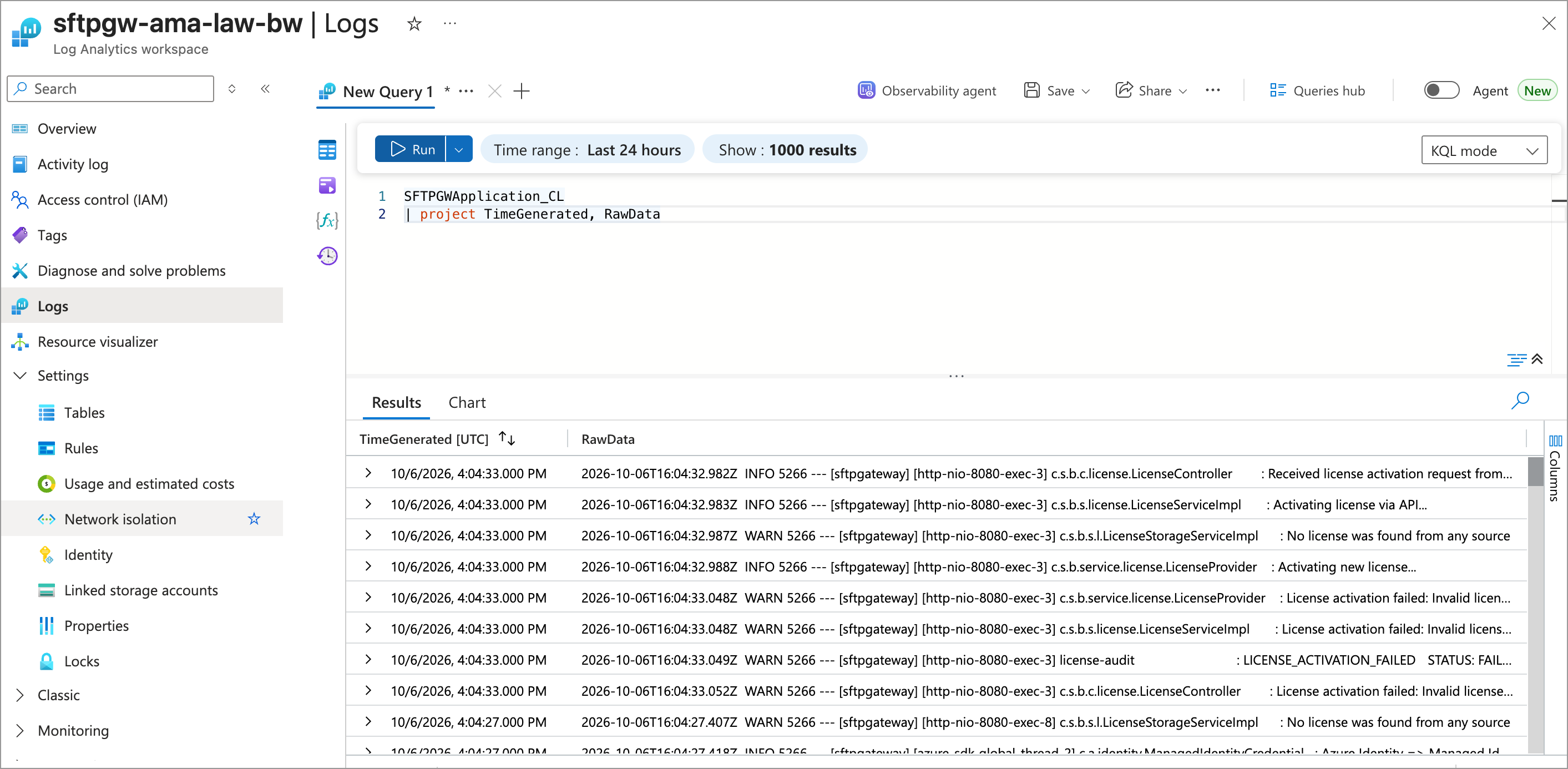
Run the same query with SFTPGWAudit_CL or SFTPGWLicenseAudit_CL as the table name to check the other two logs. The license audit log only gets a new line when a license event occurs, such as a license activation or a failed activation attempt, so SFTPGWLicenseAudit_CL can stay empty until then.
Troubleshooting
There are a lot of moving pieces, and there are many things that can go wrong. This section has some troubleshooting steps you can try.
No logs are showing up in the Log Analytics workspace query
- Try waiting an hour to give the incoming logs from the VM a chance to arrive
- Try generating log activity on the VM. For example, restart the Java service:
sudo systemctl restart sftpgw-admin-api - Make sure the Time range covers the log entries on the VM (for example, select Last 7 days)
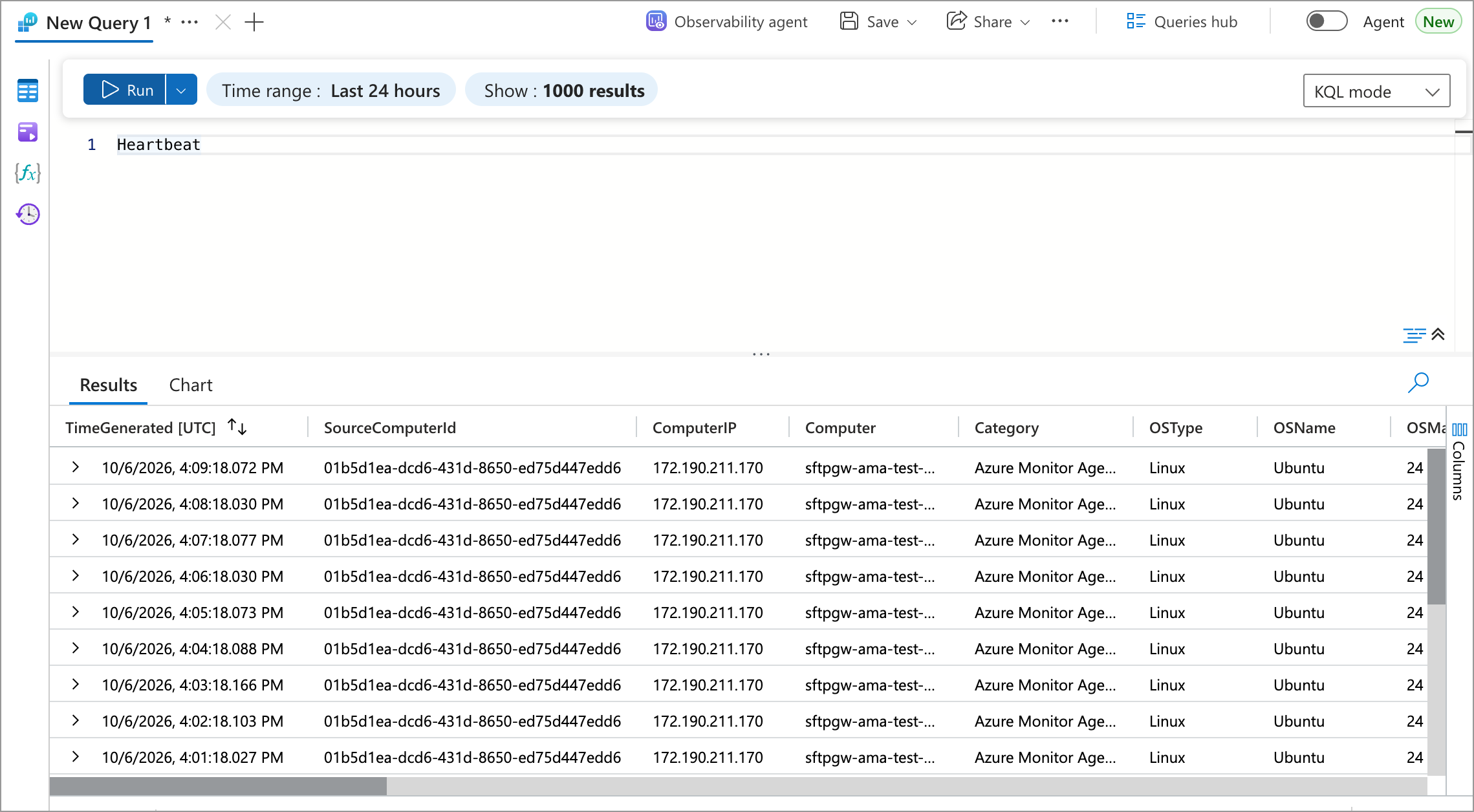
- Run the query
Heartbeat. The agent sends a heartbeat every minute, so recent rows here mean the agent is connected to the workspace.
One table stays empty while the others fill
- Open the DCR for that log and check that its file pattern and table name match the table in Create the Custom Log Tables
- On the VM, check that the log file exists and is growing:
sudo ls -l /opt/sftpgw/log/ SFTPGWLicenseAudit_CLstays empty until a license event occurs. SFTP Gateway versions before 3.8.0 don't write a license audit log.
The Azure Monitor Agent extension is not installing
Try manually installing the AMA software:
az vm extension set --name AzureMonitorLinuxAgent --publisher Microsoft.Azure.Monitor --ids /subscriptions/abc-123/resourceGroups/rob-vm/providers/Microsoft.Compute/virtualMachines/rob-vm --enable-auto-upgrade true
You will need to supply the VM's Resource ID for the --ids parameter.
To get the VM's Resource ID:
Go to the VM's detail page
Under Settings, click Properties
Scroll down, and look for Resource ID