Multi Region Failover
TLDR - Quick Summary
What: Deploy SFTP Gateway across two AWS regions for disaster recovery
Architecture: Two HA stacks + Route 53 weighted DNS + S3 cross-region replication
Key Step: Export/import backup between stacks to share server host keys (prevents client warnings)
Failover: Adjust Route 53 weights (100/0 for active-passive, 0/100 for failover)
Data Sync: Enable S3 versioning and cross-region replication between buckets
Multi-Region Failover for SFTP Gateway in AWS
This article explains how to deploy SFTP Gateway in a multi-region failover architecture using AWS Route 53 weighted routing. This configuration provides disaster recovery capabilities by allowing you to failover SFTP traffic from a primary region to a secondary region.
On October 20, 2025, AWS us-east-1 experienced an outage which disrupted services for 14 hours. This event has sparked discussions on how organizations can maintain continuous operations
were this to occur again.
Premier Support Required
Implementing this multi-region HA failover architecture is not included in our standard support tiers. If you need assistance with this customization, please contact us at sales@thorntech.com to learn about our Premier Support package.
Overview
In a multi-region failover architecture, you deploy two independent SFTP Gateway HA stacks in different AWS regions. Route 53 weighted DNS records direct traffic to the appropriate stack. Under normal operation, all traffic flows to the primary region. During a failover event, you adjust the DNS weights to redirect traffic to the secondary region.
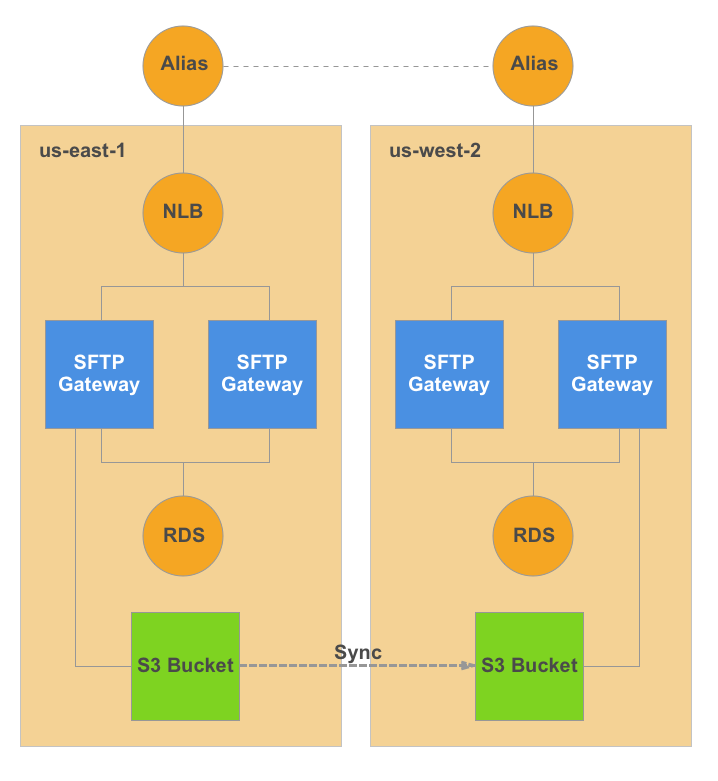
Fig-1: Multi-region failover architecture
Key benefits:
- Disaster recovery across AWS regions
- Minimal downtime during regional outages
- Seamless failover for SFTP clients (no client-side changes required)
Architecture
This configuration involves:
- Two SFTP Gateway HA stacks deployed in separate AWS regions
- DNS-based traffic distribution using Route 53 weighted routing
- S3 cross-region replication for data synchronization
- Unified server host keys for seamless client connectivity
Prerequisites
Before you begin, ensure you have:
- An AWS account with permissions to deploy CloudFormation stacks in multiple regions
- A registered domain name with DNS hosted in Route 53
- Familiarity with SFTP Gateway HA deployment
Step 1: Deploy the Primary Stack (Region 1)
Deploy an HA stack of SFTP Gateway in your primary region (e.g., us-east-1).
- Navigate to the AWS CloudFormation console in
us-east-1 - Deploy the SFTP Gateway HA CloudFormation template
- For testing purposes, you can set the Desired Capacity to 1 instance
- Complete the First Launch Experience
- Note the NLB endpoint from the CloudFormation Outputs tab
For detailed deployment instructions, see CloudFormation: HA new network.
Step 2: Configure the Default Cloud Connection on the Primary Stack
Deploying an HA CloudFormation stack creates an S3 bucket and automatically configures a Default Cloud Connection pointing to it. By default, this Cloud Connection doesn't specify a Region—it inherits from the HA stack's region. Since this article is about multi-region failover, you should explicitly set the Region.
- Log into the SFTP Gateway web admin interface for Stack 1
- Navigate to the Settings page
- Edit the Default Cloud Connection
- Set the Region field (e.g.
us-east-1) - Click Test Connection and verify there are 3 green check marks
Step 3: Configure a Test User on the Primary Stack
Before exporting the configuration, create a test user on the primary stack to verify the setup.
- Navigate to the Users page
- Click Add user
- Enter a username (e.g.,
robtest) - Configure authentication (SSH key or password)
- Click Save
For more details, see Add and Configure Users Using UI.
To make sure everything is working, test the SFTP user you just created:
- Open an SFTP client like FileZilla
- Log in using the NLB endpoint
- Upload a test file
Note: It's important to upload a test file, because you will need this to test the bucket sync process later on.
Step 4: Export Backup from Primary Stack
Export the configuration from the primary stack. This backup includes users, folders, admin accounts, cloud connections, and importantly, the server host keys.
- Navigate to Settings
- Scroll down to the Backup & Recovery section
- Click Export and select Export Backup File
- Verify the YAML file is saved to your local machine
Important: The backup file contains the server host keys. Importing this backup into the secondary stack ensures both stacks present the same host key fingerprint to SFTP clients. This prevents "host key mismatch" warnings when traffic fails over between regions.
Step 5: Deploy the Secondary Stack (Region 2)
Deploy a second HA stack of SFTP Gateway in your secondary region (e.g., us-west-2).
- Navigate to the AWS CloudFormation console in
us-west-2 - Deploy the SFTP Gateway HA CloudFormation template
- For testing purposes, you can set the Desired Capacity to 1 instance
- Complete the First Launch Experience
- Note the NLB endpoint from the CloudFormation Outputs tab
Step 6: Import Backup into Secondary Stack
Import the backup from the primary stack into the secondary stack.
- Log into the SFTP Gateway web admin interface for Stack 2
- Navigate to Settings
- Scroll down to the Backup & Recovery section
- Click No file chosen and select the YAML backup file exported from Stack 1
- Click Import
- Verify the import completed successfully by checking that the test user appears in the Users list
The import process copies:
- SFTP users and their credentials
- Folder configurations
- Admin users
- Cloud connections
- Server host keys (critical for seamless failover)
Step 7: Configure S3 Cross-Region Replication
Currently, both stacks point to the S3 bucket in us-east-1. To ensure data availability during a regional outage, replicate data to a S3 bucket in us-west-2.
Create the Secondary Bucket
Create an S3 bucket in us-west-2.
Enable Versioning
On both the us-east-1 and us-west-2 buckets:
- Navigate to the Properties tab in the AWS Console
- Enable Bucket Versioning
Configure Replication Rule
On the us-east-1 bucket:
- Go to the Management tab
- Create a Replication Rule:
- Rule scope: Apply to all objects in the bucket
- Destination: Enter the bucket name for the
us-west-2bucket - IAM role: Choose the option to create a new IAM role
- Click Save
- When asked to replicate existing objects, choose Yes
- Enter the bucket name for the replication job
- Specify that you want to create a new IAM role
Objects will begin replicating from us-east-1 to us-west-2. Replication may take time depending on the volume of data.
Create Failover Cloud Connection
- Log into the SFTP Gateway web admin portal in
us-west-2 - Create a new Cloud Connection named
failover - Point this Cloud Connection to the bucket in
us-west-2 - Click Test Connection to verify connectivity (you should see 3 green check marks)
- Click Save
Wire Stack 2 to the Failover Cloud Connection
- Navigate to the Folders tab
- Edit the
rootfolder (i.e./) - Change the Cloud Connection from
defaulttofailover
When configured properly, you should be able to log in as the test user (i.e. robtest)
and see the test file you uploaded earlier. This is because the S3 bucket in
Region 1 is now syncing data to Region 2.
Step 8: Configure Route 53 DNS for Primary Stack
Create a weighted DNS record pointing to the primary stack's NLB.
- Open the Route 53 console
- Navigate to your hosted zone
- Click Create record
- Configure the record:
- Record name:
sftp(or your preferred subdomain, resulting insftp.example.com) - Record type: A
- Alias: Yes (toggle on)
- Route traffic to: Alias to Network Load Balancer
- Region: US East (N. Virginia)
- Select the NLB for Stack 1
- Routing policy: Weighted
- Weight: 50
- Record ID:
stack1-us-east-1(unique identifier) - Evaluate target health: No
- Record name:
- Click Create records
Note: You must use an Alias record (not a standard A record) when pointing to an NLB endpoint.
Step 9: Configure Route 53 DNS for Secondary Stack
Create a second weighted DNS record pointing to the secondary stack's NLB.
- In Route 53, click Create record in the same hosted zone
- Configure the record:
- Record name:
sftp(same as the primary record) - Record type: A
- Alias: Yes
- Route traffic to: Alias to Network Load Balancer
- Region: US West (Oregon)
- Select the NLB for Stack 2
- Routing policy: Weighted
- Weight: 50
- Record ID:
stack2-us-west-2(unique identifier) - Evaluate target health: No
- Record name:
- Click Create records
Step 10: Verify Multi-Region Traffic Distribution
With both DNS records configured with equal weights (50/50), traffic should be distributed across both stacks.
SSH into the EC2 instance for Stack 1:
ssh -i <private-key> -p 2222 ec2-user@<stack1-nlb-endpoint>Tail the SFTP logs:
sudo su
cd /opt/sftpgw/log/
tail -f *
In a separate terminal, SSH into the EC2 instance for Stack 2 and tail the logs
Connect to your SFTP endpoint multiple times:
sftp robtest@sftp.example.comObserve that connections are distributed between both stacks
Note: Route 53 may send all your traffic to Stack 1 if you are connecting from that Region. If this happens, open a second SSH session on the Stack 2 VM and use that your SFTP client.
Note: As you test your connection to both regions, you should not encounter host key warnings because both stacks share the same server host keys from the backup/import process.
At this point, you have a working multi-region HA configuration with traffic distributed across both regions.
Step 11: Configure for Active-Passive Failover
To convert from active-active to active-passive failover, adjust the DNS weights so all traffic flows to the primary stack.
In Route 53, edit the primary stack's DNS record:
- Weight: 100
Edit the secondary stack's DNS record:
- Weight: 0
Wait for DNS propagation (based on the TTL value)
Verify all traffic is going to Stack 1 only:
sftp robtest@sftp.example.comCheck the logs on both stacks to confirm only Stack 1 is receiving connections.
Step 12: Test Failover to Secondary Region
Simulate a failover by redirecting traffic to the secondary stack.
In Route 53, edit the primary stack's DNS record:
- Weight: 0
Edit the secondary stack's DNS record:
- Weight: 100
Wait for DNS propagation
Connect to the SFTP endpoint:
sftp robtest@sftp.example.comVerify connections are now going to Stack 2 by checking the logs
You have now successfully tested a failover scenario.
DNS weights for different scenarios
Here is a table that shows how to use the Weight of the DNS Alias records to simulate different scenarios:
| Configuration | Stack 1 Weight | Stack 2 Weight | Use Case |
|---|---|---|---|
| Active-Active | 50 | 50 | Load distribution across regions |
| Active-Passive | 100 | 0 | Normal operation (primary region) |
| Failover | 0 | 100 | Disaster recovery (secondary region) |
Keeping Stacks in Sync
The two stacks are synchronized through the export/import process performed during initial setup. For ongoing synchronization, consider the following:
Incremental Updates
You can perform incremental exports from Stack 1 and import them into Stack 2. However, be aware of the following merge behavior:
- New objects (users, folders, etc.) are added
- Existing objects are not overwritten (merge conflicts preserve the existing object)
This means if you update an existing user's configuration on Stack 1, that change will not be applied to Stack 2 during an incremental import.
Another thing to consider is the root of the Folder system points to a region-specific
S3 bucket. Keep this difference in mind when reconciling state between the two stacks.
Recommended Approach
This architecture is best suited for environments where:
- SFTP user configuration is relatively stable
- User additions are more common than modifications
- Changes to existing users are rare
Full Re-sync Option
If significant configuration changes are made to Stack 1, you can perform a full re-sync:
- Deploy a new Stack 2 from scratch in the secondary region
- Export a fresh backup from Stack 1
- Import the backup into the new Stack 2
- Remember to point Stack 2 to the region-specific S3 bucket
- Update the Route 53 DNS record to point to the new Stack 2's NLB
- Decommission the old Stack 2
Post-failover considerations
In the unlikely event that there is a region failure and you go through with failing over Production to another region, here are some things to consider.
- At some point, you will want to roll back to Region 1
- Any files that were uploaded to the S3 bucket in Region 2 will not sync back to the Region 1 bucket. So you will need to reconcile this manually (e.g. use the s3 sync CLI tool)
- Keep track of any configuration changes such as SFTP user additions or user password resets, because they need to be applied back to Stack 1
Summary
This multi-region failover architecture provides disaster recovery capabilities for SFTP Gateway by leveraging Route 53 weighted routing, S3 cross-region replication, and unified server host keys. With this configuration in place, you can redirect SFTP traffic from a failed primary region to a healthy secondary region with minimal client disruption—users won't encounter host key warnings or need to update their connection settings.
The key components that make seamless failover possible are:
- Shared server host keys through the backup/import process, ensuring clients don't see security warnings when traffic shifts between regions
- S3 cross-region replication keeping data synchronized across regions
- Route 53 weighted routing enabling rapid traffic redirection by adjusting DNS weights
For production deployments, be sure to practice and document the failover procedure, test failovers periodically to verify the process works as expected, and monitor replication lag to understand your recovery point objective (RPO).