SFTP Gateway Professional vs BYOL
TLDR - Quick Summary
What: How the SFTP Gateway Professional and SFTP Gateway (BYOL) listings differ, and why we recommend BYOL
Professional: License is baked into the listing — AWS bills a $0.15/hour cloud software fee on top of your infrastructure
BYOL: No cloud software fees — deploy for free, then start a 30-day trial or purchase a license from Thorn Technologies
Deprecation: Professional is in Long-Term Support now — End of Maintenance June 2027, End of Life June 2028 — migrating to BYOL is the standard path forward
Migration: Your configuration travels in a single backup file; check
application.propertiesandwebsite.conffor custom settings
Overview
SFTP Gateway is available on the AWS Marketplace under two listings that run the same software, but with two different ways of paying for it:
- SFTP Gateway Professional — the license is baked into the listing, and AWS charges an hourly cloud software fee alongside your infrastructure costs.
- SFTP Gateway (BYOL) — the listing itself is free with no cloud software fees. You bring your own license, purchased directly from Thorn Technologies (with a free 30-day trial to get started).
This article explains the difference between the two listings, the upcoming deprecation of the Professional listing, and how to migrate an existing Professional deployment to BYOL.
The two listings
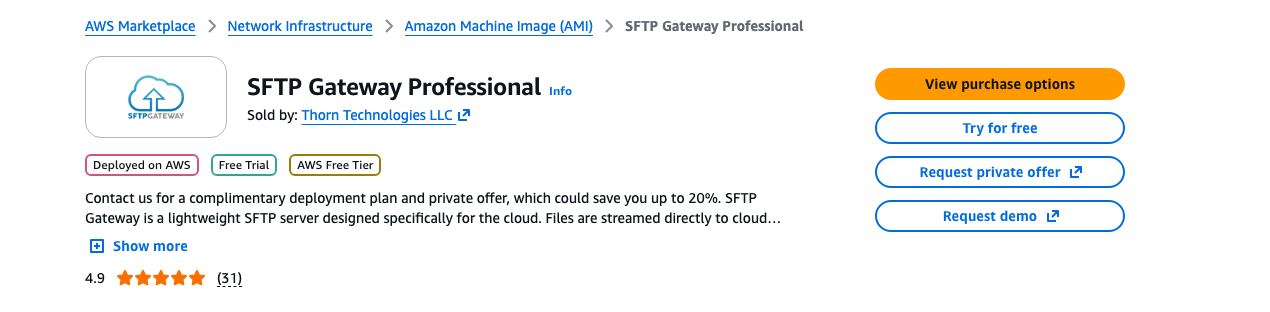
SFTP Gateway Professional
The SFTP Gateway Professional listing on the AWS Marketplace:
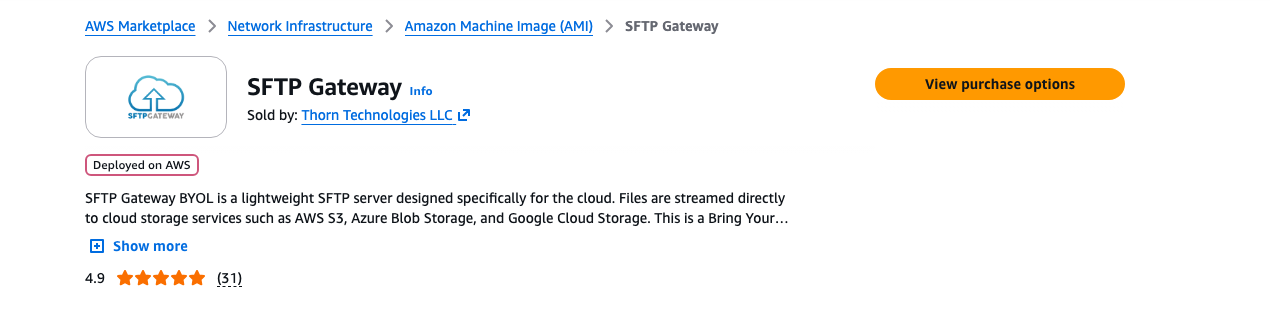
SFTP Gateway (BYOL)
The SFTP Gateway (BYOL) listing on the AWS Marketplace:
Pricing: what you pay, and where
Professional — license included, billed hourly by AWS
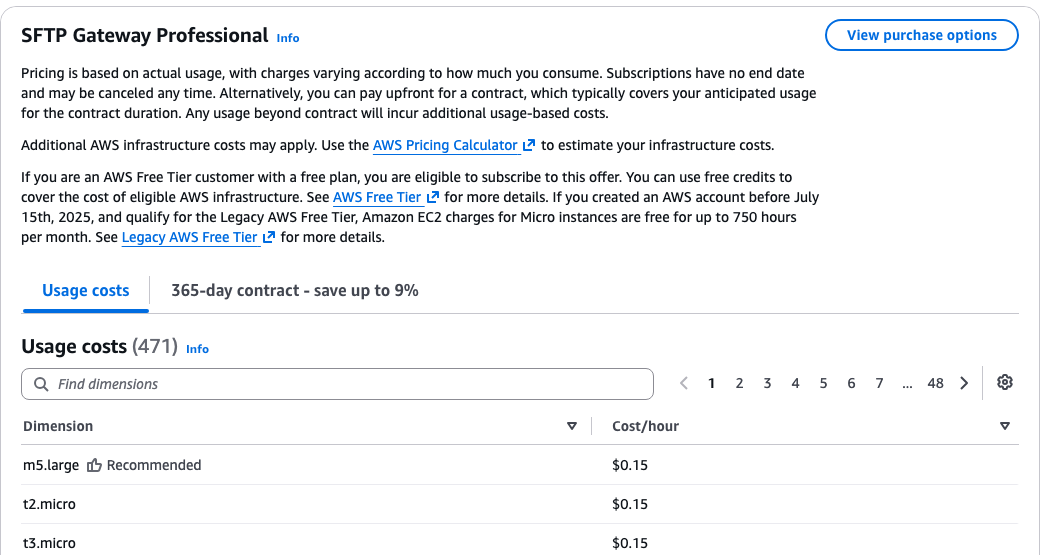
With Professional, you never handle a license key — it's built into the AMI. In exchange, AWS bills a $0.15 per instance-hour cloud software fee on your AWS invoice, on top of the underlying EC2/storage costs. This fee accrues for every hour the instance runs, whether or not it's actively transferring files.
You can see the software fee on the listing's pricing table:
BYOL — free listing, license from Thorn Technologies
With BYOL, the marketplace listing is free — every usage dimension is $0.00, and your AWS invoice only ever shows your infrastructure costs. Instead, you license the software directly from us:
- Start a free 30-day trial right from the web admin interface — no license key required.
- When you're ready, purchase a license that fits your user count and support needs.
Because the license comes from Thorn Technologies rather than the cloud marketplace, BYOL also gives you more flexibility: the same license model applies across AWS, Azure, and Google Cloud, and pricing conversations happen with a person instead of a metering dimension.
Questions about license pricing? Book a call with our Sales team or email us at sales@thorntech.com — we'll match you with the license tier that fits your deployment.
Professional is being deprecated
The Professional listing has entered Long-Term Support (LTS) and is on a published deprecation timeline. See our Version Support Calendar for the full schedule across all versions and listings.
| Milestone | Date | What it means |
|---|---|---|
| Long-Term Support | June 2026 (current stage) | Critical security patches only — no new features |
| End of Maintenance | June 2027 | No more patches of any kind — technical support only |
| End of Life | June 2028 | No support, and the listing is removed from the marketplace |
New versions are published exclusively to the BYOL listing. Migrating to a BYOL deployment is the standard procedure going forward, and all new features and releases will continue on the BYOL listing.
We strongly recommend migrating well ahead of the deprecation date. Migrating early means:
- You upgrade on your own schedule, with time to test — not against a deadline.
- You stop paying the hourly cloud software fee as soon as your license is in place.
- Our support team has full headroom to help if anything comes up during your migration.
Migrating from Professional to BYOL
A migration is a new BYOL deployment plus a configuration restore — you cannot convert a Professional instance in place. The good news: all of your configuration (Users, Folders, Cloud Connections, and Settings) travels in a single backup file.
1. Export a backup from your Professional instance
- Log in to your SFTP Gateway Professional web admin interface.
- Navigate to Settings > Backup and Recovery.
- Click Export > Export Backup File and save the
yamlfile somewhere secure — it contains sensitive configuration information.
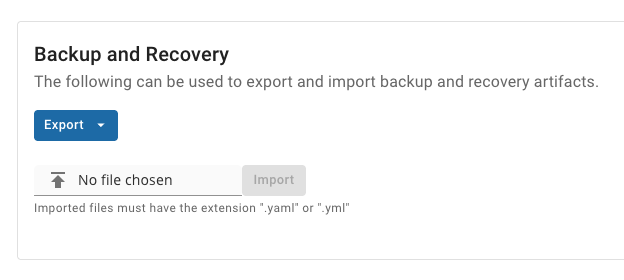
For detailed backup instructions, see the backup section of our upgrade guide.
2. Check for custom configuration
The backup file covers everything configured through the web admin interface. Two places live outside the backup file, so check them before you migrate:
Custom application properties — if you (or our support team) ever customized
/opt/sftpgw/application.properties (custom ports, timeouts, upload tuning, CORS restrictions,
etc.), those changes must be re-applied manually on the new instance. SSH in and review the file:
ssh -i <your-key.pem> -p 2222 ec2-user@<professional-instance-ip>
cat /opt/sftpgw/application.properties
See our Application Properties reference for what each property does.
Custom SSL certificates — if you installed your own SSL certificate for the web admin
interface, the certificate and nginx configuration are not part of the backup. Check
/etc/nginx/conf.d/website.conf for certificate paths, and copy the certificate, key, and any
customized configuration over to the new instance.
Note: To keep SFTP clients from seeing a host-key warning after cutover, you can also copy the SSH host keys (
/opt/sftpgw/ssh_host*) from the old instance to the new one. See our host key migration guide for the procedure.
3. Deploy a new BYOL instance
Deploy a fresh instance from the SFTP Gateway (BYOL) listing — subscribing is free, and the CloudFormation flow is the same one you know from Professional. See Getting Started with SFTP Gateway for a full walkthrough.
4. Restore your backup and license the new instance
- Sign in to the new instance's web admin interface.
- Start your 30-day free trial (or activate a purchased license) when prompted.
- Navigate to Settings > Backup and Recovery, choose your backup file, and click Import.
- Re-apply any custom
application.propertiesvalues or SSL certificates from step 2.
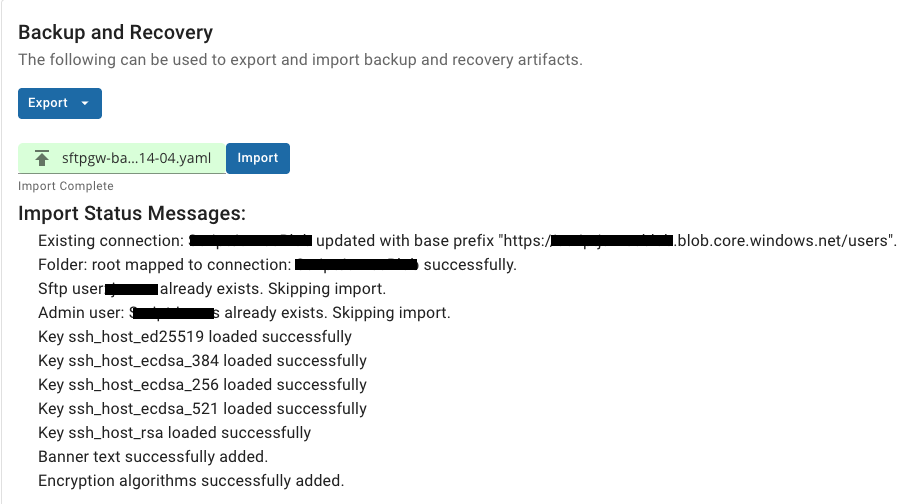
For detailed restore instructions, see the restore section of our upgrade guide.
5. Cut over and decommission
- Point your SFTP clients at the new instance — see our IP migration guide to move an Elastic IP so clients don't need to change anything.
- Verify users can connect and files land in your S3 bucket.
- Once you're confident, terminate the old Professional instance and cancel the Professional subscription in AWS Marketplace → Manage subscriptions — the hourly software fee stops accruing only when the subscription has no running instances.
Need help?
If you have questions about licensing or pricing, book a call with our Sales team or email sales@thorntech.com. For hands-on help with a migration, contact support@thorntech.com.